
Overview
The Form Builder lets you create customized forms directly in Apollo, then share them using an Apollo-hosted link or embed them on your website. Your team can enrich form submissions, route prospects, and automate follow-up through workflows. This helps your team respond quickly to high-intent prospects and spend less time cleaning up incomplete prospect data. When prospects enter their email address, Apollo can auto-fill known fields, saving them time and increasing conversion rates.
If you want to enrich forms created on another platform instead of using Apollo’s Form Builder, refer to Use Form Enrichment to Capture More Leads with Deeper Insights.
Check out the following sections to create and use forms in Apollo.
Create a Form
To create a form:
- Launch Apollo, then click Forms > Create form > Create new website form.
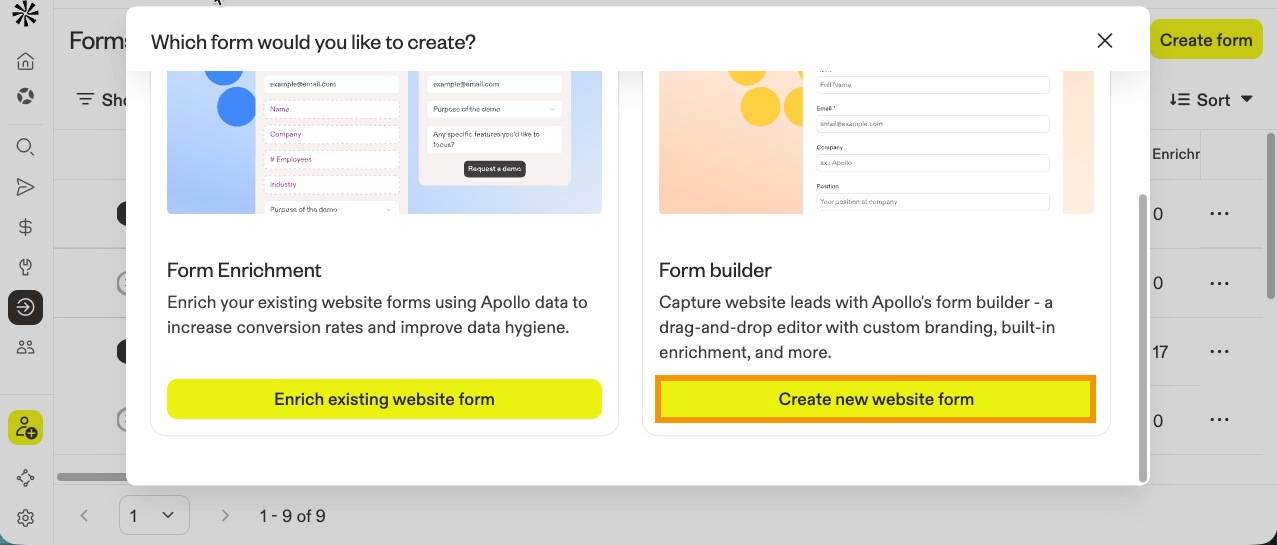
- Add a field. Choose from the following field types:
Contact Details
Collect prospect information and map to Apollo fields. The following contact detail fields are available:
- Name: A text field for a prospect's name. This field is automatically mapped to Apollo's name field.
- Email: A field for an email address. This field is automatically added to the form.
- Phone: A field for phone numbers. This field is automatically mapped to Apollo's phone number field.
- Address: A field for a prospect's address.
Essentials
Essentials are general-purpose form elements you can use to add structure and collect freeform data. The following essential form elements are available:
- Heading: Adds a text heading to your form. Use it to label sections or introduce a group of related fields.
- Paragraph: Adds a block of static text. Use it to provide instructions, context, or disclaimers to prospects, such as informing website visitors how their information will be used or obtaining consent to sending marketing communications.
- Text input: Collects a single-line text response from the prospect. Use it for custom data that doesn't map to a standard Apollo field.
- Number input: Collects numerical input only. Use it for data like team size, budget range, or other numerical values.
You can use text input and number input fields to collect information beyond standard contact details such as name, phone, or address. These elements can capture any custom data you want.
Choice
Choice fields let prospects select from predefined options you configure. The following choice fields are available:
- Single-select: Allows prospects to select one option from a dropdown.
- Multi-select: Allows prospects to select multiple options from a dropdown.
- Toggle: Allows prospects to toggle between an on/off option.
- Checkbox: Allows prospects to select one or more options from checkboxes. You can display options vertically or horizontally.
- Radio buttons: Allows prospects to select one option from radio buttons. You can display options vertically or horizontally.
- Enter a field label and placeholder text.
- (Optional) For Choice-type fields, click Add option, or click Remove to delete an option.
- Click Map to Apollo field to map the form field to an Apollo field, then choose a field from the dropdown.
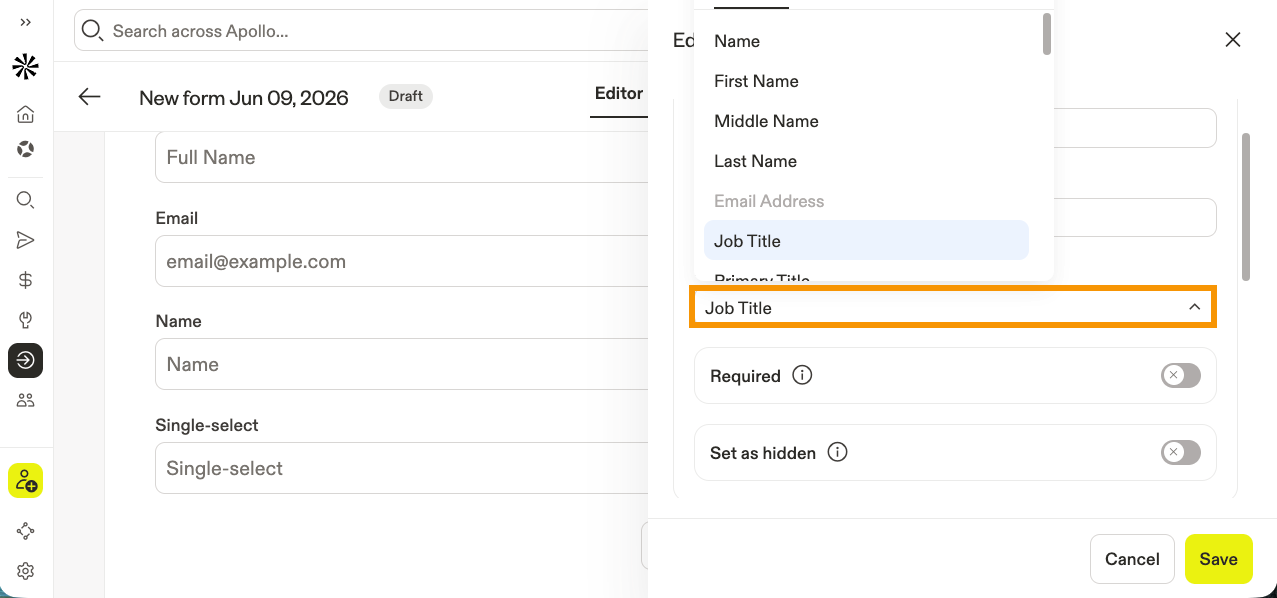
You can map form fields to custom fields in Apollo. If needed, create a custom contact or company field before mapping. You can also map these fields to your connected CRM such as HubSpot, Salesforce, or Pipedrive, to keep data in sync and automatically up to date.
- (Optional) Click Required to make the field mandatory.
- (Optional) Click Set as hidden to hide the field.
- Enter a URL query parameter where Apollo pulls the values from.
- Set a default value if the URL query parameter is unavailable.
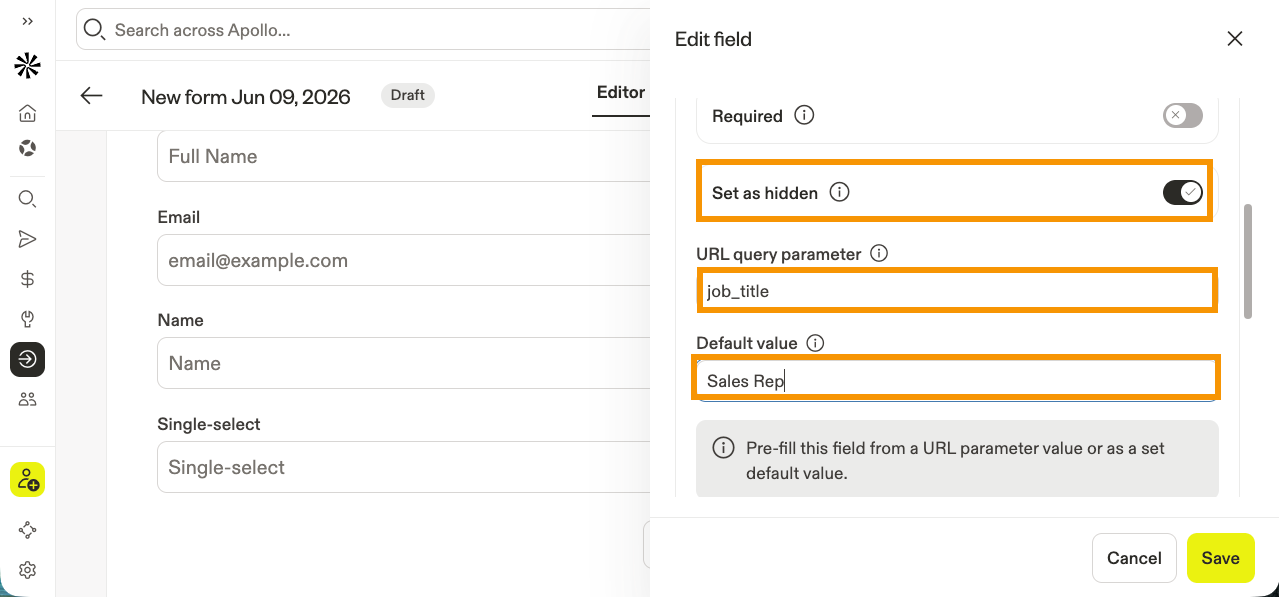
- (Optional) Toggle on Auto-fill form fields to automatically fill the field with known information when prospects enter their email address. This overrides the global setting. When disabled, this also disables Hide known fields.
- (Optional) Toggle on Hide known fields to hide fields with known information when prospects enter their email address. This overrides the global setting.
- When finished, click Save.
- (Optional) Hover over a field, then click and drag ⋮⋮ to rearrange the fields.
- (Optional) Click Design to customize your form to match your branding. You can adjust elements such as font style, border radius, padding, button alignment, and form and text colors.
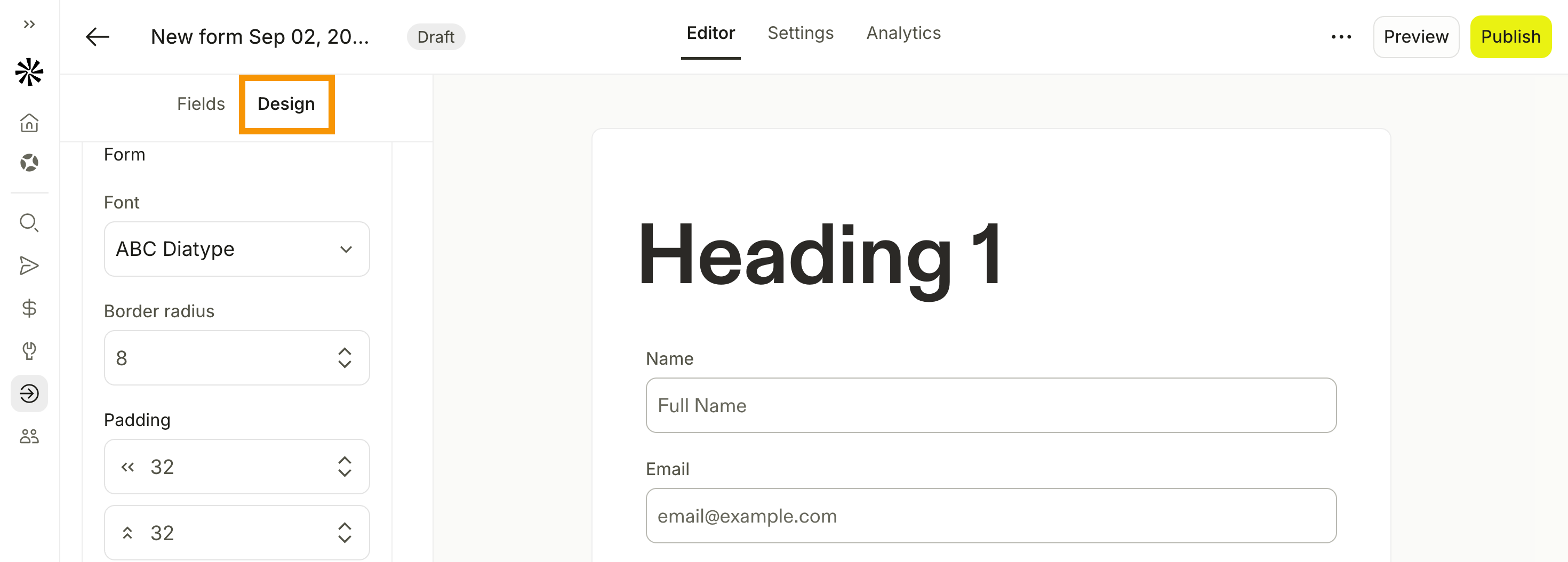
- Click Settings to configure the following options:
Name
Enter a name for your form.
General
- Block enrichment from free email domain providers: Restrict form enrichment to only allow company emails. Use this as a security measure or to hone in on a specific ideal customer profile.
- Allowed domains: Specific domains that can access the form. Only visitors from these domains can fill out the form.
Enrichment
- Contact enrichment: Automatically enrich missing or outdated emails. Apollo charges credits when verified emails are found. Toggle on Find data via Waterfall Enrichment to use waterfall enrichment.
- Phone number enrichment: If available, Apollo automatically adds a phone number to the saved contact in Apollo. Make sure the form includes a phone field.
- Limit credit usage: Limit the number of credits the form uses to avoid depleting your credits for your preferred timeframe.
- Block enrichment from free email domain providers: Apollo enriches only email addresses with company domains.
- Form auto-fill: When a contact enters their email address, Apollo auto-fills known fields with Apollo data in real time, saving the prospect time and effort.
- Form shortening: With auto-fill enabled, hide known fields to shorten a form by hiding fields for which Apollo already has data. Only fields not matched with Apollo data appear, saving the prospect time and effort.
- Preserve visitor input: Apollo fills only empty fields, helping preserve visitor-provided data while enriching incomplete fields.
Still on the fence about auto-filling your fields? Check out Use Case: Auto-fill Web Forms Using Apollo's Data to see how it can boost conversions and save time.
- When finished, click Publish. Choose how you want to publish the form:
- Review the form's domain and enrichment settings. Enter the domain where you'll embed the form. The domain must use the
https://format.
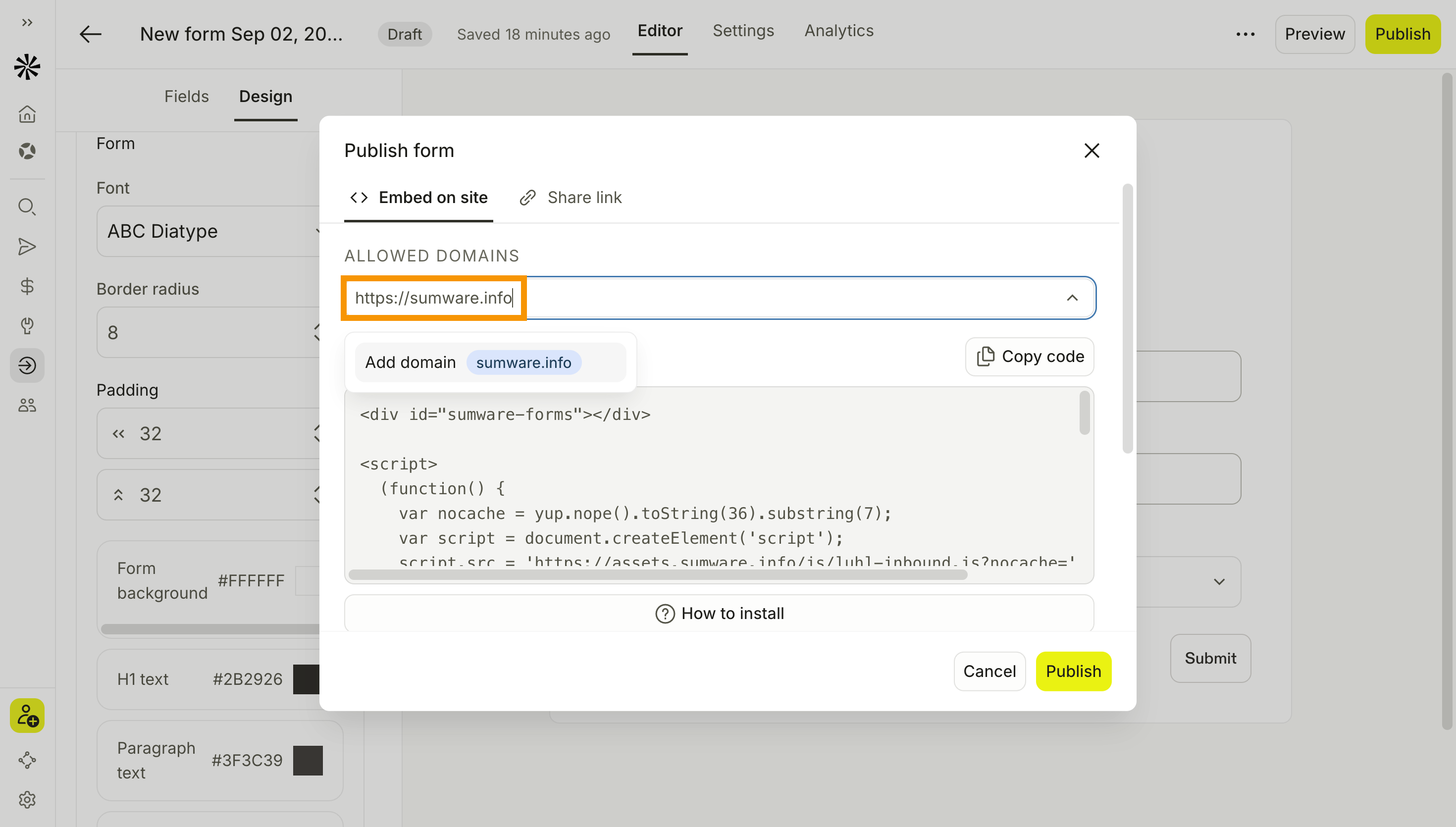
- Click Add domain.
- Click Copy code, then click Publish.
- Add the code to your website.
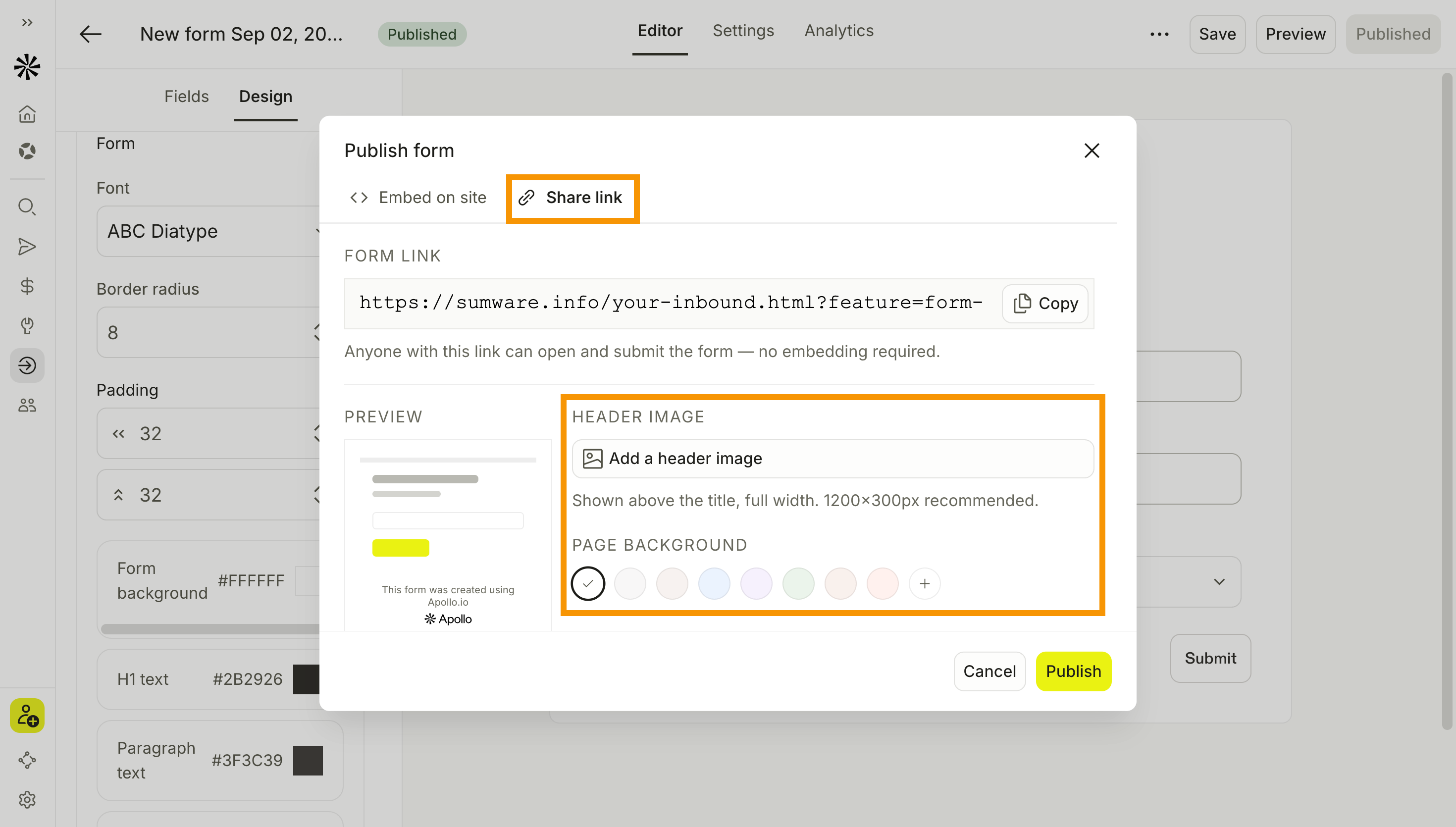
- Click Share link.
- (Optional) Click Add a header image to customize the Apollo-hosted page.
- (Optional) Select a page background preset or enter a custom six-digit hex color.
- Click Publish.
- Click Copy, then share the link with prospects.
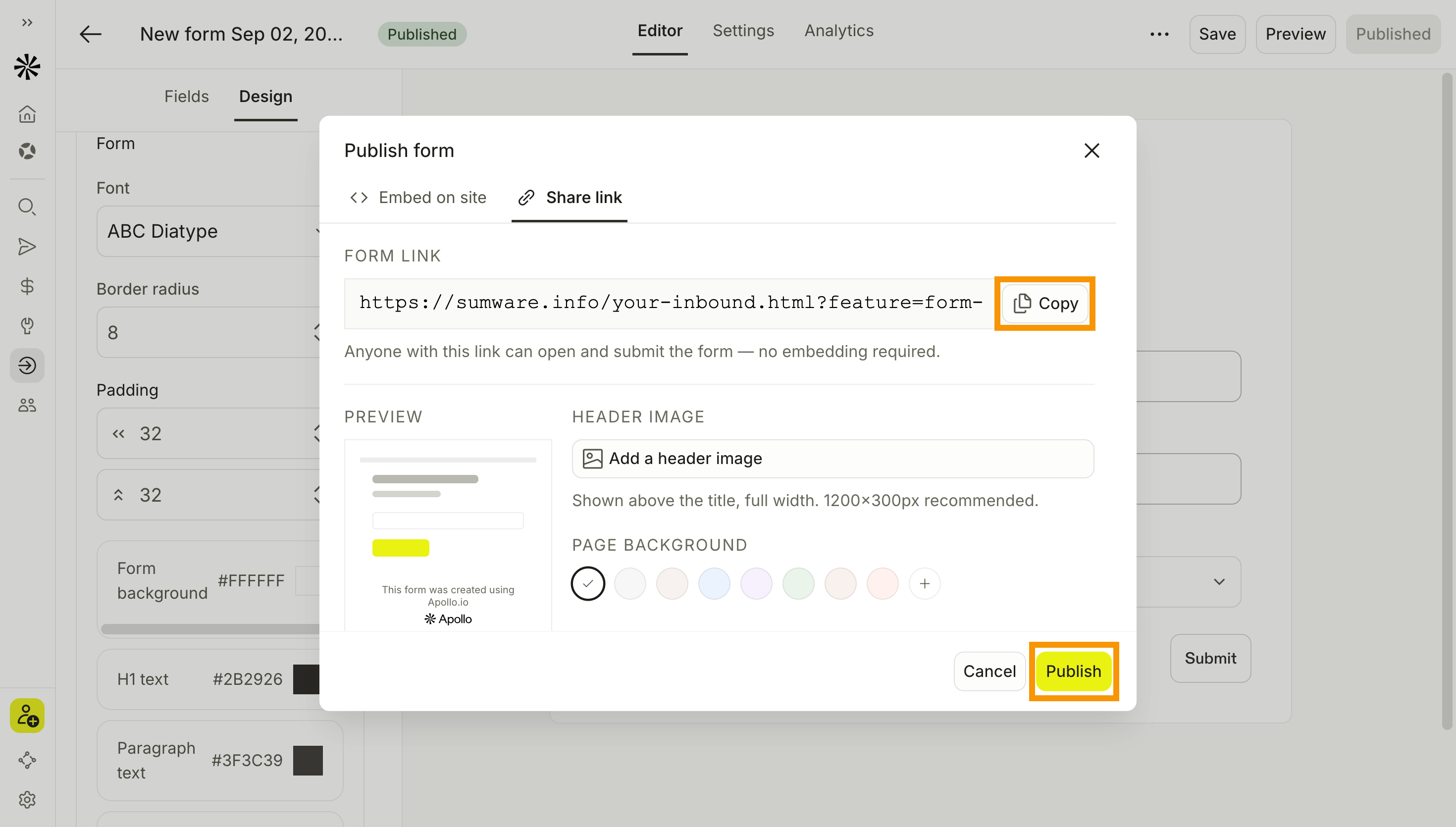
Header images can be PNG, JPEG, or WebP files up to 5 MB.
To access the link after publishing, go to Forms, click … for the form, then click Share link. You can copy the link or update the hosted form's appearance.
You've now created and published a form in Apollo.
When you use form enrichment on Apollo to collect personal data, you act as the data controller, which means you're responsible for complying with applicable data privacy laws like General Data Protection Regulation (GDPR) in the European Union, as well as various U.S. state privacy laws like the California Consumer Privacy Act (CCPA). It's your responsibility to ensure you obtain appropriate consent or have a lawful basis for collecting and processing personal data submitted through any forms you use. You're also responsible for ensuring you have the right to share any data with Apollo.
Use Form Builder with Workflows
Once your form is live, use the Form Submitted trigger in workflows to automate follow-up and help your team respond faster.
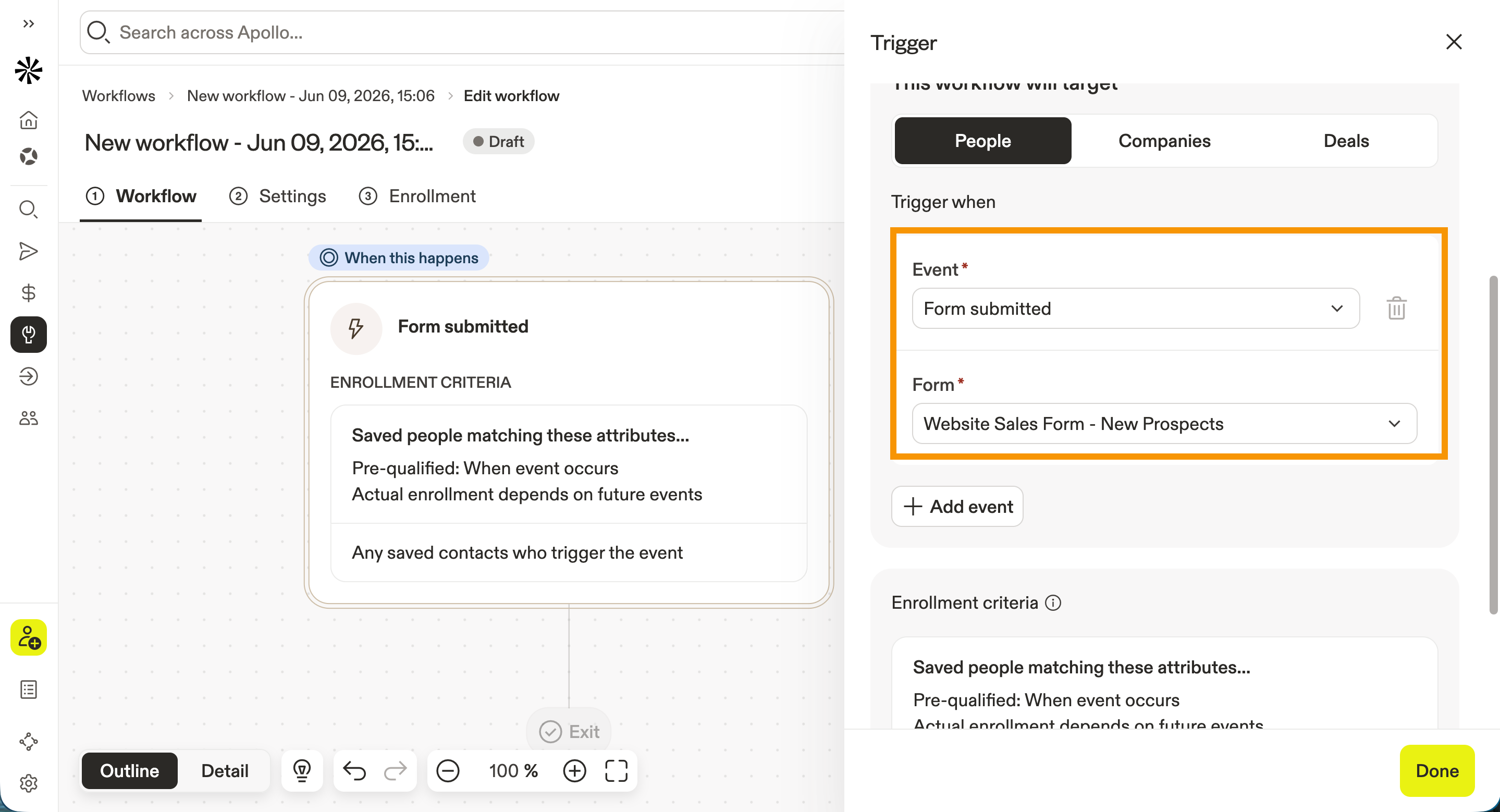
Check out Create a Workflow to get started.
Here are a few workflow suggestions to get you started:
| Workflow Automation | What It Does | Why It Matters |
|---|---|---|
| Add prospects to a sequence | Enroll form submitters in a relevant sequence based on the form they completed, their persona, company, or intent. | You can follow up immediately without manually enrolling prospects. This helps prevent missed opportunities and keeps outreach consistent. |
| Add prospects to a list | Automatically saves form submitters to a list. | You get an organized view of inbound prospects and can prioritize follow-up based on source, campaign, or buying intent. |
| Create a manual email task | Creates a task for the rep to send a personalized email after a prospect submits a form. | You can add human context where it matters most, especially for high-value prospects who shouldn't receive generic automated outreach. |
| Book a meeting with the prospect | Routes qualified form submitters to a scheduling flow or meeting booking step. | You can turn high-intent form submissions into meetings faster, reducing back-and-forth and improving speed-to-lead. |
| Send Slack notifications | Notifies the assigned rep or team when a prospect submits a form. Slack notifications can include key details like company, form type, campaign, and enrichment data. | You can act quickly while the prospect’s interest is fresh. This helps teams respond faster to high-intent prospects and avoid delays caused by manual monitoring. |
Next Steps
Now that your form is live, use these resources to turn submissions into faster follow-up and more pipeline.
| Inbound Overview | See how the pieces work together and connect Apollo's inbound tools to capture intent and convert high-interest prospects more efficiently. |
|---|---|
| Integrate Your Web Forms with Meetings | Ready to shorten the path from submission to conversation? Integrate your web forms with Meetings to let qualified prospects book time without unnecessary back-and-forth. |
| Create Inbound Routers for Your Meetings | Create inbound routers for your meetings to direct prospects to the right rep, meeting type, or destination based on their form responses. |
| Add Contacts to a Sequence | Keep new prospects moving by adding contacts to a sequence to begin timely, consistent outreach while their interest is fresh. |
| Troubleshoot Form Enrichment | Something not working as expected? Troubleshoot form enrichment to resolve common setup issues and keep complete prospect data flowing into Apollo. |