
Overview
A billing and seat manager is a free Apollo seat for team members who need access to administrative features without using Apollo for day-to-day sales activities. This type of seat is useful for leaders or operations team members who need to manage your Apollo account, billing, or users without prospecting or engaging with prospects themselves.
Billing and seat managers on Apollo can:
- Access billing and payment settings.
- Configure account settings and manage seats.
- Manage tracking subdomain and integration settings.
- Access system activity settings.
- View analytics and reporting to monitor team performance.
Billing and seat managers don't have access to Apollo's full sales functionality, including features like sequences and dialer. Instead, they can manage core administrative settings and view team performance.
Billing and seat manager seats are available to teams on organization plans at no additional cost. If your plan includes billing and seat manager seats, you can assign up to five team members to this type of seat. If you need access to billing and seat managers, upgrade your plan. If you have questions about upgrading, reach out to the sales team.
Check out the following sections to invite billing and seat managers to your Apollo workspace.
Add a Billing and Seat Manager
Only admin on Apollo can invite, edit, assign, and deactivate billing and seat manager users.
To add a billing and seat manager to your Apollo workspace:
- Launch Apollo and go to Settings > Users.
- Click New user.
- Under Set permission profile, select Billing and seat manager. Enter the email addresses of the users you want to invite, then click Send Invites.
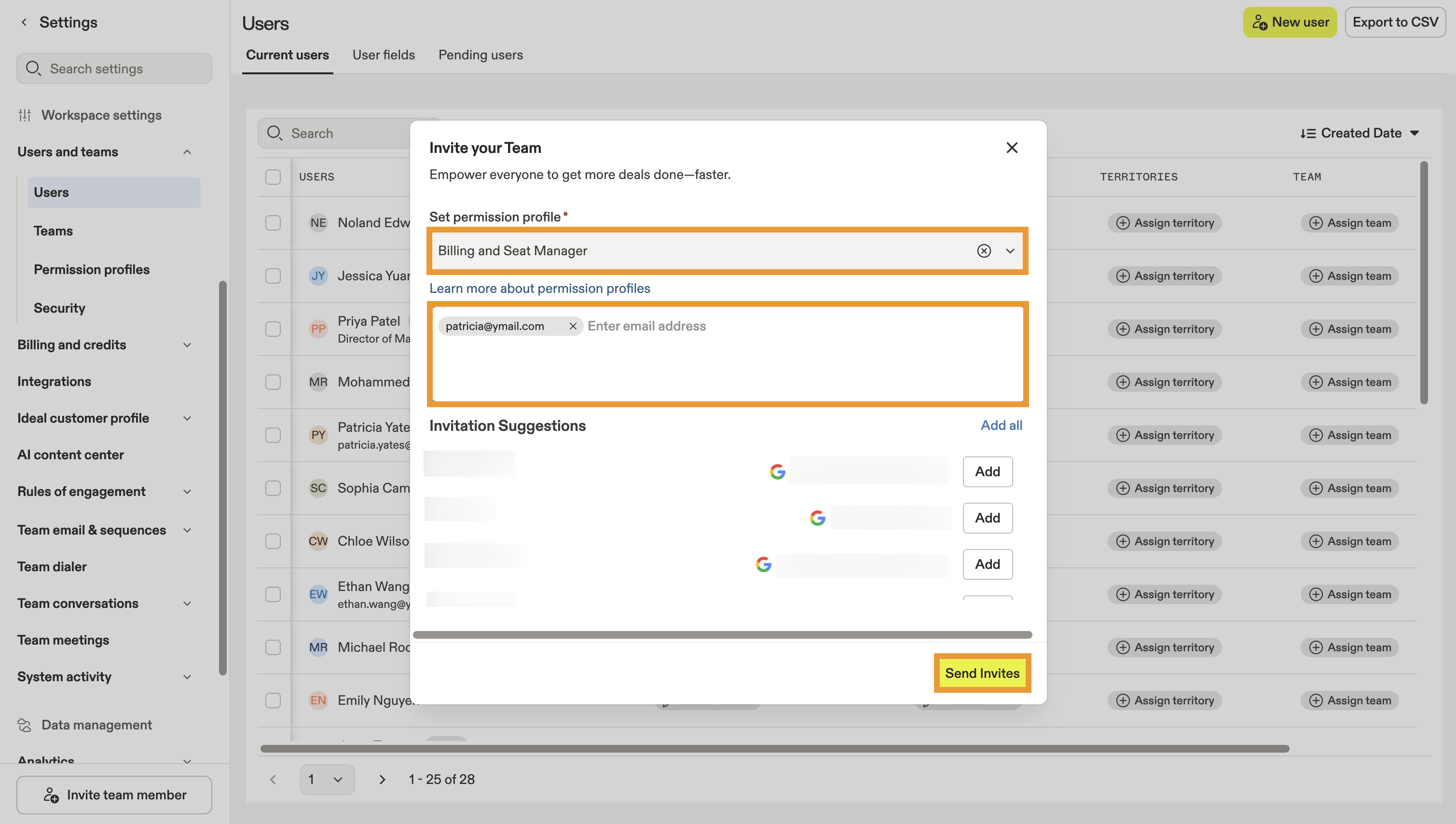
- Apollo sends each user an invitation by email. When they click Log in, they can finish account setup and use Apollo as a billing and seat manager.
You have now created a billing and seat manager.
Tip: You can also assign an existing user as a billing and seat manager. Go to Settings > Users. Select one or more people, then click Edit permission profile to assign them as a billing and seat manager.
If you need to change someone from a billing and seat manager to another permission type, follow the same flow.
To deactivate a user, check out Add and Manage Users.
While you can add and remove users as billing and seat managers, remember:
- If you change a full Apollo user into a billing and seat manager, that user loses paid access to the full Apollo suite. Apollo frees up their paid seat, and you can then invite another person to take their place. You should only continue with the downgrade if you agree with the seat change.
- If you change a billing and seat manager into a full Apollo user when you don't have any available seats remaining on your plan, Apollo charges you for the extra seat. Apollo warns you of the purchase and confirms the cost. You should only continue with the upgrade if you agree with the seat change.
- If you change a billing and seat manager into a full Apollo user when you have available seats in your plan, Apollo upgrades the user to full access at no extra cost. Apollo warns you of the seat consumption. You should only continue with the upgrade if you agree with the seat change.
- If you deactivate a billing and seat manager, no changes to your billing occur. You free up a billing and seat manager seat and can invite another team member to replace them as a billing and seat manager.
Use Apollo as a Billing and Seat Manager
As a billing and seat manager, you can manage your team's core administrative settings and view performance in Apollo without taking up a paid seat.
| Feature | What you can do |
|---|---|
| Admin and billing settings | Manage billing and payment information, seats, and other account settings. |
| Tracking subdomain | Access and configure tracking subdomain settings. |
| Integrations | Access and manage integration settings. |
| System activity | Access system activity settings. |
| Apollo homepage | Access Apollo Home. |
| Analytics and reporting | View analytics and reports to monitor your team's performance. |
| Prospecting | Billing and seat managers don't have access to Apollo's prospecting tools. |
| Engagement | Billing and seat managers don't have access to Apollo's engagement tools. |
Billing and seat managers can edit settings for Salesforce, HubSpot, and Pipedrive integrations, but they can't update records synced from these CRMs. Don't use a billing and seat manager to authenticate your CRM integration or as your organization's team sync credentials user, as this may prevent Apollo from syncing records properly.
Instead, ask an Apollo admin to authenticate the integration and configure team sync. Learn more about team sync authentication for Salesforce, HubSpot, or Pipedrive.
If you need full access to Apollo's prospecting and engagement functionality, like sequences, dialer, workflows, or the AI assistant, ask an admin to upgrade your seat.
Next Steps
Keep your workspace organized with these resources for managing users, permissions, billing, and team performance.
| Add and Manage Users | Add, manage, and deactivate users to keep your Apollo workspace aligned as your team and seat needs change. |
|---|---|
| Create and Assign Permission Profiles | Create and assign permission profiles to control what different members of your team can access and manage in Apollo. |
| Manage Your Billing Information in Apollo | Manage your billing information to keep payment details and other account billing settings up to date. |
| Admin Settings Overview | Configure admin settings to manage the workspace-level controls that keep your team's Apollo setup running smoothly. |
| Analytics Overview | Track your team's performance to understand activity and results across Apollo without needing day-to-day prospecting access. |