
Overview
Deals help you track sales opportunities with prospects. Once you create a deal, you can manage the deal across its lifetime and oversee your entire sales pipeline directly within Apollo.
This feature requires permission to view and access deals. If you don’t see deals, you may not have the necessary permissions. Contact an Apollo admin on your team and ask them to grant access to deals data.
The following sections show how you can access, update, and export your deals.
Access Deals
To access and review your deals:
- Launch Apollo and click Deals.
- By default, your deals are arranged in a table view and ordered chronologically by creation date. Click a column header to sort deals, edit column fields, or reorganize column positions.

- Find specific deals by applying filters or saved search views. For example, you can filter by pipeline, deal stage, company, created date, and more.
Check out Save and Share Search Views to learn how to saved filtered searches in Apollo. This helps your team access specific search results more quickly while prospecting or managing deals.
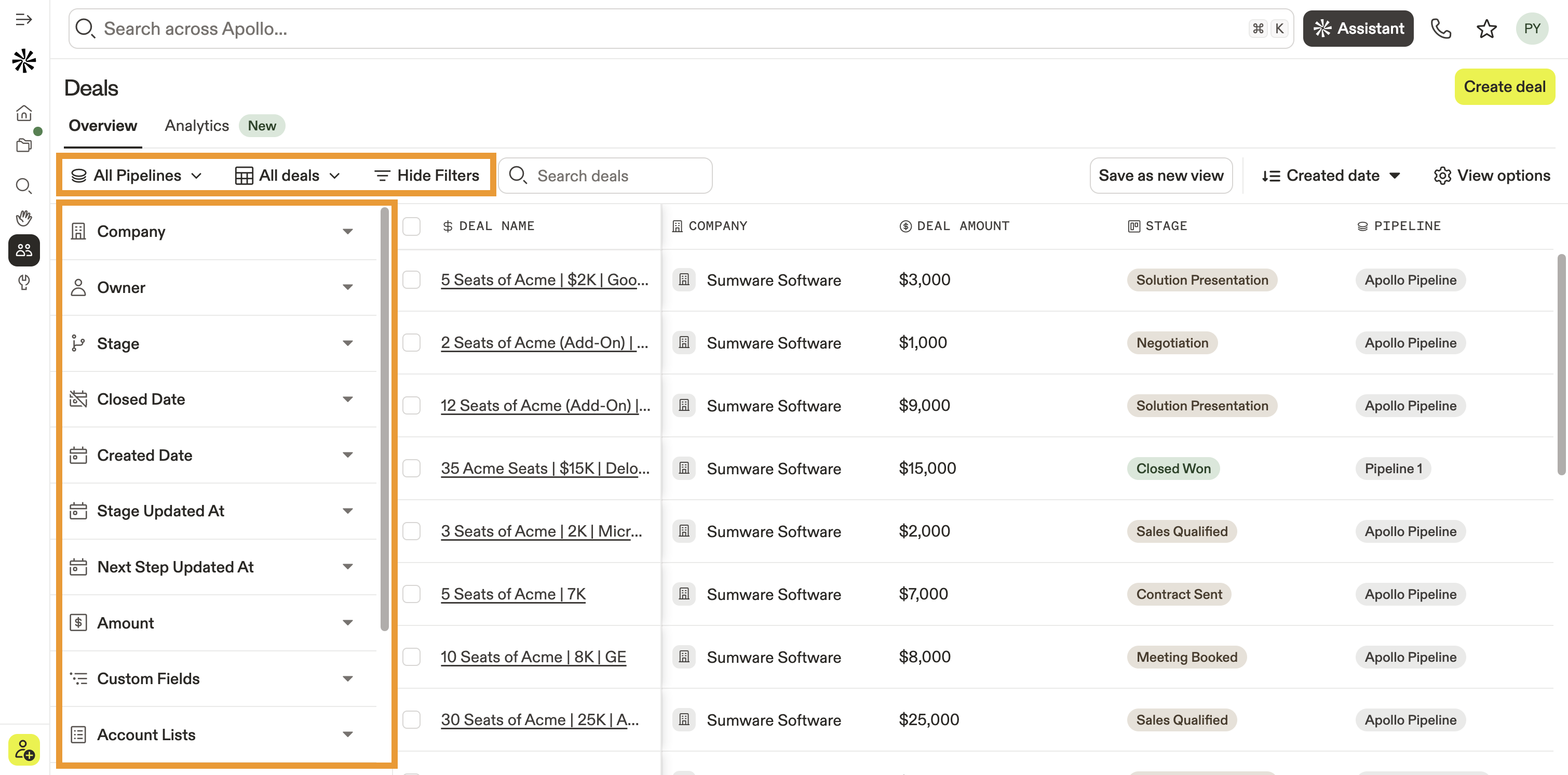
- Click View options to customize your deals page layout. You can switch between table or kanban board and add or remove fields from your layout.
Check out Customize Your Search View Layout to learn how you can update the Deals page layout to fit your team's needs.

Manage Deals
You can review and edit individual deals at any time via the deal profile. To do this:
- Launch Apollo and click Deals.
- Click on a deal to open its profile page.
- Review deal details in the left panel, including general deal information, account record details, contacts, tasks, and notes.

- Next, review deal activities to keep track of your team's progress on this deal, including calls, emails, and meetings.

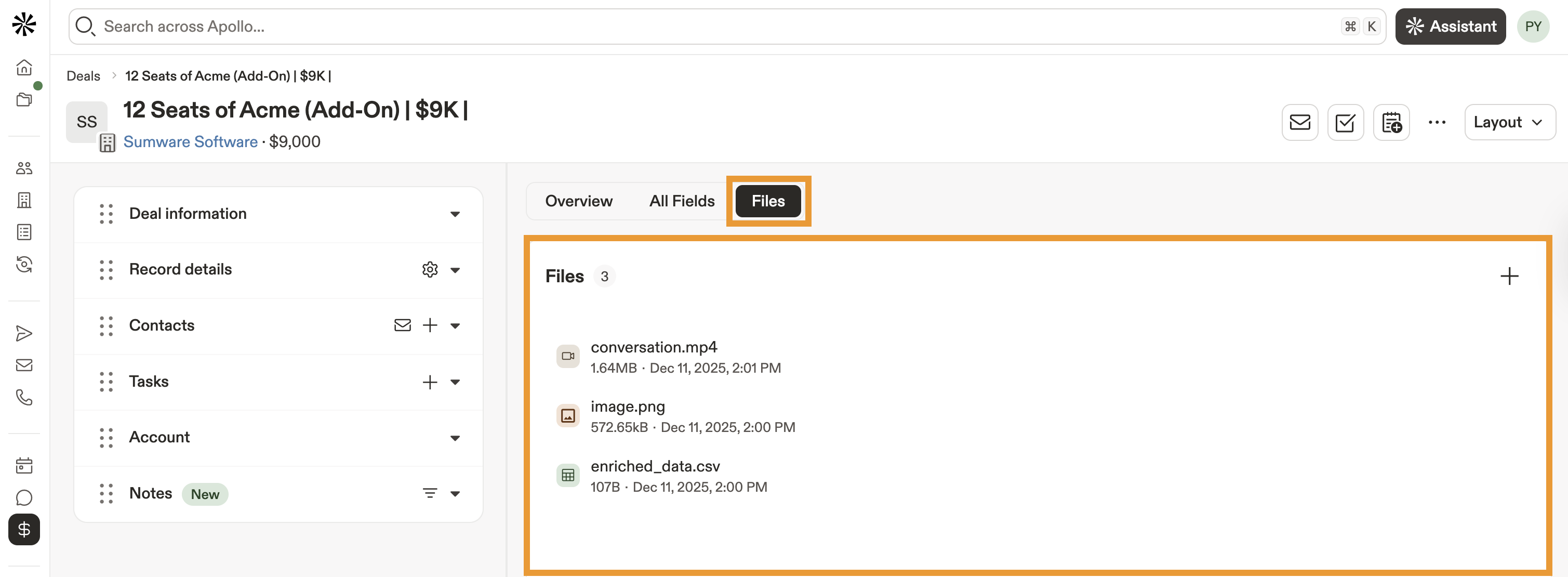
- Use the files tab to attach files directly to a deal profile and store relevant information for later use. Drag and drop a file into the files tab, or click Upload file to browse all files on your local computer.
Your file attachments are organized by upload date. Click + to attach additional files. Click ... to rename, download, or delete a file.
You can attach most document, image, audio, and video file formats, including .pdf, .csv, .jpg, .png, and .mp4. The maximum size per file is 100MB.
File attachments are available to paid Apollo plans only. File storage limits apply per team and depend on your Apollo plan:
- Basic: 10GB
- Professional: 50GB
- Organization/Custom: 100GB
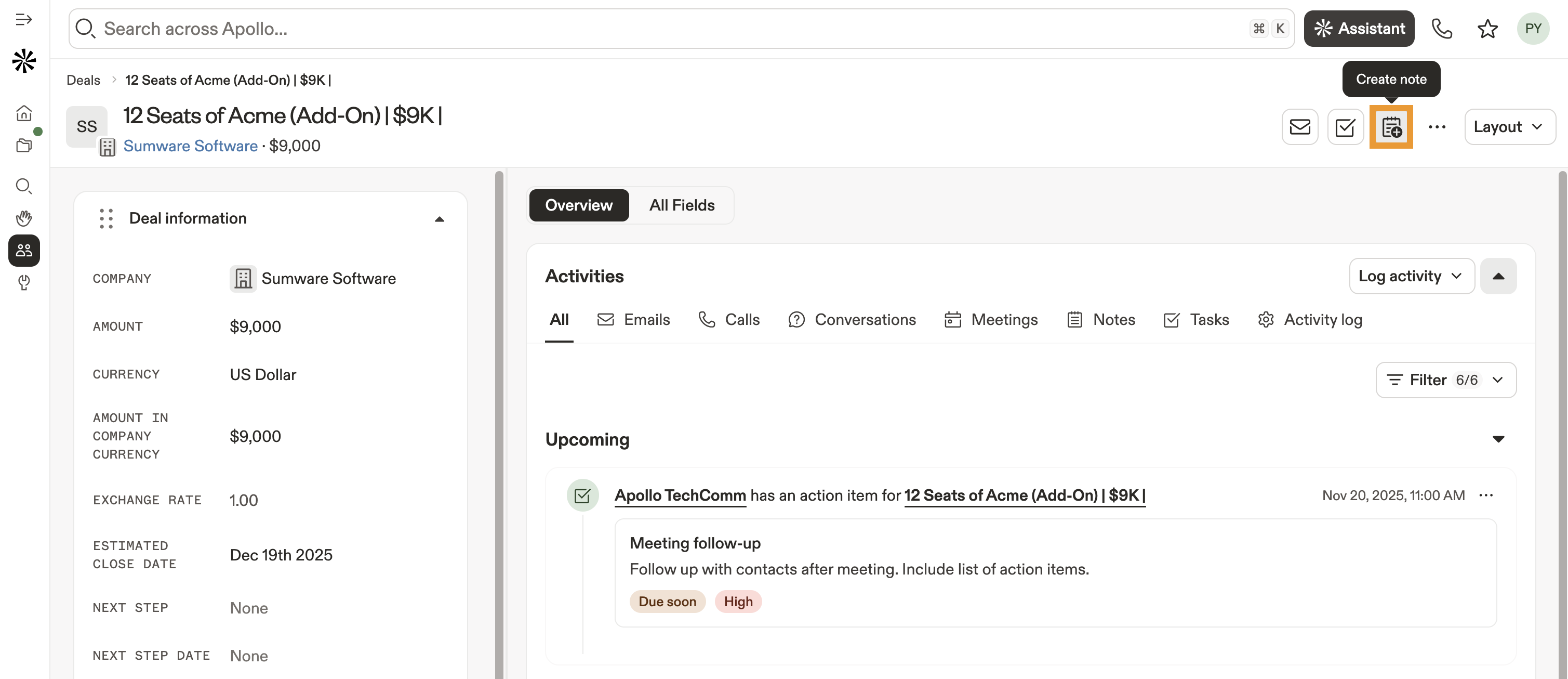
- Click Email all contacts to send a message to the contacts associated with this deal. You can use the AI writing assistant to help you generate your email content and personalize messaging for your leads.

- Click Create task to add a follow-up task or action item for this deal.

- Click Create note to leave a note about the current status of this deal or your interactions with a company. Use the Associate note to records fields to attach this note to specific meetings, conversations, or contacts.
- Click ... > Delete deal to remove a deal from Apollo.

Export Deals via CSV
You can export your deals data in Apollo to a CSV file. To do this:
- Launch Apollo and click Deals.
- Use the checkboxes to select one or more deals.
- Click Export.

- Click Edit export CSV settings to manage your deal export fields in Settings > CSV Export Settings.
- Click View export history to review a log of all previous deals exports completed by your team.
- Click Export records to start the export process.

- Click Download to download your CSV file when it's ready.

Next Steps
Ready to learn more about deals in Apollo? Check out these additional resources to keep your momentum going.
| Deals Overview | Explore the Deals Overview to understand the big picture before diving into deals in Apollo. |
|---|---|
| Set Up Deals | If you're an admin, learn how to lay the groundwork for your sales process by setting up your deal pipelines and stages to keep every opportunity moving smoothly. |
| Create a Deal | Take action fast by creating new deals to capture every new opportunity in seconds. |
| Import a CSV of Deals | Quickly get your existing opportunities into Apollo when you import a CSV of deals to centralize your entire pipeline in one place. |
| Report on Deals | Track your team’s progress and spot revenue trends by reporting on deals to measure what’s working and what needs attention. |