
Overview
Use notes on Apollo to capture important details on your prospects, accounts, meetings, and deals. Record insights, track activity, tag teammates, and keep everything — and everyone — aligned as you move opportunities through the pipeline.
Check out the following sections to get started with notes.
Create a Note
Did you know? Type @ followed by a name to tag teammates on a note. They receive an email notification about the mention.
To create a note, navigate to a contact, account, meeting, or deal:
You can only add notes to people saved as contacts on Apollo. If you want to add notes to net-new prospects, save them as contacts first.
- Launch Apollo and click People > Saved.
- Select a contact.
- Scroll to Notes, and click Add note.
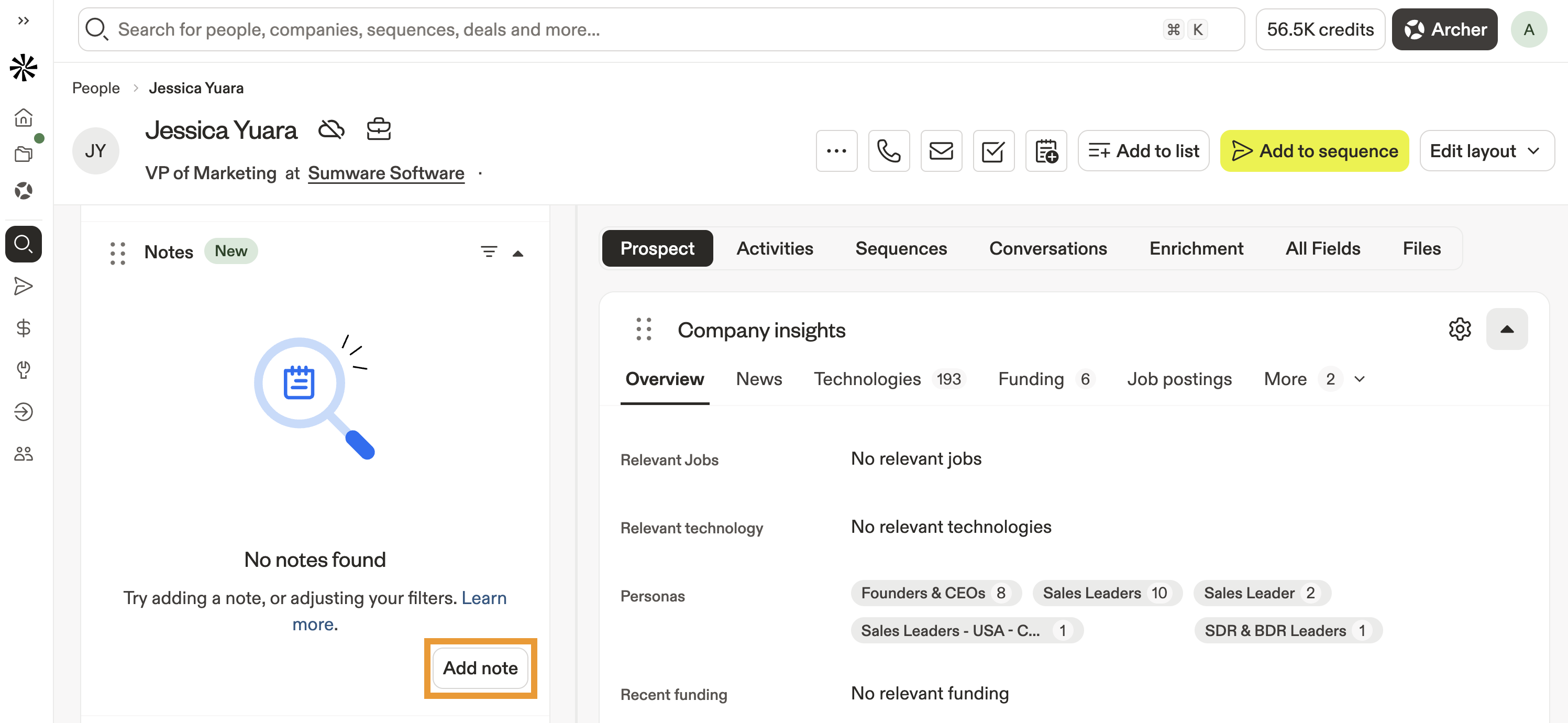
- Enter a title, then add and style your note.
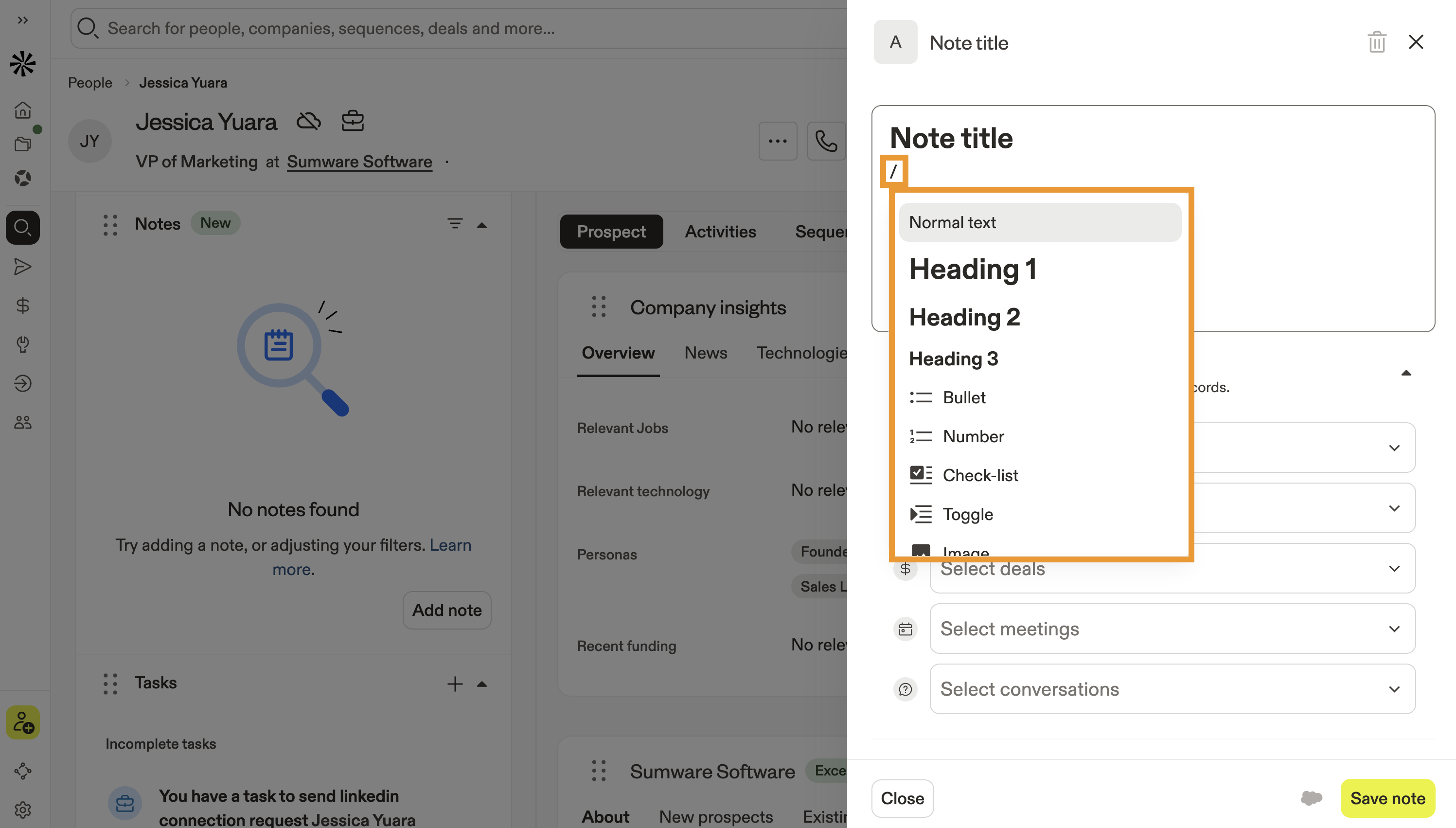
- Type
/to format your text. Alternatively, highlight some text then use the text formatting options.
- (Recommended) Select a record to associate with your note, such as an account, deal, meeting, or conversation. This makes your note easily accessible across surfaces involving the contact on Apollo.
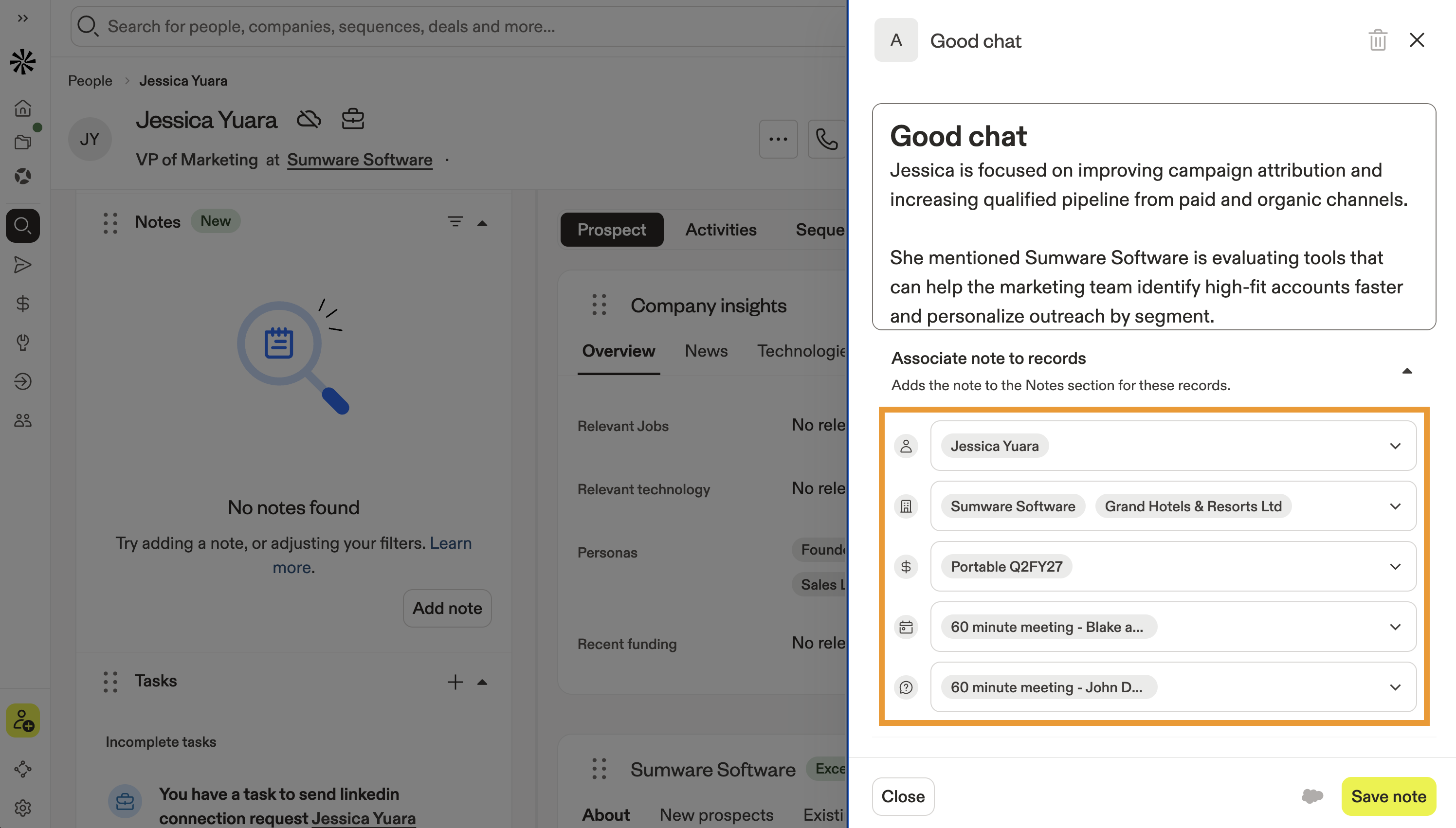
- When finished, click Save note.
You have now added a note to a contact.
You can only add notes to companies saved as accounts on Apollo. If you want to add notes to net-new companies, save them as accounts first.
- Launch Apollo and click Companies > Saved.
- Select an account.
- Scroll to Notes, and click Add note.
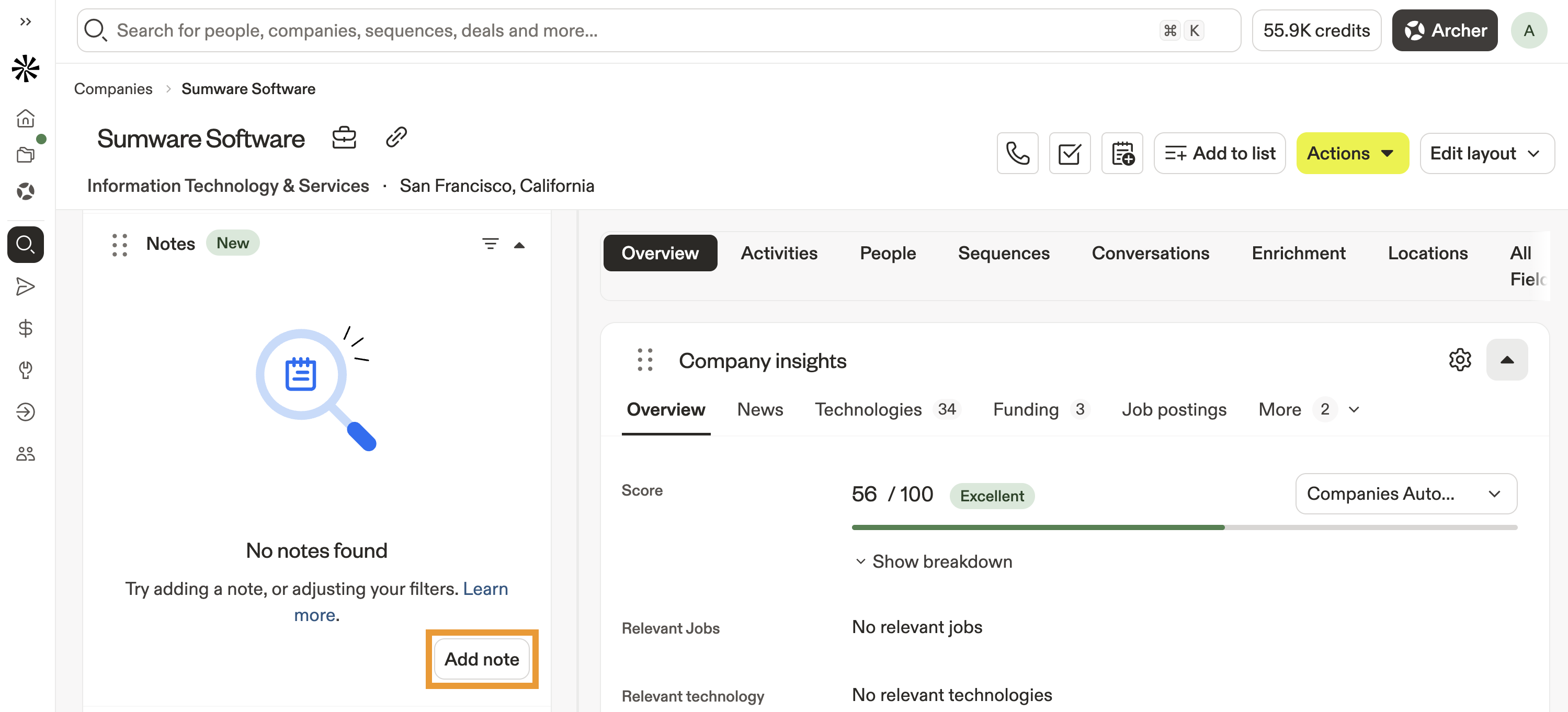
- Enter a title, then add and style your note.
- Type
/to format your text. Alternatively, highlight some text then use the text formatting options. - (Recommended) Select a record to associate with your note, such as a contact, deal, meeting, or conversation. This makes your note easily accessible across surfaces involving the account on Apollo.
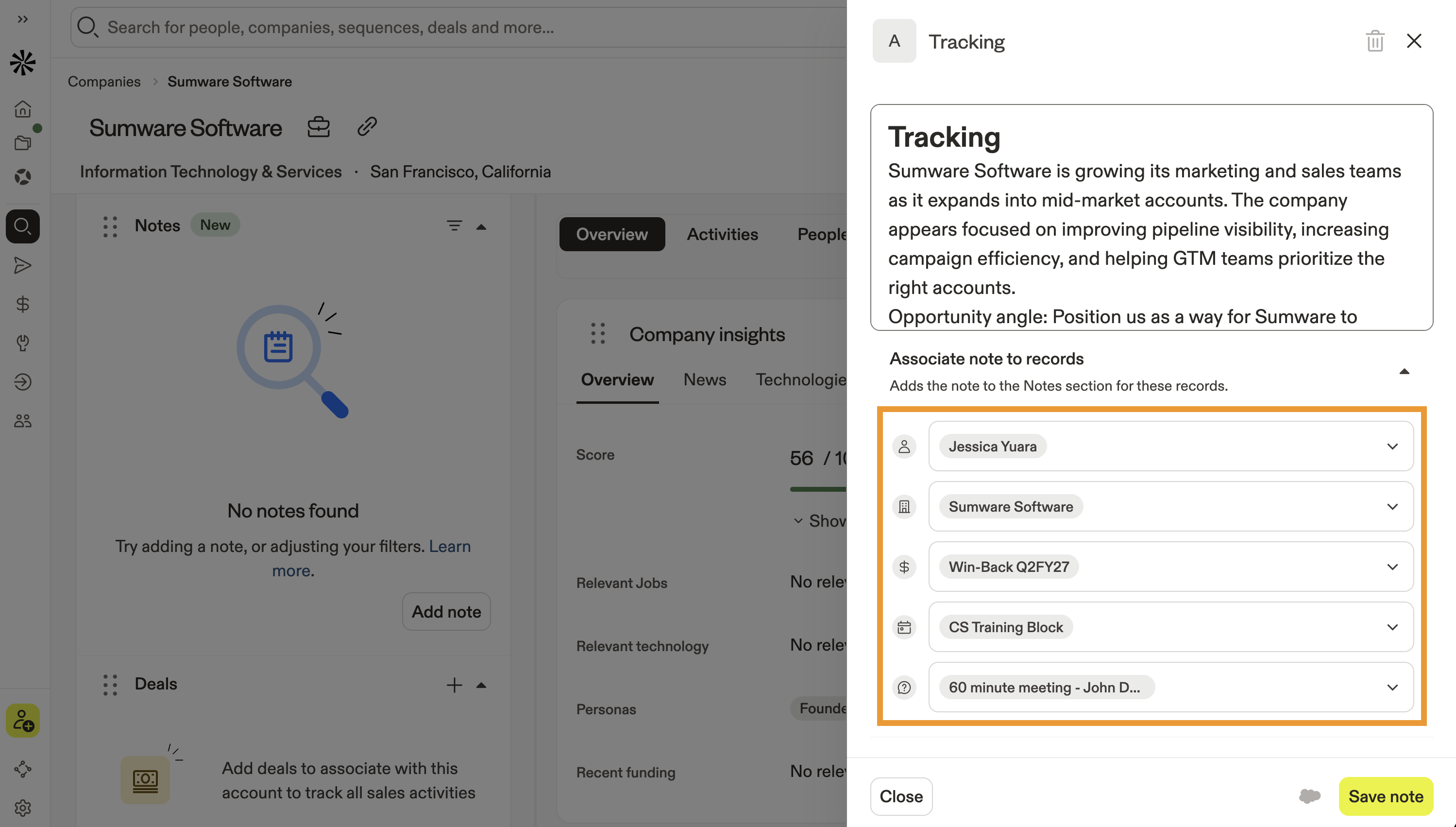
- When finished, click Save note.
You have now added a note to an account.
- Launch Apollo and click Meetings.
- Select a meeting.
- Scroll to Notes, and click Add note.
- Enter a title, then add and style your note.
- Type
/to format your text. Alternatively, highlight some text then use the text formatting options. - (Recommended) Select a record to associate with your note, such as an account, deal, contact, or conversation. This makes your note easily accessible across surfaces involving the meeting on Apollo.
- When finished, click Save note.
You have now added a note to a meeting.
- Launch Apollo and click Deals.
- Select a deal.
- Scroll to Notes, and click Add note.
- Enter a title, then add and style your note.
- Type
/to format your text. Alternatively, highlight some text then use the text formatting options. - (Recommended) Select a record to associate with your note, such as an account, contact, meeting, or conversation. This makes your note easily accessible across surfaces involving the deal on Apollo.
- When finished, click Save note.
You have now added a note to a deal.
FAQs
Frequently asked questions |
||
| How do I create a note? | How do I tag someone in a note? | How do I style the text in my note? |
| How do I edit or delete a note? | How do I associate a note with a deal or meeting? | Can I export notes? |
How do I tag someone in a note?
To tag someone in a note, type @, then type or select their name from the list.
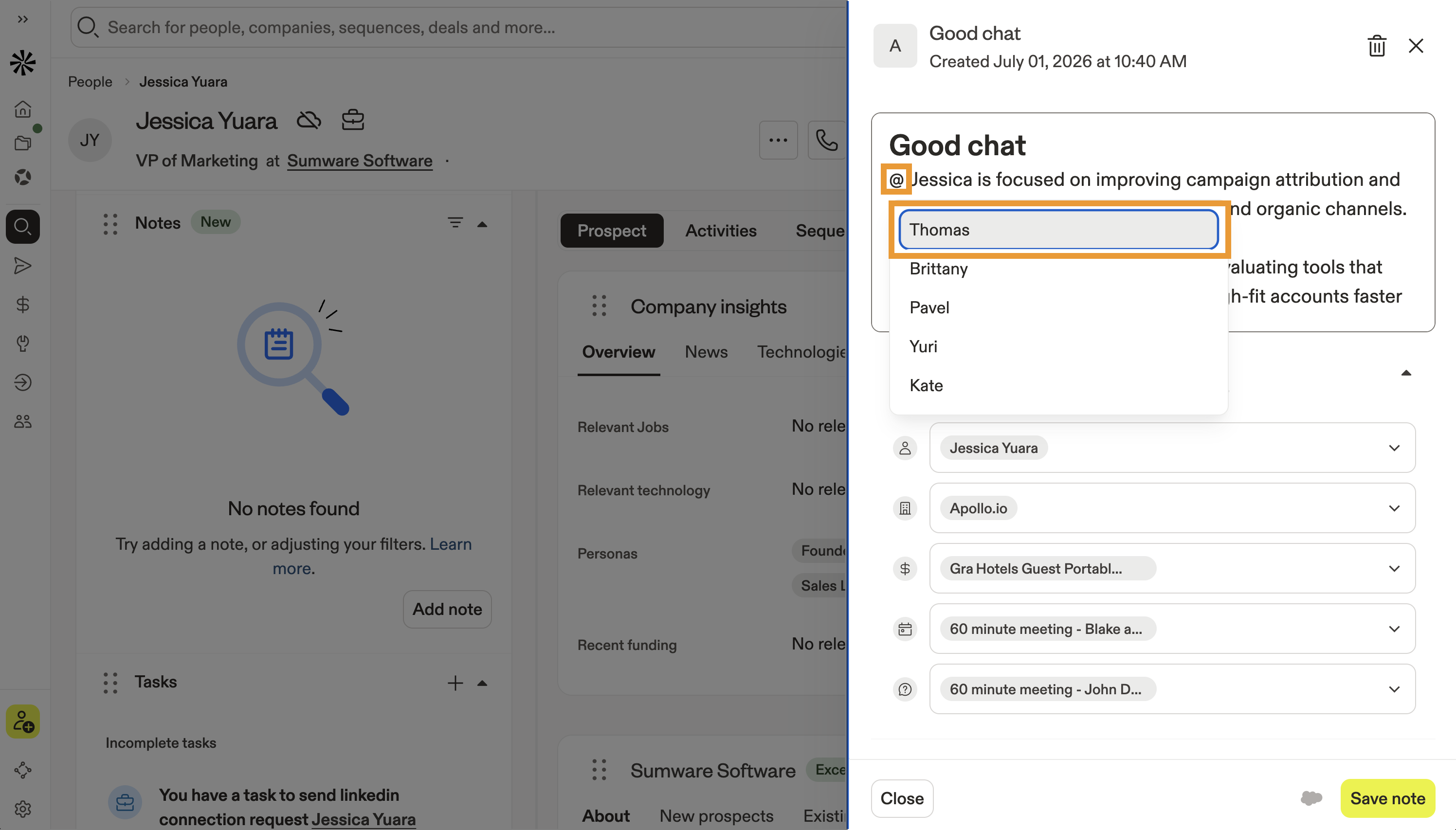
When you tag someone in a note, Apollo sends an email notification to the address associated with their Apollo account.
How do I style the text in my note?
To style your text:
- Create a note and type
/to format text as you write.
- Alternatively, highlight some words and use the formatting options to add bold, italics, underlining, strikethrough, numbered or ordered lists, or links.
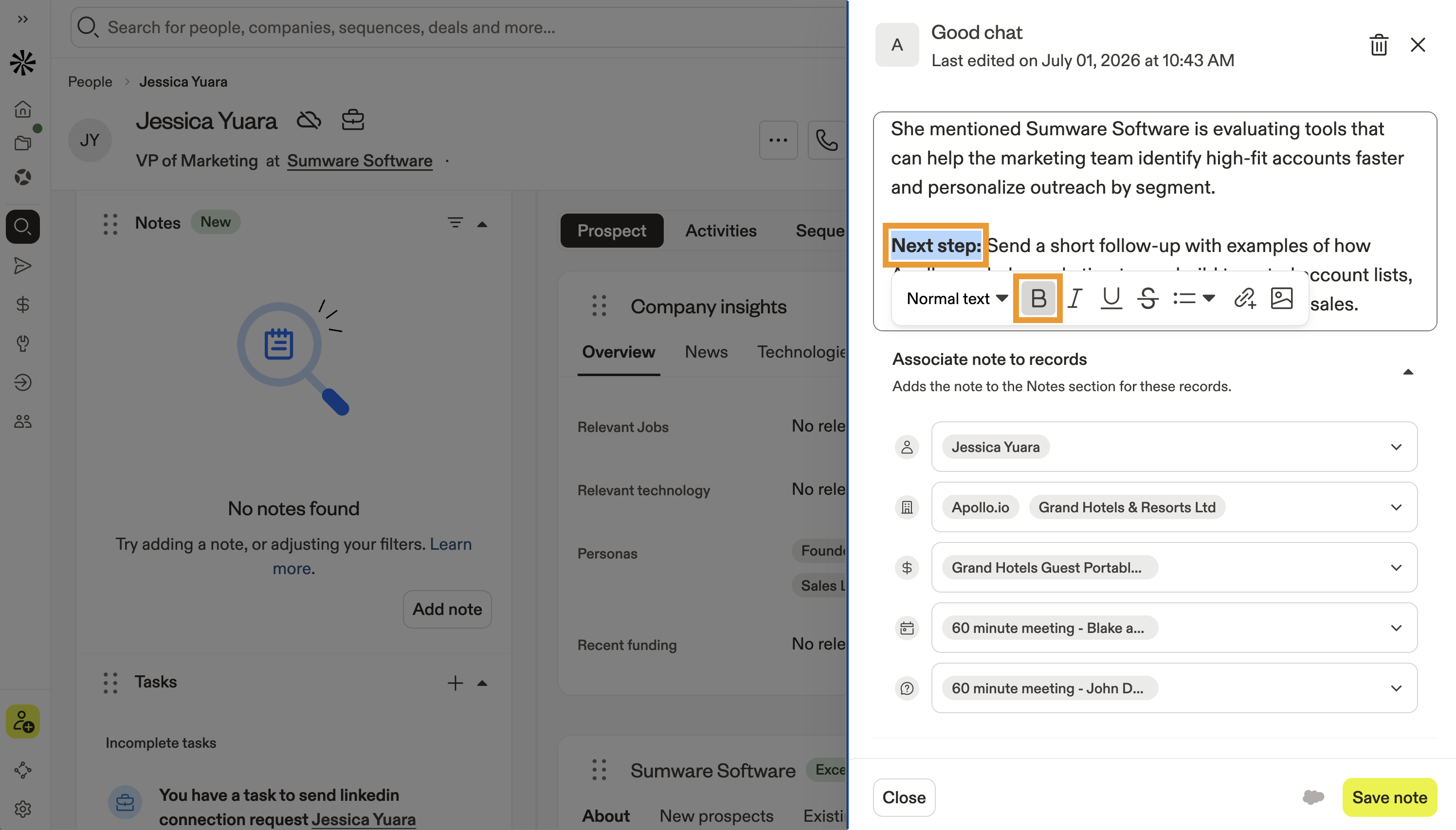
You can also use keyboard shortcuts like bold: ⌘ + B on Mac or CTRL + B on Windows to bold text.
How do I create a note?
To create a note, navigate to a saved contact, saved account, meeting, or deal. Scroll to click Add note.
How do I edit or delete a note?
To edit or delete a note:
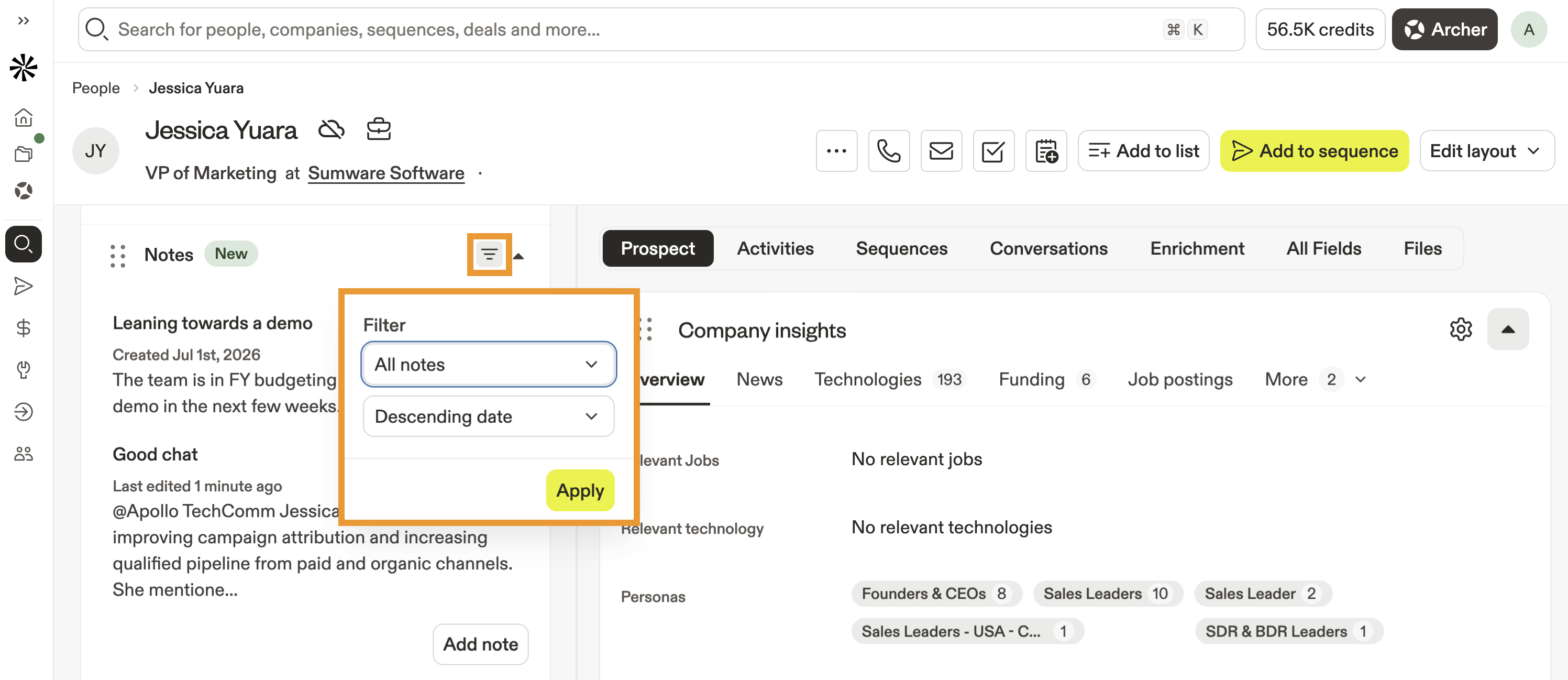
- Select a note to edit it.
- Click Delete to permanently delete a note.
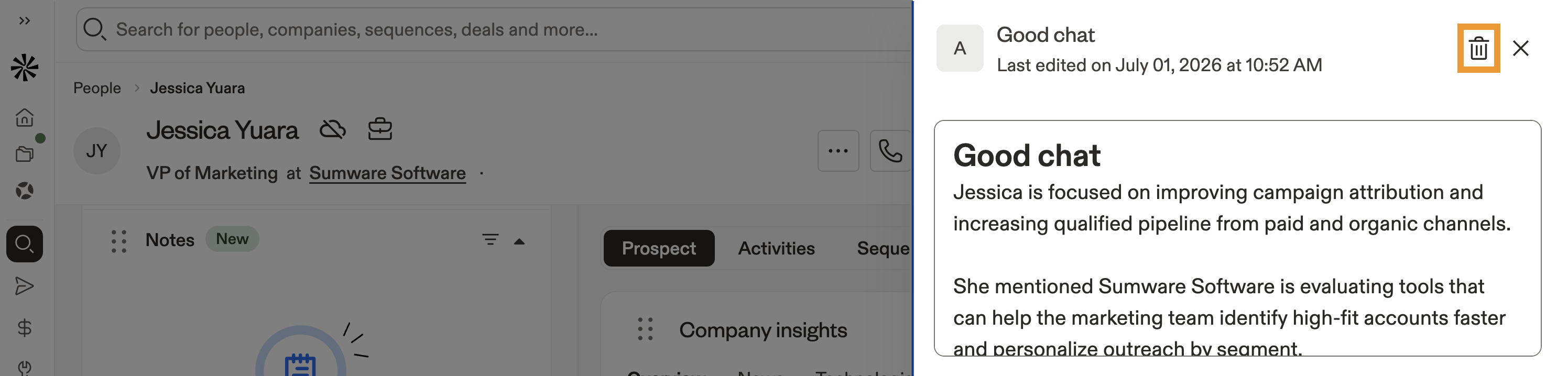
How do I associate a note with a deal or meeting?
To associate a note to a record in Apollo, open the note and choose the contacts, accounts, deals, meetings, or conversations you want to associate with the note. You can select multiple entities at once.
When finished, click Save note.
Can I export notes?
| CRM Integration | Yes, you can export notes to Salesforce or HubSpot CRM integrations:
|
|---|---|
| Apollo API | Yes, you can export notes with Apollo API. Use the Get a list of notes endpoint to retrieve notes by contact, account, deal, conversation, or meeting. |
| CSV Export | While you can export contacts, accounts, or deals to a CSV, notes are not included in these CSV exports. Consider exporting notes via CRM or API instead. |
Next Steps
Keep the momentum going with a few related resources that help your team turn notes into better prospect context and follow-up.
| View and Edit Contacts | Need more context before your next touch? View and edit contacts to keep notes, activity history, profile details, and related outreach in one place. |
|---|---|
| View and Edit Accounts | Give your team a fuller account story when you view and edit accounts to connect notes with company insights, contacts, deals, tasks, and recent activity. |
| Meetings Overview | Prep smarter before every call and manage meetings in Apollo to pair meeting details with notes that capture next steps, questions, and follow-up ideas. |
| Deals Overview | Keep opportunity context from slipping through the cracks when you manage deals in Apollo to track stakeholders, negotiation details, outcomes, and pipeline progress. |
| Set Up Conversations | Want richer call context after prospects respond? Set up conversations to connect recordings and insights with the notes your team uses to move deals forward. |