
Overview
If you're an Apollo admin, configure your prospecting settings to manage how Apollo handles your contacts and their data. These settings include:
- GDPR compliance
- Job change alerts
- Prospect phone number and email settings
- Duplicate management
- List privacy
- Account stages and limits
Read the following sections to learn how to access and configure prospect settings in Apollo.
Back to TopAccess and Configure Prospect Settings
You need admin access to configure prospect settings. Reach out to your team's Apollo admin if you need help updating configuration settings.
To configure prospect settings:
- Launch Apollo, then click Settings > Outbound > Prospecting configuration.
- Under Prospect Configuration Options, select the setting you want to configure.
- Follow the instructions in the corresponding section to configure the setting.
| Prospect Configuration Options | ||
|---|---|---|
| GDPR Compliance | Mobile Numbers | Exclude Account Stages |
| Job Change Alerts | Primary Email Address | Duplicate Account Handling |
| DNC List Screening | Email Syncing | List Privacy |
| Global In-Progress Limit Settings | ||
GDPR Compliance
Configure these optional settings to help your team stay GDPR compliant and limit prospecting activities for people in the European Union. When enabled, these settings apply to all users in your instance across the Apollo platform. It's up to your admin to determine whether your team needs to enable these settings to be compliant.

Mobile Numbers
Configure whether Apollo accesses a prospect's mobile number by default during search or from the Apollo Chrome extension.
Use the toggle to turn this setting on or off.
Requesting mobile phone numbers costs credits. Be aware that enabling this feature may increase your credit consumption.

Exclude Account Stages
Flag account stages that your teammates shouldn't use to prospect.
Use the dropdown to select any account stages that you want to exclude during prospecting.
Click Save when you're done.

If someone on your team tries to prospect from an excluded account stage, Apollo displays a warning message to let them know. If they choose, they can still add the flagged prospect by clicking Add People.

Job Change Alerts
Configure settings that allow you to enrich prospects with available job change data.
Toggle on or off to enable or disable any of the following settings:
- Allow users to export job change data: Allow users on your team to export available job changes to a CSV file.
- Allow users to create new contacts from job change: Allow users on your team to create new contact records for contacts that changed jobs.
- Allow users to update existing contacts from job change: Allow users on your team to update existing contact records with new job change data.

Primary Email Address
Configure which email type Apollo saves as your prospect's primary email. Apollo uses your prospect's primary email by default to engage with them via email, sequences, or Dialer.
Select one of the following email types, then click Save:
- Business Email
- Personal Email
- Any
Learn more about setting your primary email type in Apollo.

Duplicate Account Handling
Manage how Apollo handles contacts in duplicate account records.
Select one of the following options, then click Save:
- Enable Automatic Mapping: Allow Apollo to map contacts automatically to the original account record instead of the duplicate account.
- Prompt users to select an account to save to: Map contacts to account records manually when Apollo finds duplicate accounts.

DNC List Screening
When you enable this setting, Apollo automatically flags when you attempt to direct dial net-new prospects or saved contacts on US and UK Do Not Call (DNC) lists. Apollo does not retroactively screen any phone numbers you already requested prior to enabling the DNC list screening setting.
Toggle on or off to enable or disable this setting.

Email Syncing
Apollo recommends that you reach out to contacts with verified email statuses since they are more likely to engage. This also keeps your domain reputation healthy and helps you maintain high deliverability rates.
Use email syncing settings to manage how Apollo syncs unverified contact emails to your integrated CRM.
Select one of the following options, then click Save:
- Enable Unverified Email Syncing: Allow Apollo to sync unverified emails automatically to your CRM.
- Disable Unverified Email Syncing: Prevent Apollo from pushing unverified emails to your CRM.

Learn more about connecting your CRM to Apollo with the following resources:
List Privacy
New people and company lists are shared with everyone on your team with Can edit access by default. Turn Make new lists private on to make new lists private to their creator.
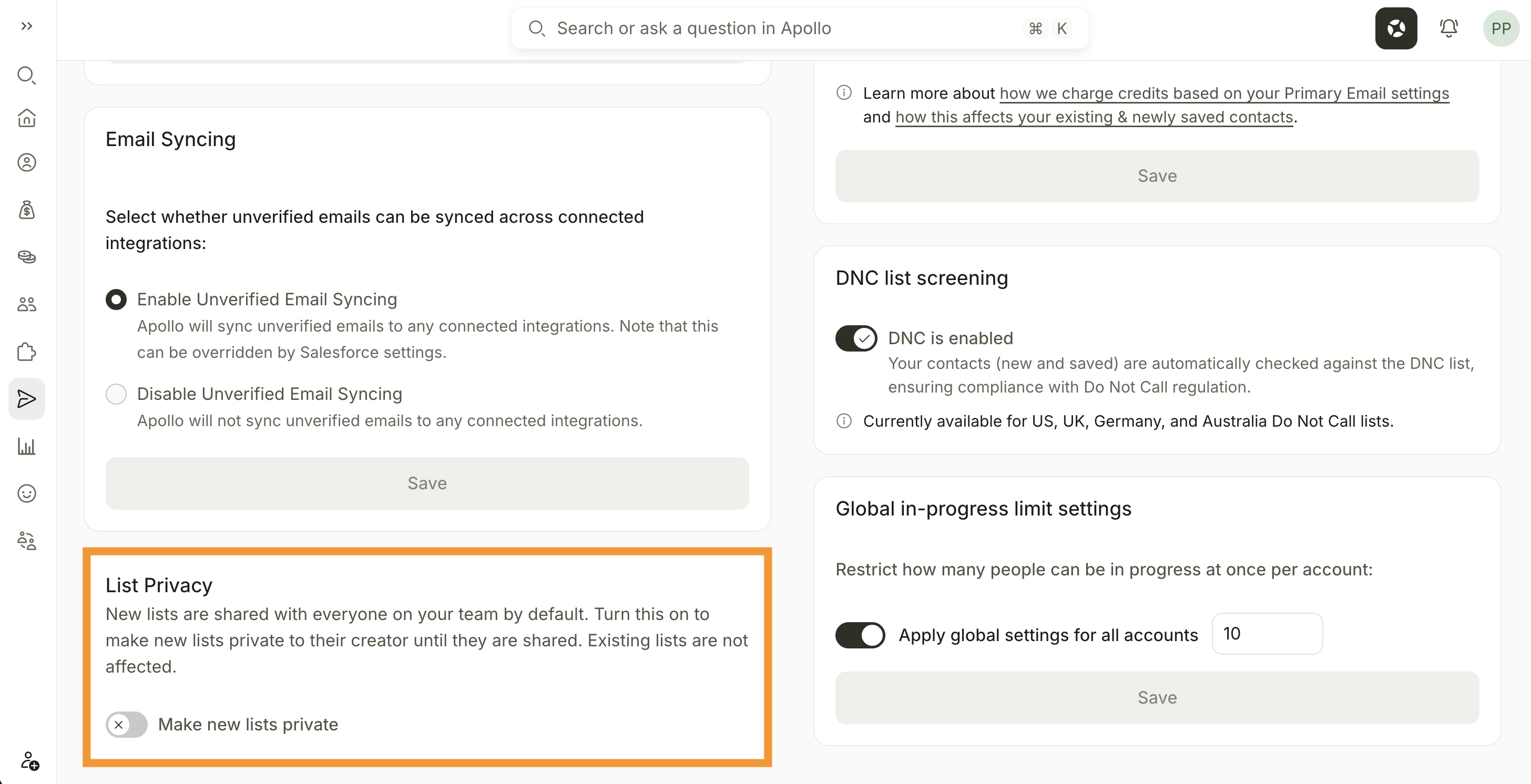
Changes apply only to new lists. Existing lists keep their current sharing settings.
Global In-Progress Limit Settings
Manage how many contacts can be in-progress at once per account.
Toggle on Apply global settings for all accounts, then enter a contact limit. This limit applies to all users in your Apollo instance. Click Save when you're done.

You have now configured your team's prospect settings.
Head over to Apollo to start configuring your prospecting settings now.
Next Steps
| Admin Settings Overview | Learn more about Apollo admin settings and the controls admins can use to manage team configuration, permissions, and workspace behavior. |
|---|---|
| GDPR Overview | Review Apollo's GDPR overview to better understand how Apollo supports privacy-conscious prospecting and how admins can configure GDPR-related settings. |
| Enable DNC List Screening | Set up Do Not Call list screening to help your team identify US and UK phone numbers that may require additional review before direct dialing. |
| Use Job Change Alerts | Learn how to use job change alerts to identify contacts with new roles and update or create contact records with available job change data. |
| Contact and Account Stages | Review contact and account stages before excluding account stages from prospecting or creating rules for how your team manages saved records. |