
Overview
AI projects is currently in beta and is only available to select people. Apollo automatically enrolls users as the feature becomes available.
AI projects are a central workspace on Apollo where you can group everything together for a go-to-market initiative: prospect lists, saved searches, sequences, workflows, analytics, and context about your product or service.
The AI Assistant and Apollo AI platform use your project to suggest smarter leads, write better emails, and understand your needs more fully. Together, projects allow your ops team to plan, execute, and measure from one place. Instead of jumping across tools, a single canvas lets you orchestrate targeting, research and scoring, outreach, and analytics end-to-end — all amplified with the power of AI.
The result is faster setup, fewer handoffs, and repeatable playbooks that help your reps focus on high-value activity.
Check out the following sections to create and use AI projects on Apollo.
Create an AI Project
To create and manage AI projects, you need to be an admin on Apollo. If you're not an admin, reach out to someone who is for help.
AI projects are primarily composed of the context that describes your product, company, and initiative, and the related assets in Apollo, like sequences, saved searches, or workflows.
AI projects combine these in the background, so you can send smarter, more compelling emails, and prospect faster and more successfully with the help of AI.
Pro-tip: You can also use the AI Assistant to create and manage projects with plain language conversations. Learn more about the assistant and how it can help you sell faster and smarter.
To create a project:
- Launch Apollo and click AI Projects.
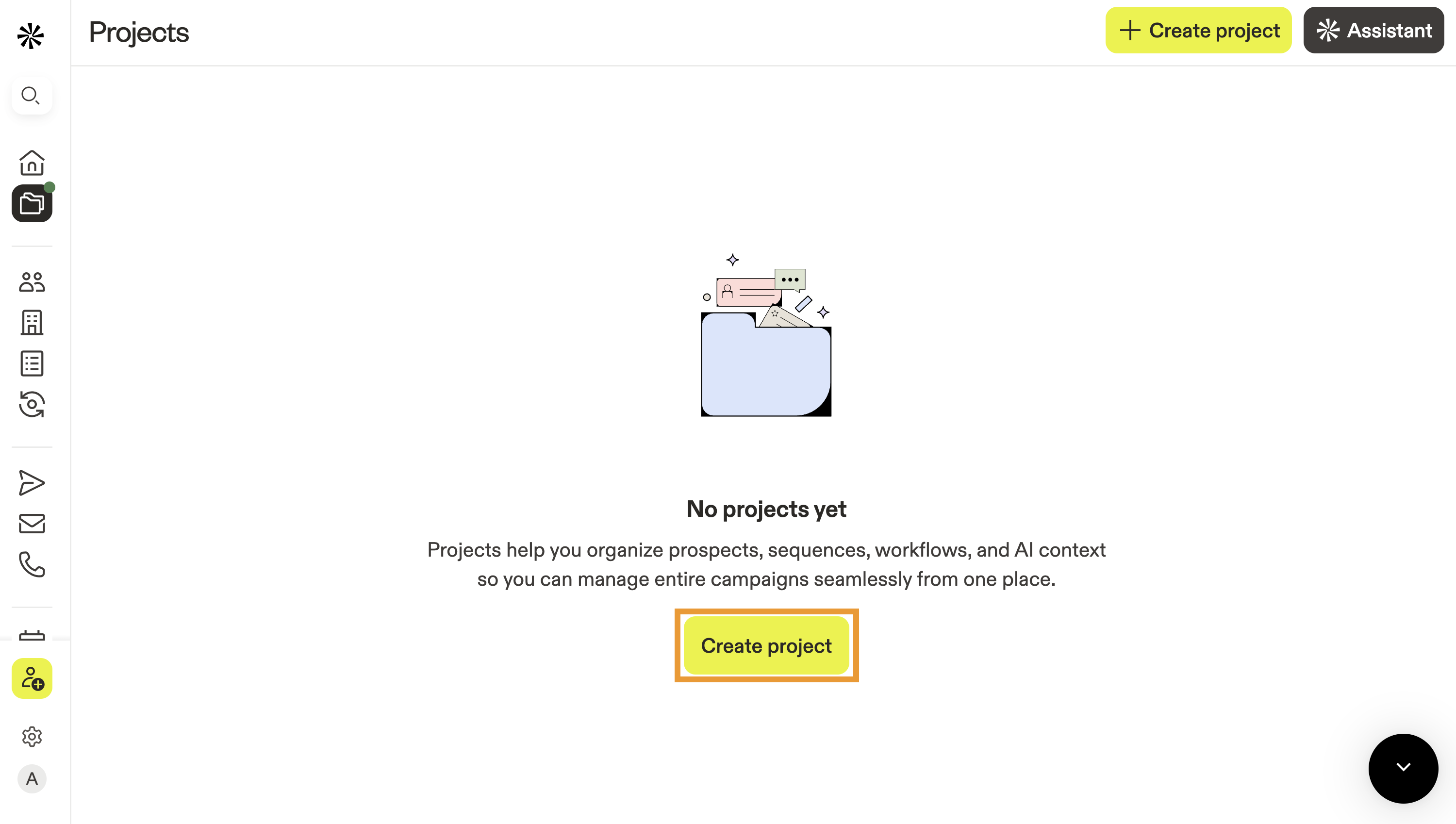
- Click Create project.
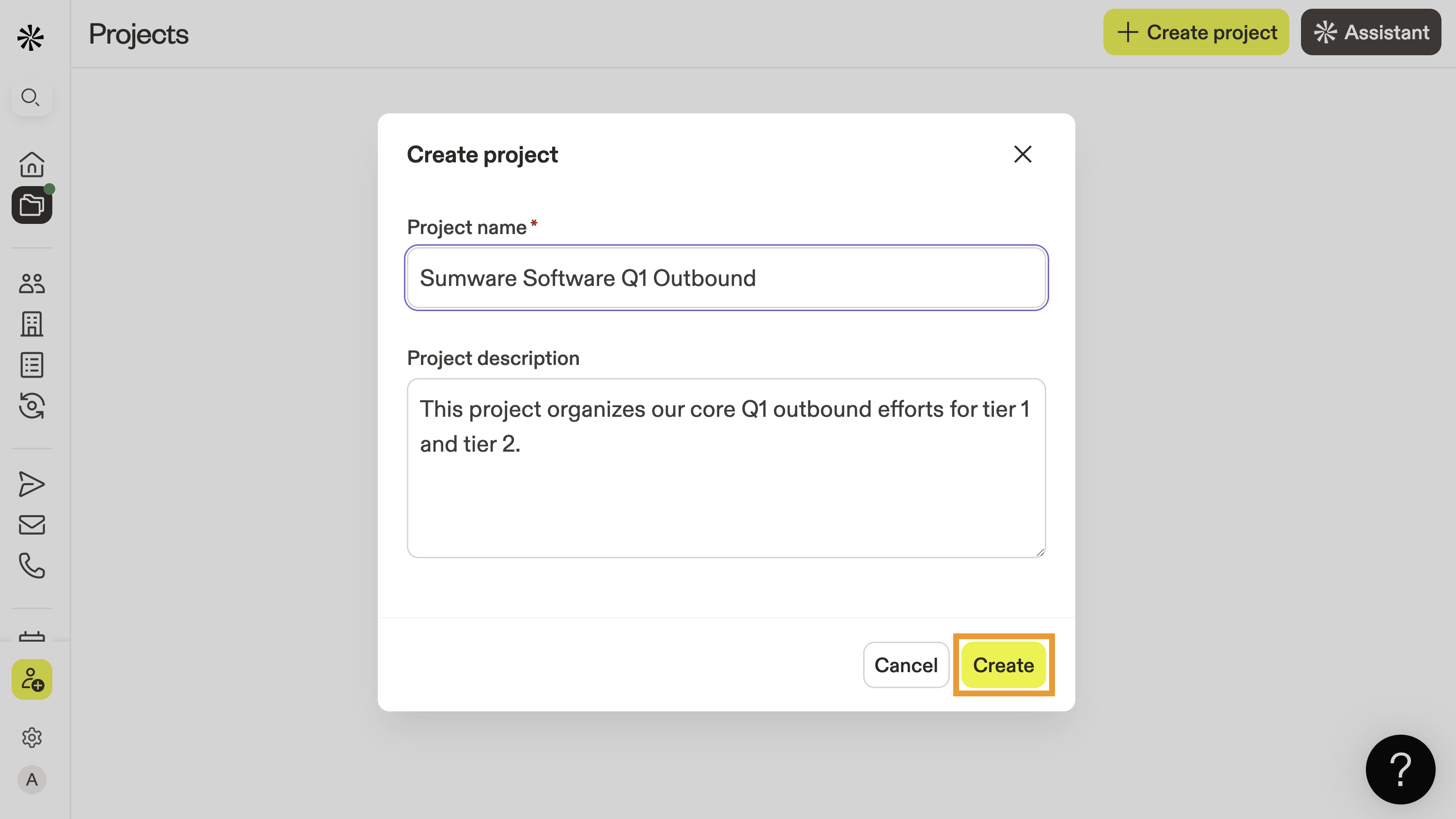
- Give your project a name and a short description so other people on your team know how to use it.
- Click Create.
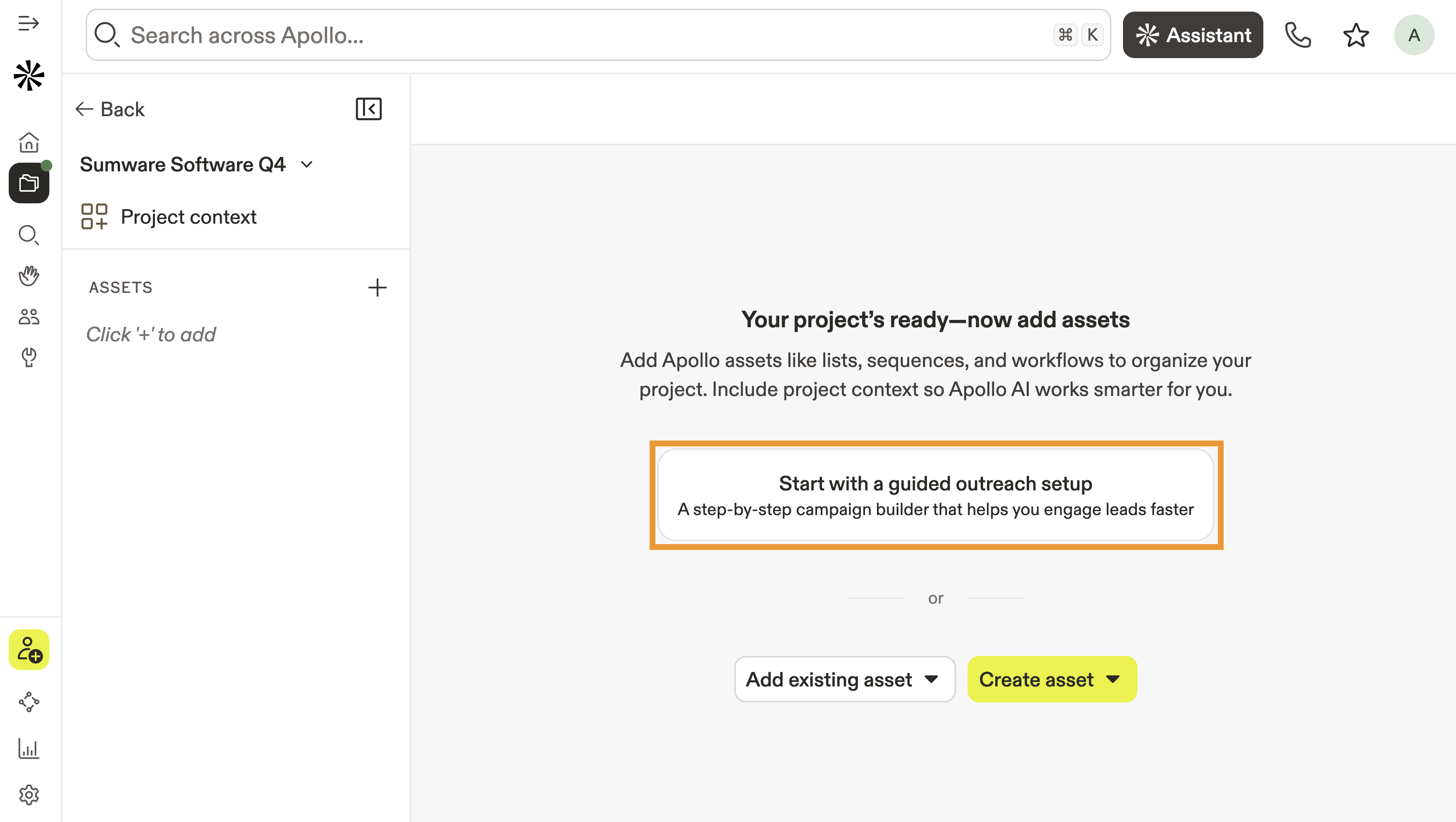
- Next, click Start with a guided outreach setup to begin creating your project. Alternatively, skip ahead to manually add context and assets to your project.
- Click Start guide.
- Where possible, Apollo automatically adds context and assets for you.
- Click Project context to review the ideal customer profile and qualification criteria related to your project.
- Click Assets to add or edit assets from Apollo — like the saved searches, lists, sequences, or workflows that are relevant to your project.
Where possible, Apollo prefills information with context you set in the AI content center. However, you can edit information in a project without affecting info in the AI content center.
Project context includes your ideal customer profile, qualification criteria, research guidelines, and scoring criteria.
You can also add context unique to your outreach, like your top-performing emails, competitor battle cards, or previous campaign assets — whatever works to make your campaign a success. Apollo AI builds off your context to make AI assistant messaging and prospecting more successful.
Provide as much context as possible to tailor Apollo AI to your project. You can provide the following context for your project, as well as custom context:
| Ideal customer profile | Qualification criteria |
| Research guidelines | Scoring criteria |
Ideal customer profile
Provide information about your ideal customer profile:
| Company or product name | Share the name of your company or product. |
| Company overview | Give a short introduction to your company. What do you do, who do you serve, and where do you operate? |
| Customer profile | Describe your ideal customer. Include their industry, size, location, and what stage of growth they're in. |
| Customer pain points | Explain the main challenges your customers face today. Think about what slows them down, costs them money, or creates extra work. |
| Value proposition | Describe how your product or service helps solve those problems. Focus on the results your customer can expect and why it matters to them. |
| Social proof | Mention customers, success stories, or results that show your product works. Share custom stories, quotes, or outcomes if you have them. |
| Primary competitors | List the other companies or products your customers might compare you to. Be honest about who else is in the market. |
| Product differentiator | Explain what makes you different. This could be features, ease of use, support, or the way you deliver value. |
| Call-to-action | Share the next step you want a prospect to take. For example, book a demo, try a free trial, or schedule a short call. |
| Additional context | Add any extra details that help personalize your outreach. This might include battle cards, previous campaign assets, high-performing emails, buyer roles, seasonal timing, or regional factors. |
Qualification criteria
Next, add information about your qualification criteria:
| Company | Describe how you qualify a company as a good fit. Think about their industry, budget, size, stage of growth, hiring trends, technology in use, or other signals that show they're likely to benefit from your solution. |
| People | Define the personas, or types of roles you want to reach inside those companies. Include their job titles, departments, responsibilities, typical challenges, and whether they are decision makers, champions, or influencers in the buying process. |
Research guidelines
Next, add indicators that are important to you for both companies and people. Think of these indicators as clues that tell you where to focus your effort.
- Click ▾ beside each indicator to add an indicator description.
- Click Add indicator under company or people to add more indicators.
| Company | Look for signs that an organization is going through change or growth that your product can address. Relevant indicators might include rapid hiring, fresh funding, leadership changes, expansion into new markets, or adopting related tools and technologies. These kinds of shifts usually create pain points that make your solution more relevant and urgent. |
| People | For individual-level customers or buying personas, pay attention to clues that someone is struggling with the problems you solve. A recent promotion, a new role with added responsibilities, or a job change can all signal new needs. These indicators suggest they may be open to a conversation. |
Scoring criteria
Finally, add scoring criteria to determine how qualified companies and people are for your product or service.
| Company | Explain the factors that push a company to the very top of your target list. This could include signals of urgency, like rapid growth, recent funding, or use of specific technologies. Think about the traits that show a company is not just in your ICP, but is highly likely to need your product right now. |
| People | Describe the personal or professional signals that make one prospect more important than another. This could include a new promotion, a shift in responsibilities, or public comments about challenges your product solves. Focus on the cues that tell you this individual is both motivated and able to take action soon. |
- (Optional) Click Add context to provide more information unique to your company. This could be battle cards and competitive research, top-performing emails or messaging, or information on seasonality, territories, market conditions, internal strategy, or other important context. Anything you provide helps Apollo AI to tailor research and messaging for your campaign.
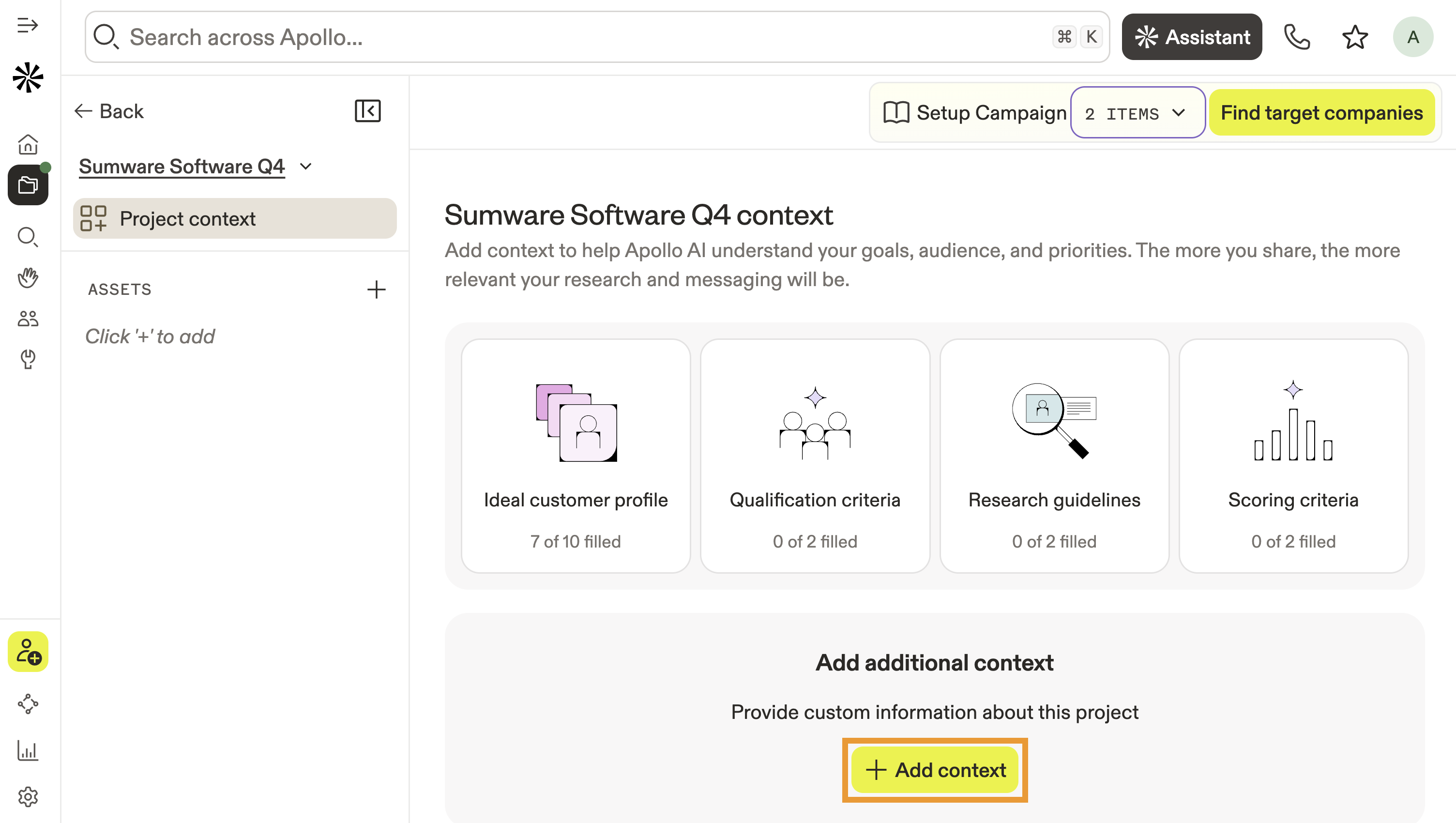
- Give your context a title and description, then click Save.
You've now added context to your project. Next, add assets from Apollo like sequences, lists, or analytics dashboards.
Alternatively, continue to use your project.
Assets are items created in Apollo that are relevant to the offering or service in your project. Assets might include saved searches, prospect lists, sequences, workflows, or analytics dashboards. You can always add more assets to your project over time.
- Click + to add assets to your project.
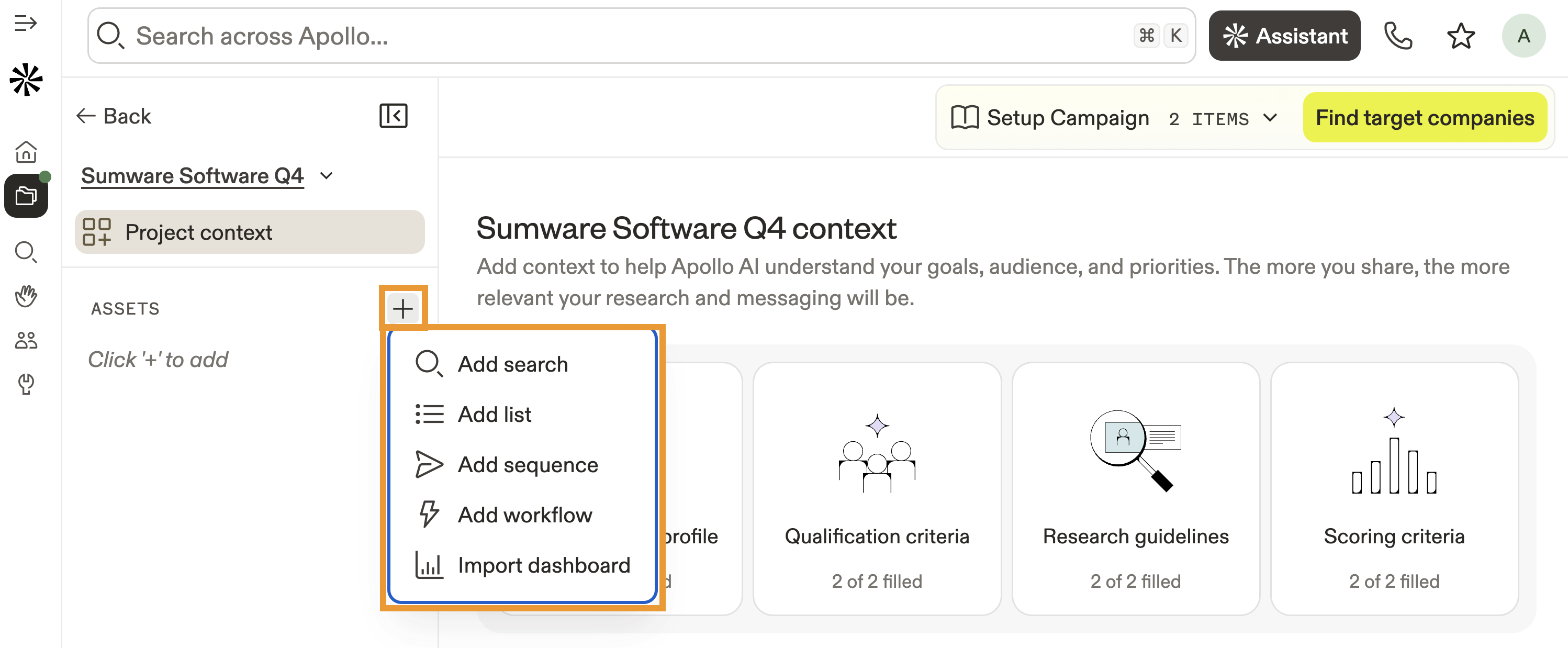
- Select the type of asset you want to add:
- Add search: Add saved searches created by you or your team.
- Add list: Add lists created by you or your team.
- Add sequence: Add sequences created by you or your team.
- Add workflow: Add workflows created by you or your team.
- Import dashboard: Add analytics dashboards created by you or your team.
- Repeat to add more assets.
You have now created a project on Apollo. You're ready to use your project to organize and execute outbound campaigns.
Use an AI Project
After you create a project, you can use it to find target companies, qualified individuals, and use the AI Assistant to execute actions in Apollo with natural language conversations. To use a project:
- Launch Apollo and click AI Projects.
- Select a project.
- Apollo lists your assets on the left, and your project context in the middle. Click an asset to manage or use it.
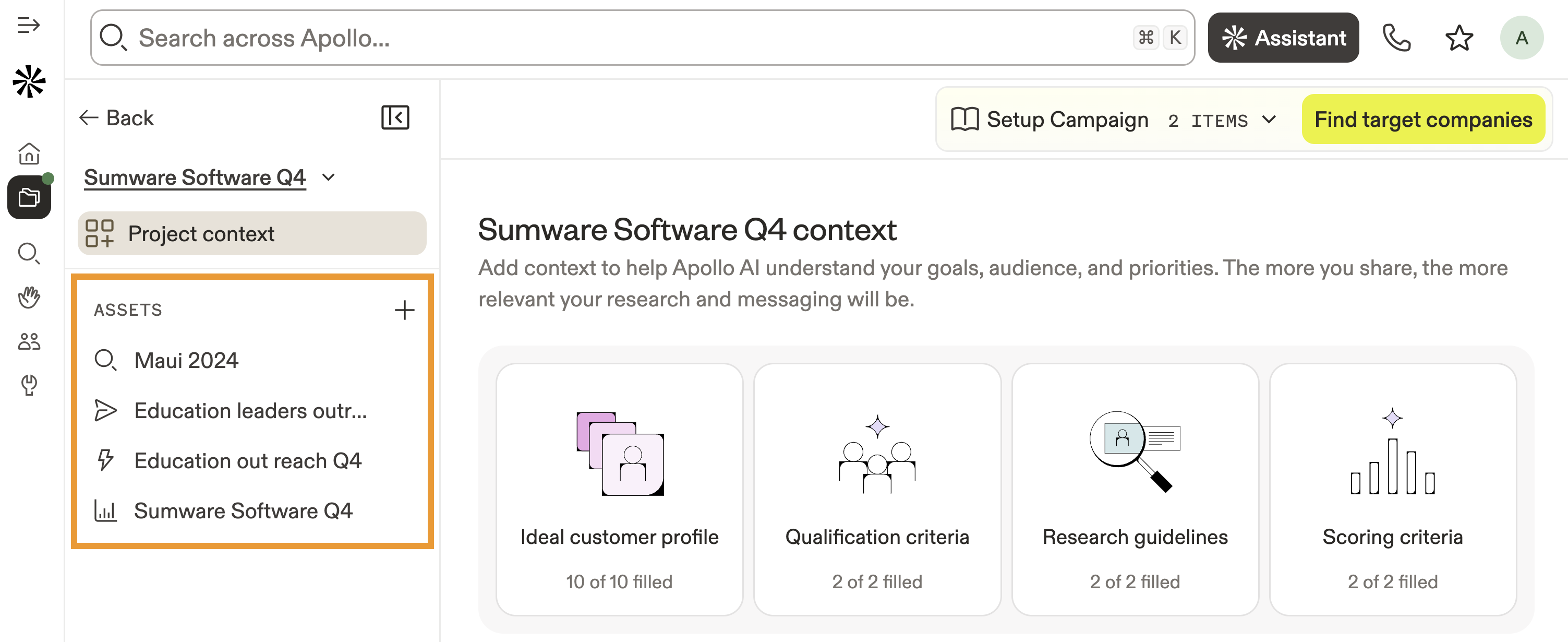
- Alternatively, let Apollo create a campaign for you. Click Find target companies to get started.
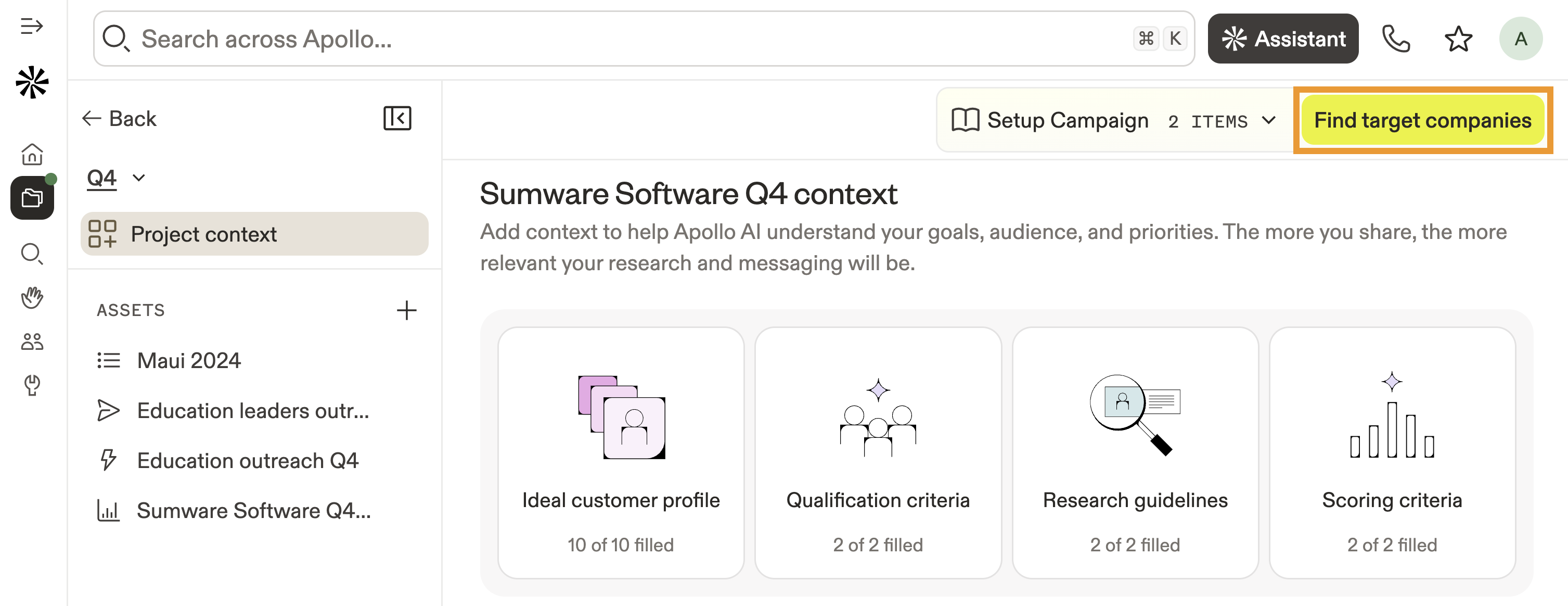
- Apollo finds companies that match your AI project.
- Click Next: Refine with AI.
- Click Qualify and add to list. Apollo AI researches and qualifies the companies, then adds them to a new list. Alternatively click Skip to continue without qualifying.
- Click Prioritize accounts to let Apollo AI score the qualified accounts and find the most important accounts for you to prioritize in outreach.
- With your qualified list, click Find people and Apollo AI creates a list of contacts at the selected companies based on your AI project.
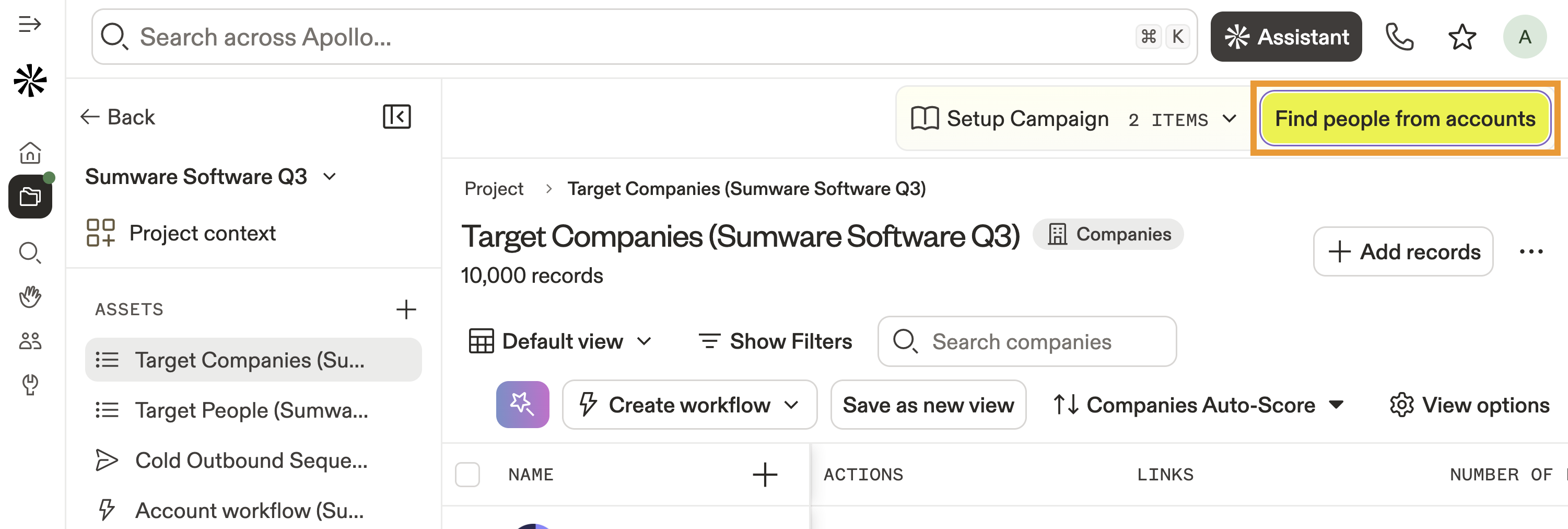
- Then click Refine with AI and Apollo adds the refined contacts to a list. Alternatively, click Skip to create a list of people without refining them.
- Click Research people to use the Apollo Assistant to get to know your contacts more deeply.
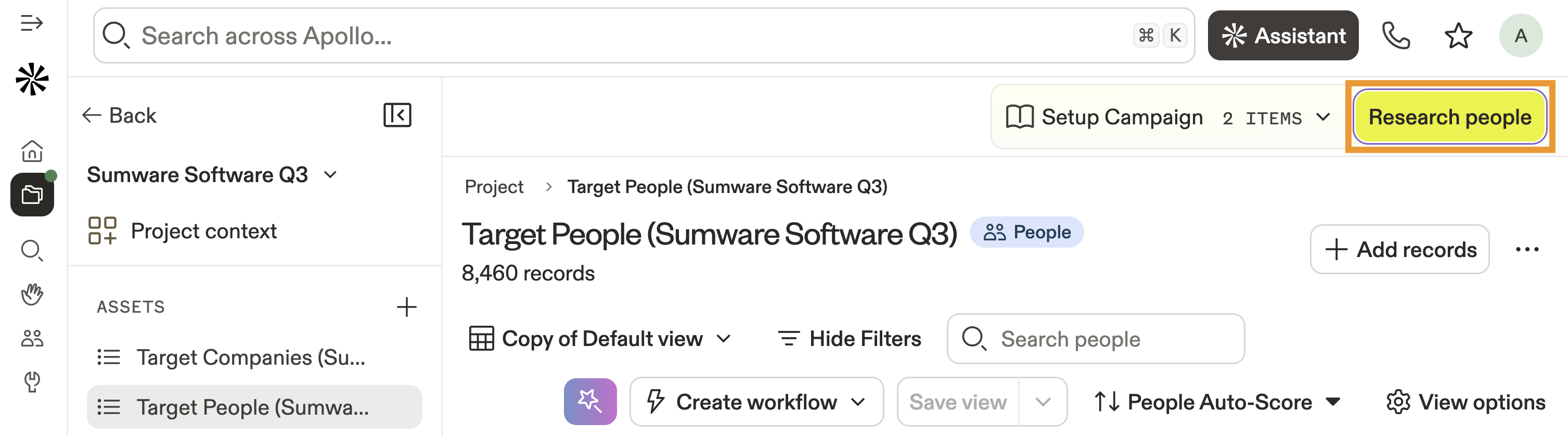
- Next, click Prioritize people to let Apollo AI score the qualified contacts and find the most important people for you to prioritize in outreach.
- With your qualified, prioritized, and researched contacts, click Add contacts to a sequence to begin outreach.
- Click Activate account workflow and let Apollo automatically create a workflow that adds new accounts that match your qualifications to your accounts list — so you can continually prospect using the same flow as above.
- Finally, click Analyze performance to see how your project is performing with Apollo analytics.
You have now used a project on Apollo.
Next Steps
Ready to put your plans into action? Here are a few high-impact moves your team can make next:
| Use the AI Assistant on Apollo | Get to know the AI Assistant and how it can help you execute tasks, generate messaging, and orchestrate GTM steps from natural language. Your project's context is automatically applied! |
|---|---|
| Apollo AI Overview | Use your project as the launchpad and put Apollo AI to work to add context, automate busywork, and speed up targeting and messaging across your GTM motion. |
| AI Research Overview | Within your project, run AI research to surface company and people insights that sharpen targeting and personalize outreach at scale. |
| Sequences Overview | Once you've got good prospects, create sequences to orchestrate multichannel touches and keep every prospect moving without manual busywork. |
| Workflows Overview | When you're ready to scale, build automated workflows to route leads, score accounts, and trigger research or outreach the moment signals fire. |