
Overview
Apollo’s saved records pages help you to stay organized and take action faster on your saved people and company records. Instead of jumping between tabs or manually tracking individual prospects, use saved records pages to manage all your saved records in one centralized hub, making it easier to visualize your pipeline and streamline outreach efforts. This allows you to:
- Understand relationship status instantly based on stage and recent activity, so you know where to focus your time.
- Act quickly based on recommendations and signals, such as replies, meetings, or missed connections, to maintain your momentum in outreach campaigns.
- Keep record data fresh and accurate with quick, in-line updates and enrichments that don’t break your flow.
Check out the following sections to learn more about managing your saved records in Apollo.
Access Saved Records
After you save contacts or accounts during prospecting, it’s time to review your saved records and begin outreach.
To access your saved records, go to Manage records > Saved people or Saved companies.

Filter Saved Records
Apply filters and saved search views to organize your saved records by stage or other criteria, allowing you to quickly find the contacts or accounts you want to engage.
Use filters to refine your saved records results based on criteria like job title, enrichment status, industry, score, and more. Learn more about using search filters in Apollo.

You can create and apply saved search views to save your most commonly used filters and access specific search results in seconds. Apollo’s system searches are pre-built to quickly surface only the records you saved, or organize your saved records by stages. Learn more about using saved searches in Apollo.
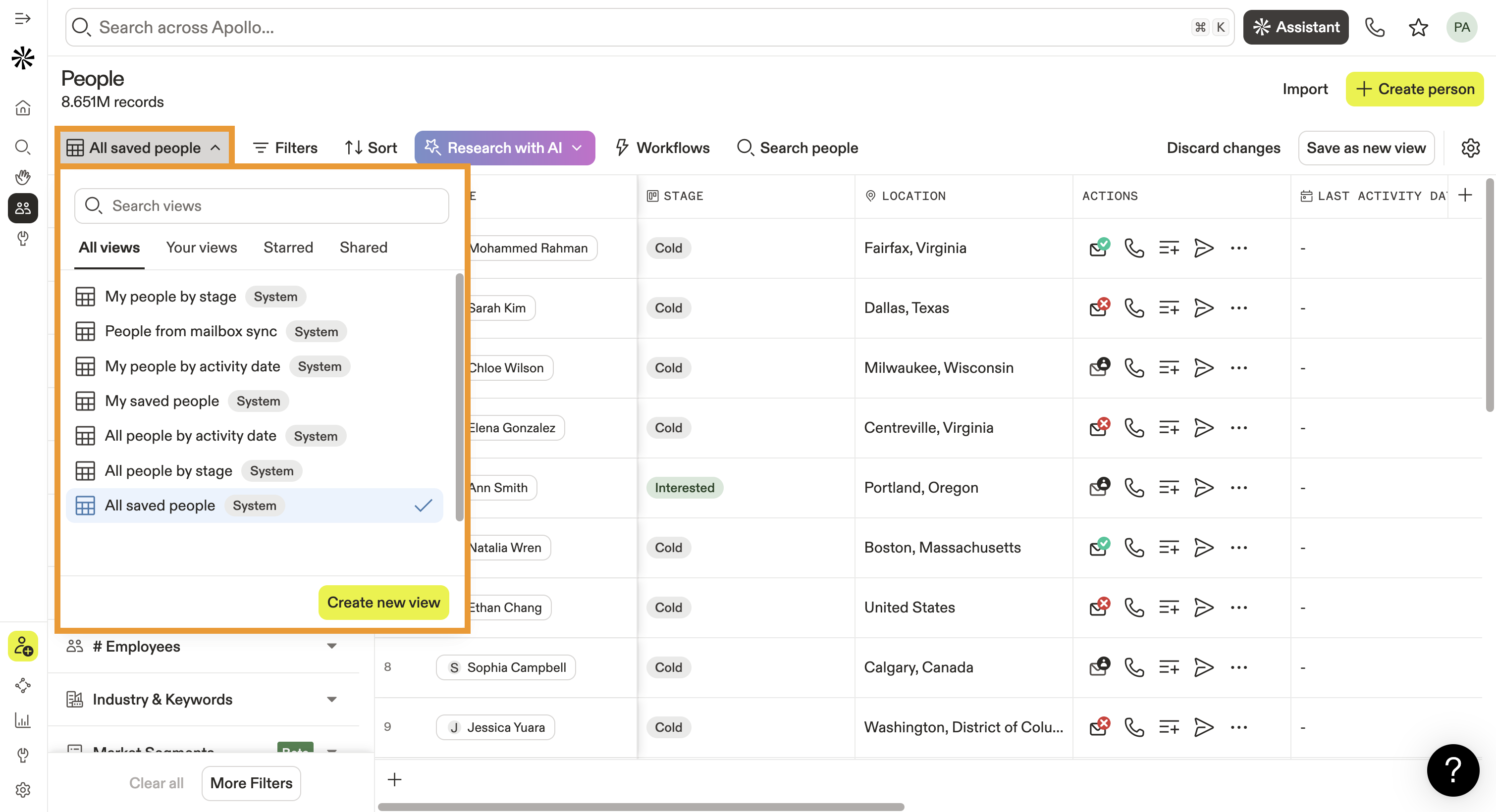
Click View options to group saved records by activity or stages. Use the checkboxes to select which activity levels or stages you want to use to group saved records. Apollo automatically groups and displays saved records based on your selections.

Customize Page Columns
You can customize the fields included on saved records pages to view all the relevant information you need. To do this:
- Click Add column.
- Use AI research to create a customized field that will help you personalize outreach for saved records, or click Add existing column to include existing Apollo fields or custom fields that aren't currently displayed.
- Click on a field to add it as a column to your saved records page.
- Click Create field to create a custom field and include it as a column on your saved records page.
- Click the gear icon to update your page view options, including the display order of page columns and the filters applied to your search.

Import Records
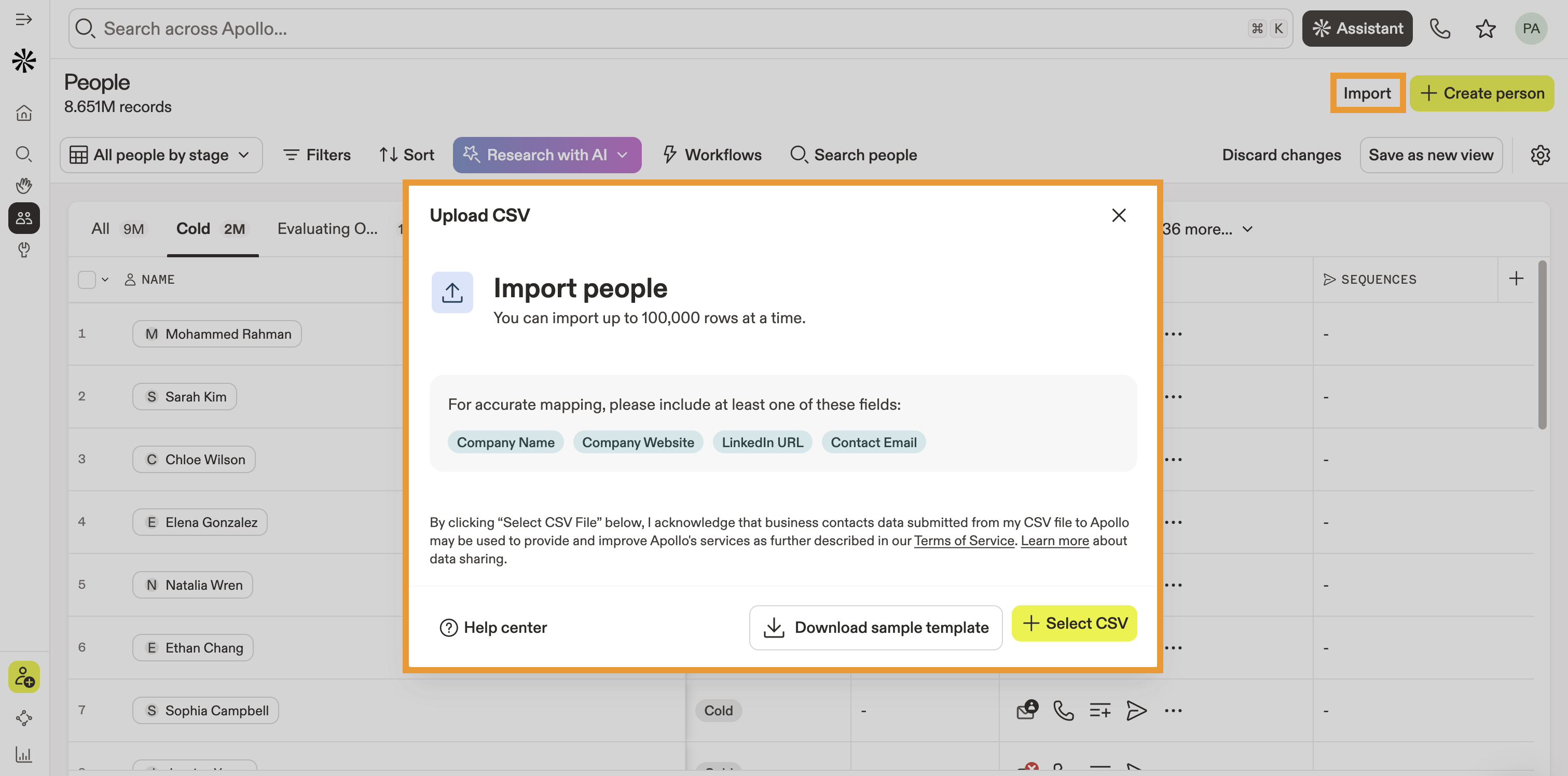
Click Import to import contact records from a CSV file to Apollo. Learn more about importing contact records from a CSV to your Apollo account.
Manage Saved Records
You can manage your saved records with any of the following options:
| Edit fields | Double-click to edit the data in any default or custom field for saved people or companies. For example, double-click the Stage field to change a prospect’s current stage. |
|---|---|
| Take action with recommendations |
Use the Recommendations column to get clear next steps for taking action on saved contacts, helping you keep momentum with ongoing conversations. Apollo generates recommendations based on your conversations and meetings with a saved contact. Click on the light bulb icon in the Recommendations column to review recommended next steps for a contact. Recommendations can include:

|
| Research with AI | Use AI research to gain more insight into your saved people and companies. Use AI-powered templates and custom prompts to summarize key information or personalize your outreach messages. |
| Export records | Use the checkboxes to select one or more record, then click Export to export your selected records to a CSV file. |
| Add to or remove from sequences |
Use the checkboxes to select one or more record, then click Sequence. You can select any of the following options for managing your selected records’ involvement in Apollo sequences:
|
| Add to lists | Use the checkboxes to select one or more record, then click Add to list. Add your selected records to an existing list or click Create new list to build a new list. |
| Enrich records |
Use the checkboxes to select one or more record, then click Enrich. You can choose one of the following options to enrich your selected records:
In addition, Apollo highlights records with available enrichment data, giving you a preview below the applicable records and fields. Click Accept update to automatically update the enrichable record with available data. |
| Call prospects | Use the checkboxes to select a record, then click Call to reach out to your saved contact via the Apollo dialer. |
| Email prospects | Use the checkboxes to select one or more records, then click Email to send a message to your selected contacts. You can use pre-built templates to quickly build an email or the AI writing assistant to help you craft personalized messages for each contact. |
Next Steps
Keep your sales process moving with saved contacts and accounts by exploring these related features in Apollo:
| View and Edit Contacts | View and edit contact profiles to keep essential details accurate and usable as you manage records across Apollo. |
|---|---|
| Make and Receive Calls | Make and receive calls to get in contact with your saved contacts. |
| Set Up and Use Conversations | Set up and use conversations to review recordings, share insights, and act on calls linked to your saved contacts. |
| Set Up Meetings | Set up meetings to book time with saved contacts in Apollo and keep those sessions connected to ongoing deals. |
| Access and Manage Deals | Access and manage deals tied to saved records to track progress, update stages, and keep your pipeline moving forward. |