
Overview
Custom fields allow you to capture individualized research about a contact, account, deal, or user and leverage them in Apollo sequences for personalization. Use custom deal fields to capture and manage specific information your team wants to track during the deal process.
Check out the following sections to learn how to create and edit custom deal fields.
Create a Custom Deal Field
To create a deal field:
- Launch Apollo and click Settings.
- Go to Data management > Objects, fields, stages > Deal fields & stages.
- Click Fields.
- Click Create Field.
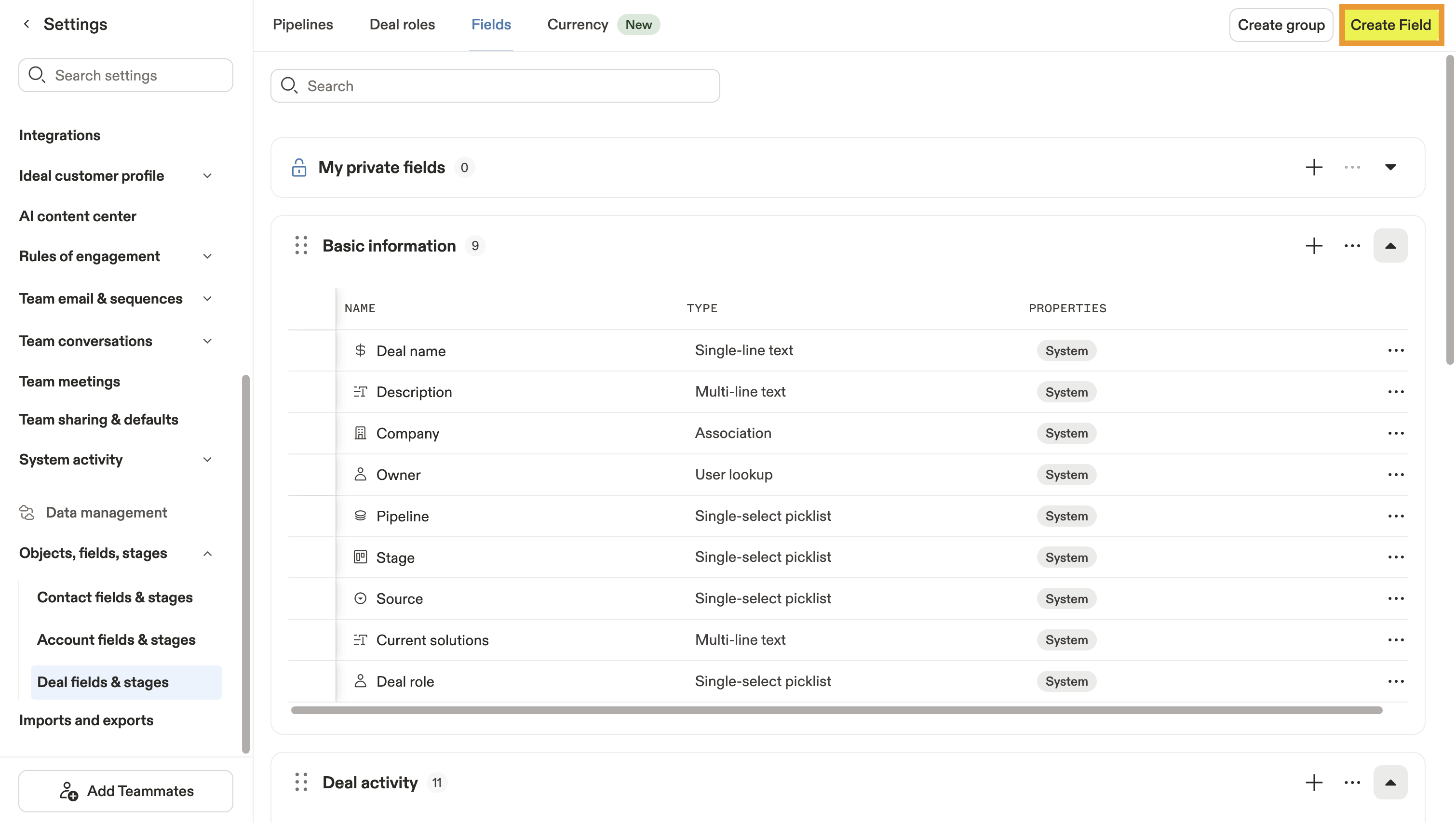
- Select a field type for your custom deal field. Available field types include:
| Field Type | Description |
|---|---|
| Single-line text | Allows you to include a single line of text for the deal field. You must specify the maximum number of characters for the field. |
| Multi-line text | Allows you to include a string of text that spans multiple lines. You must specify the maximum number of characters for the field. Line breaks count against the total character count. |
| Number | Allows you to include a number with or without decimals. You cannot use non-numeric characters. |
| Single-select picklist | Allows you to include an existing picklist or create a new picklist with defined values. You can only select one value from the picklist. Check out Global Picklists to learn more. |
| Multi picklist | Allows you to include an existing picklist or create a new picklist with defined values. You can only select multiple values from the picklist. Check out Create Global Picklists to learn more. |
| Date | Allows you to type a date in the format of Month/Day/Year or select a date with the calendar widget. |
| Date/time | Allows you to type a date in the format of Month/Day/Year or select a date with the calendar widget. Allows you to select a time in half-hour increments from the drop-down. |
| Checkbox | Allows you to specify either True or False within the field's drop-down. |
| User lookup | Allows you to specify a user from your account via a drop-down. |
You can't change the field type after creating a custom deal field.
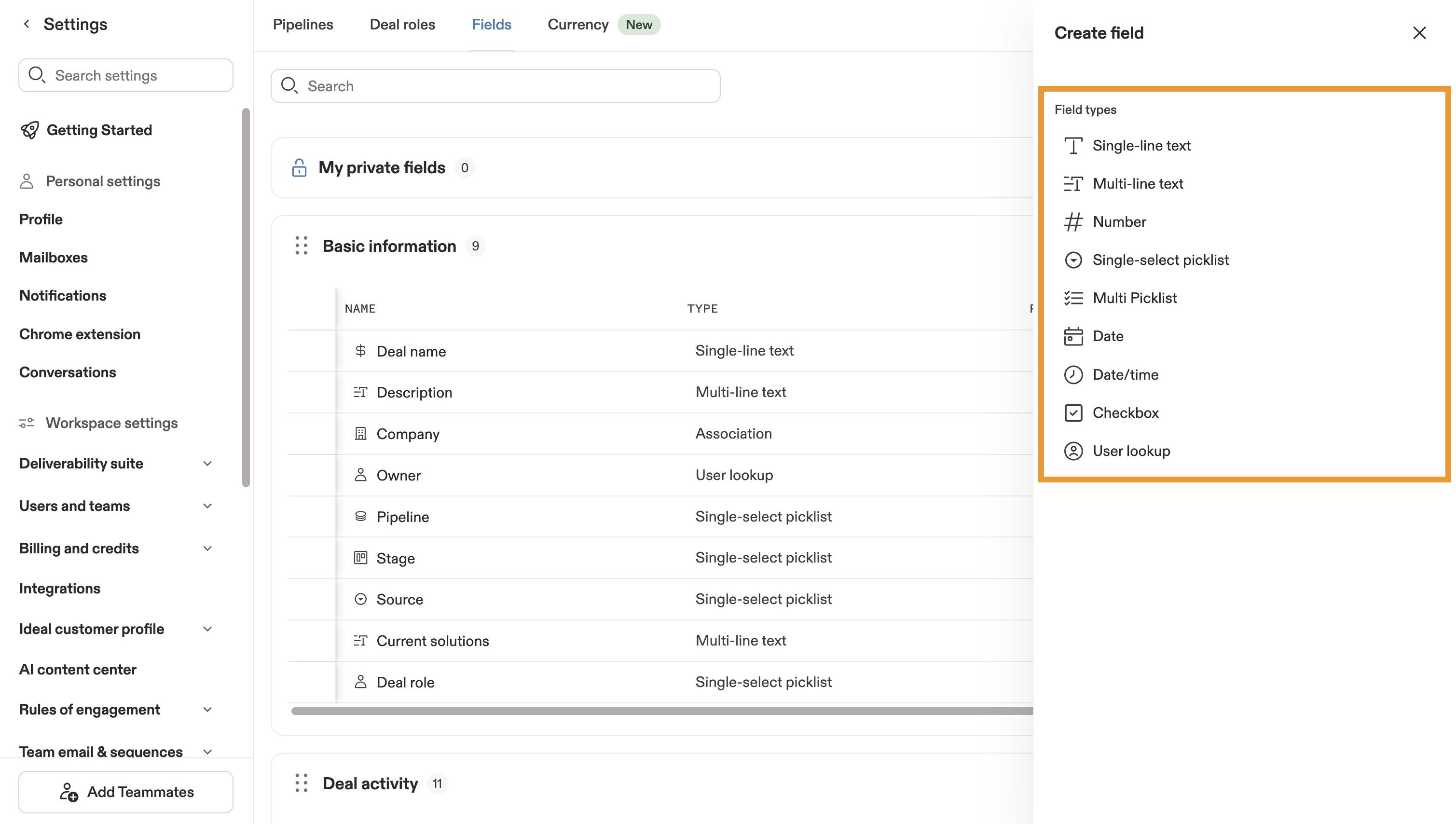
- Enter a field name.
- (Optional) Select whether to add your custom field to a field group. Field groups help you organize your custom fields from the All Fields tab in the deal profile page.
- If you selected a single-line text or multi-line text field, define the field's maximum character count.
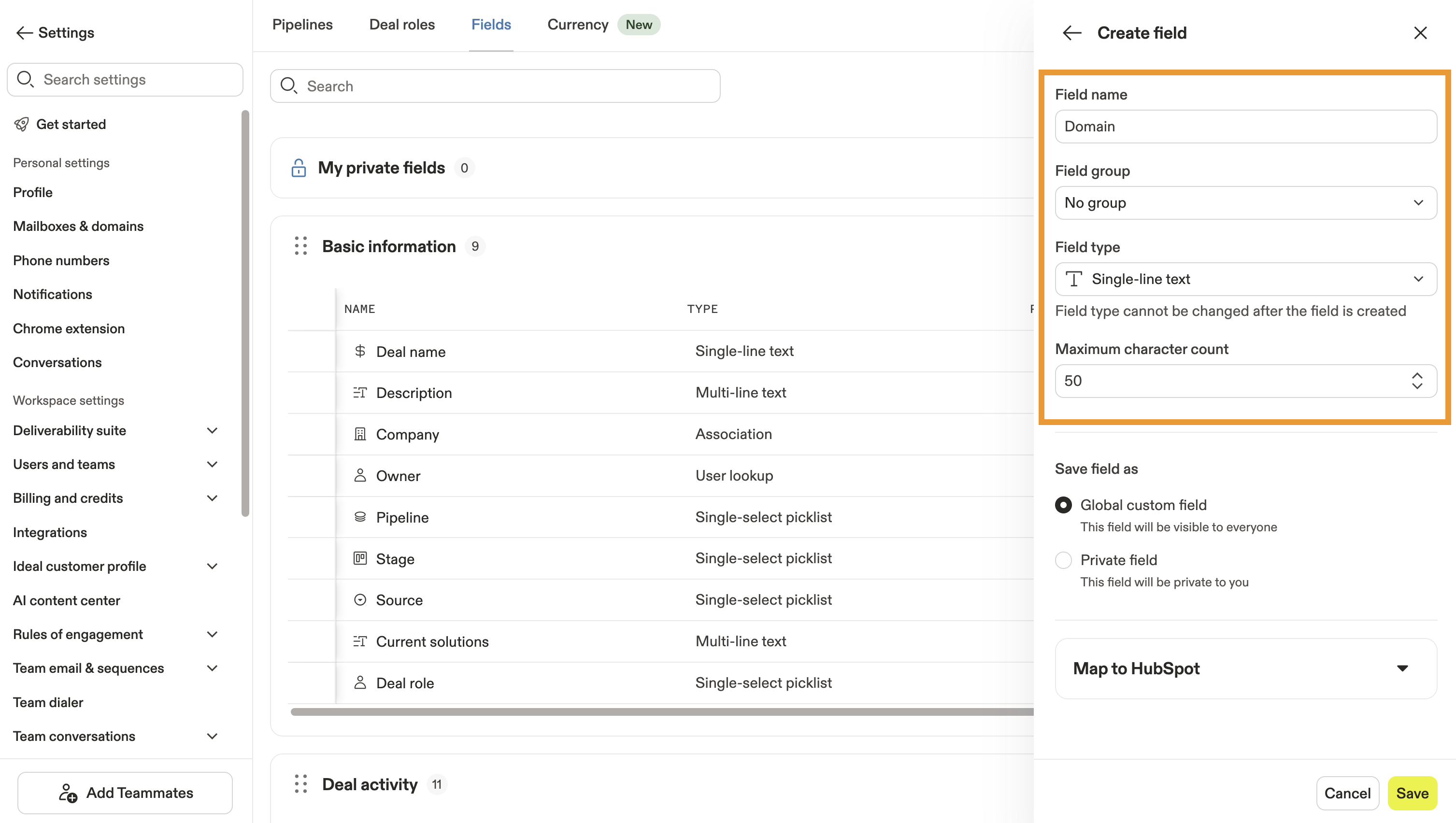
- If you selected a single-select or multi picklist, choose whether to use a global picklist value set or create custom picklist options. Global picklist options are shared between you and your teammates to use for any picklist fields.
- To create custom picklist options, click Add option then enter text for each added option. Click Save as global picklist to save this list for later use and make it available to your team when they create picklist fields.
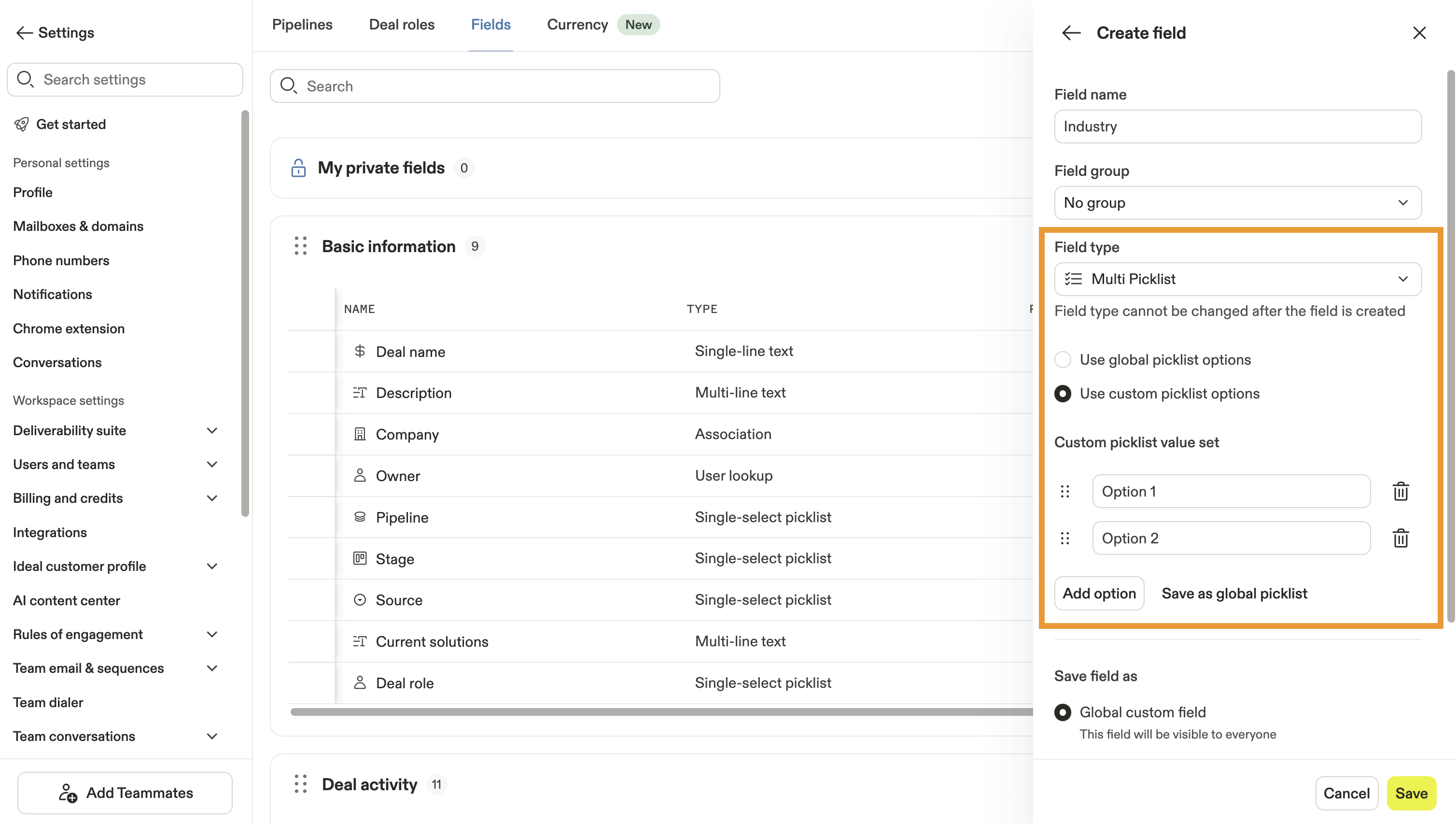
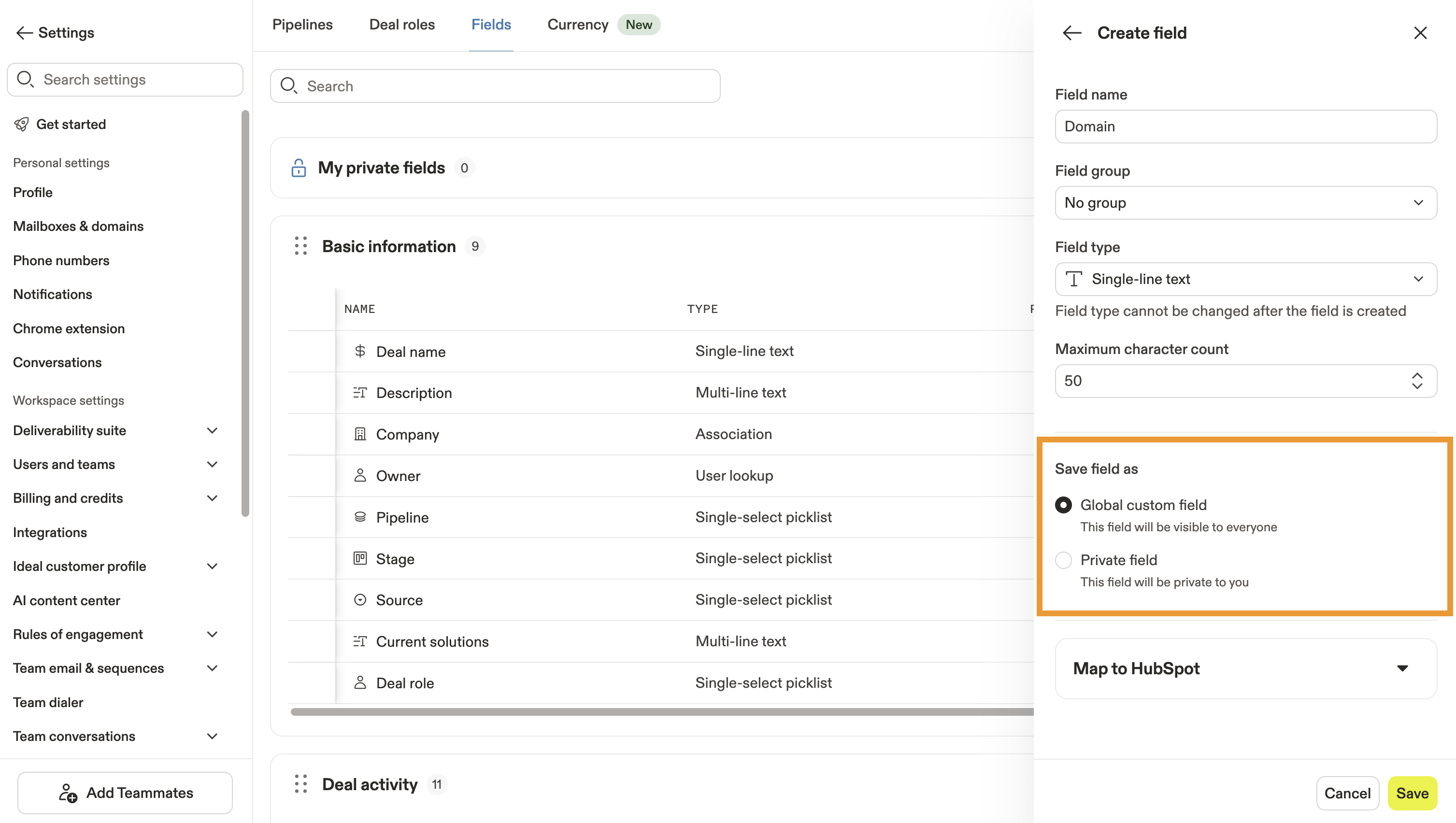
- Save your new custom deal field as a global custom field or a private field. Global fields are visible to everyone on your team. Private fields are only visible to their owner and will always belong to the My private fields field group.
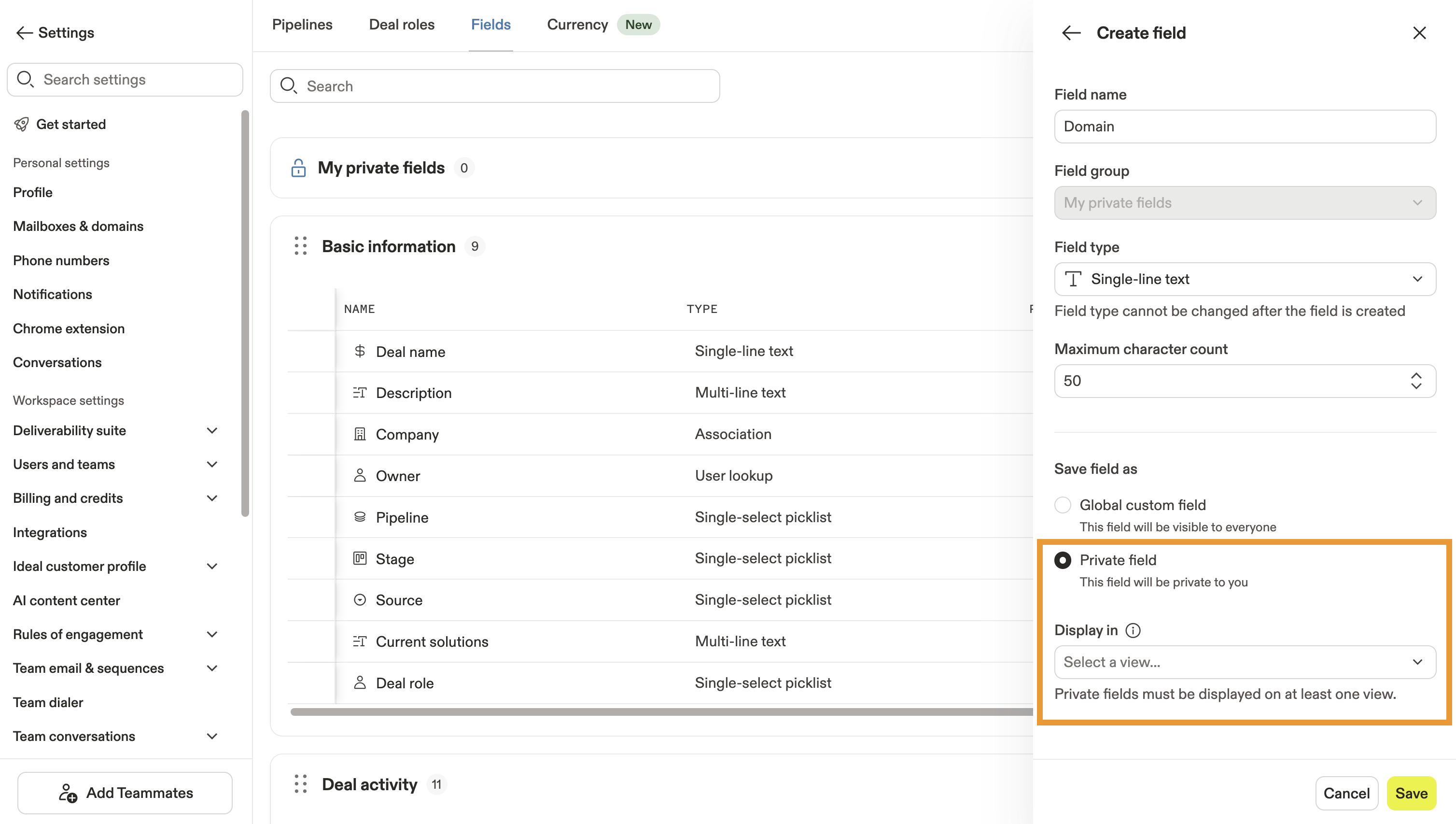
- For private fields, select a search view to display your new custom field. You need to select at least 1 view to use your private field.
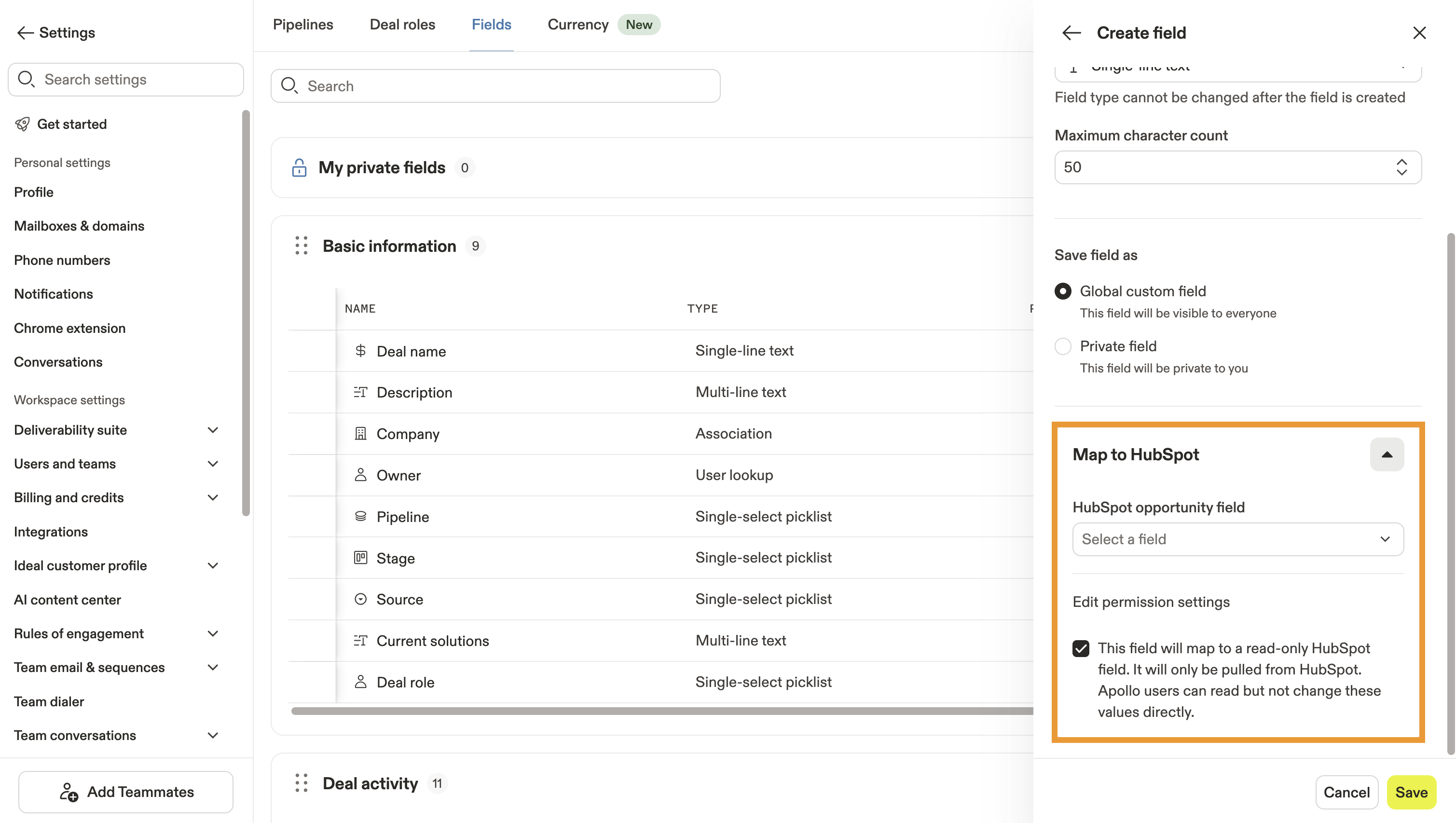
- (Optional) If your new field is a global custom field and you've integrated your Salesforce, HubSpot, or Pipedrive CRM with Apollo, select a field from your CRM to map to your new custom deal field in Apollo. Click the checkbox to make this custom field read-only in Apollo.
- Click Save.
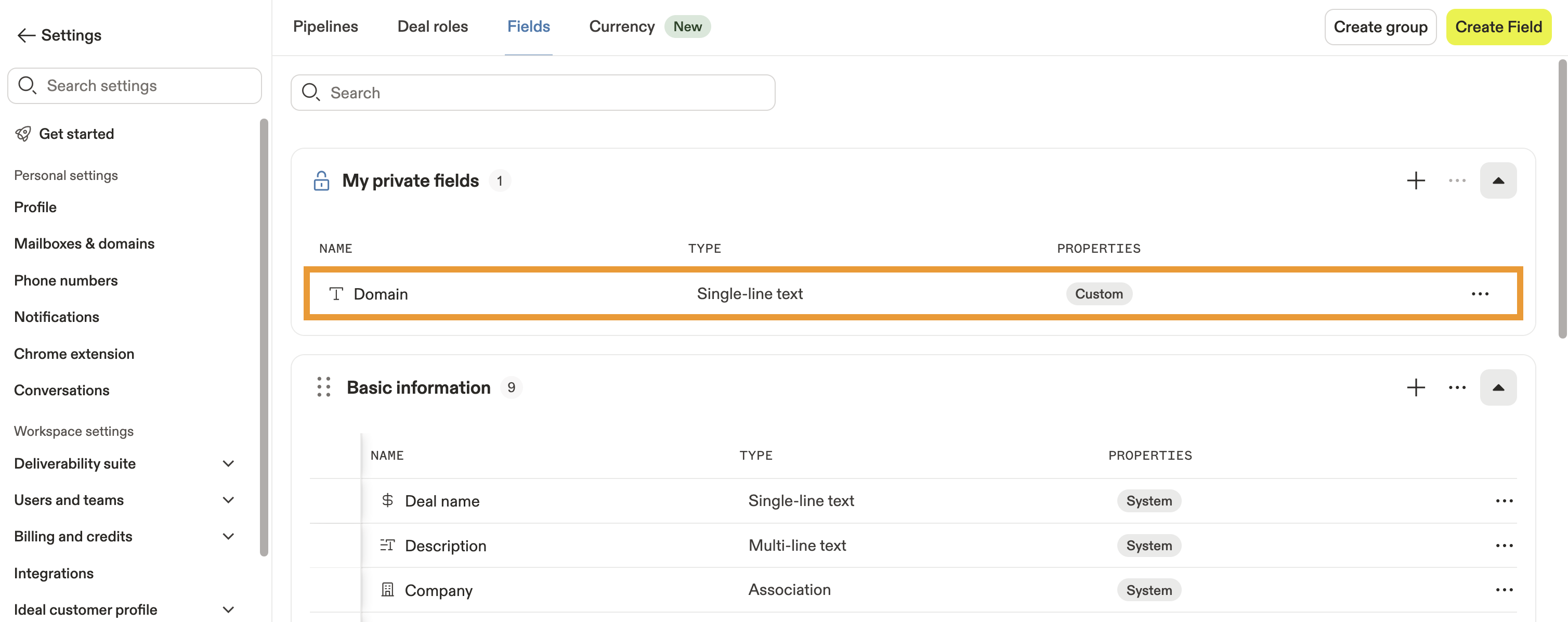
Your new field will appear under the field group you selected, No group, or My private fields, depending on the options you picked when configuring the field.
Group Custom Deal Fields
As you create custom deal fields, you can group and rearrange those fields to make them more accessible to your entire team.
To group custom deal fields:
- Launch Apollo and click Settings.
- Go to Data management > Objects, fields, stages > Deal fields & stages.
- Click Fields.
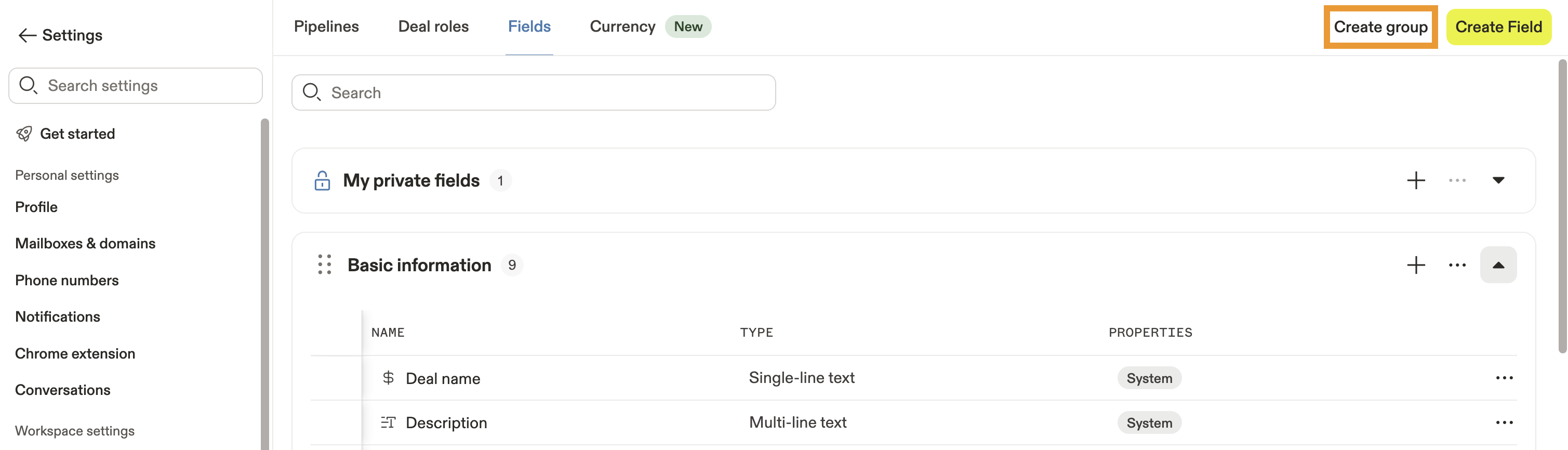
- Click Create group.
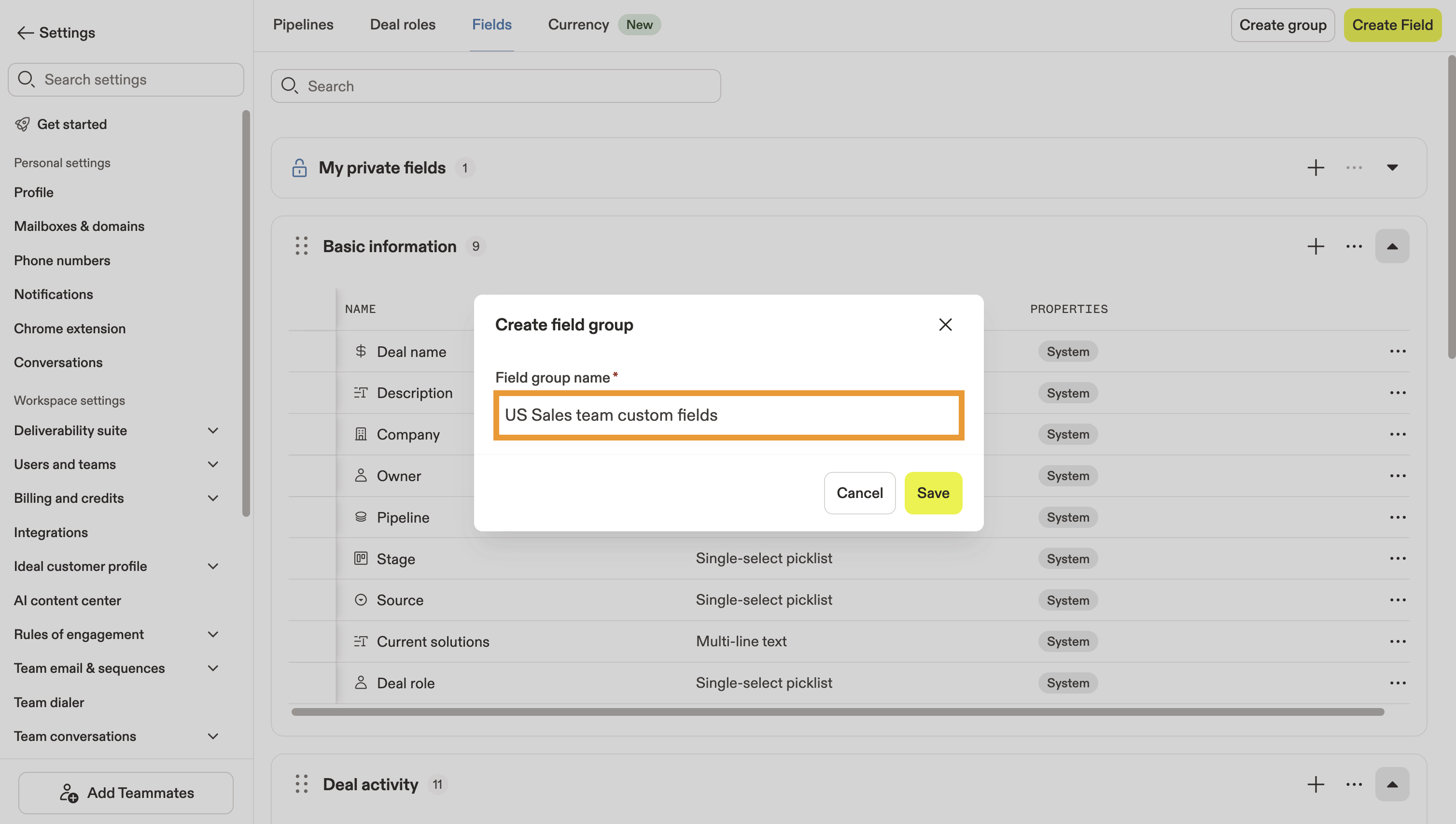
- Name your field group, then click Save.
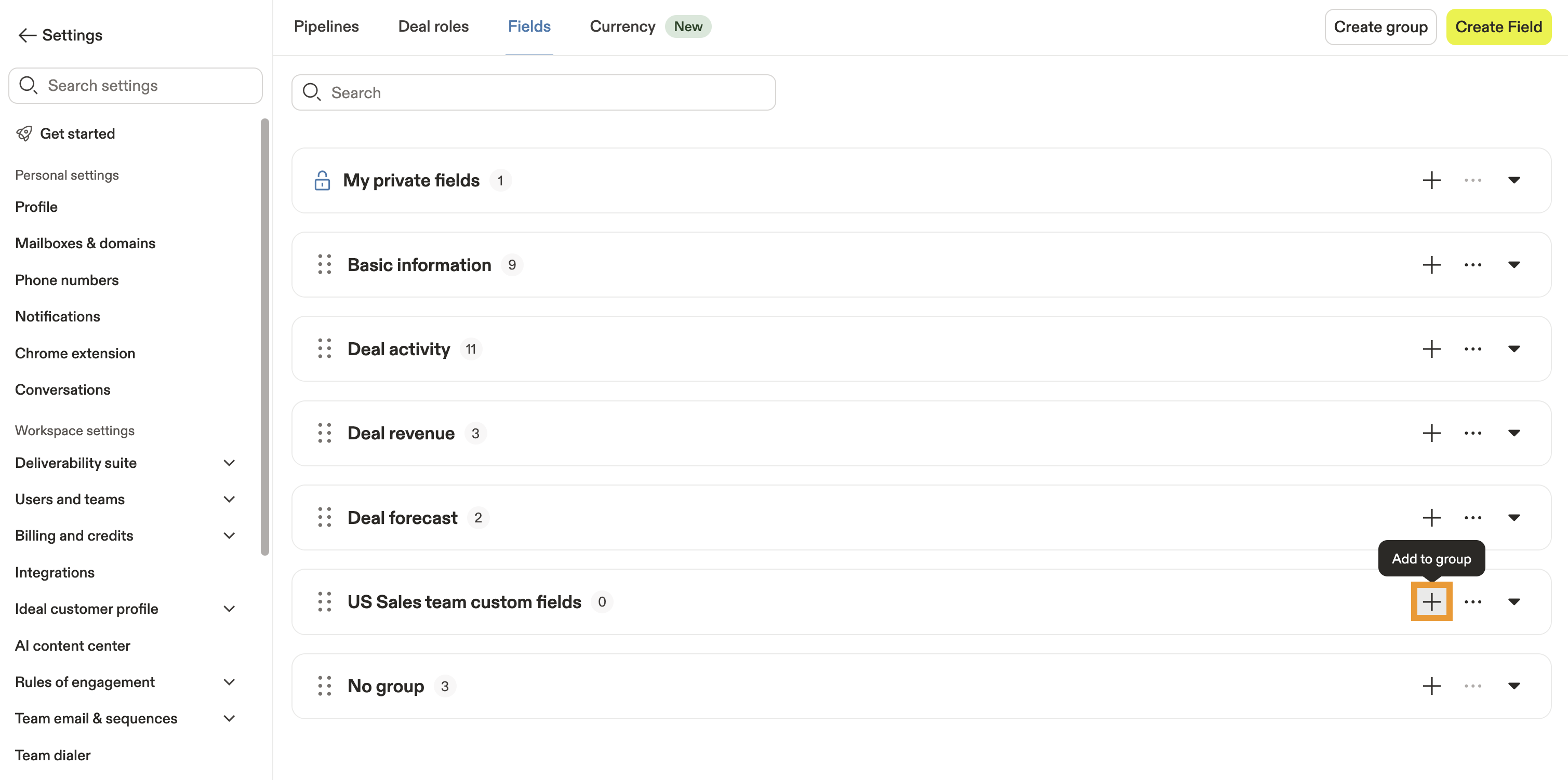
- Click + next to your new group to create a new custom field for that group.
- Click and hold ⋮⋮ to move custom fields from one group to another, or to reorganize the order of your field groups.
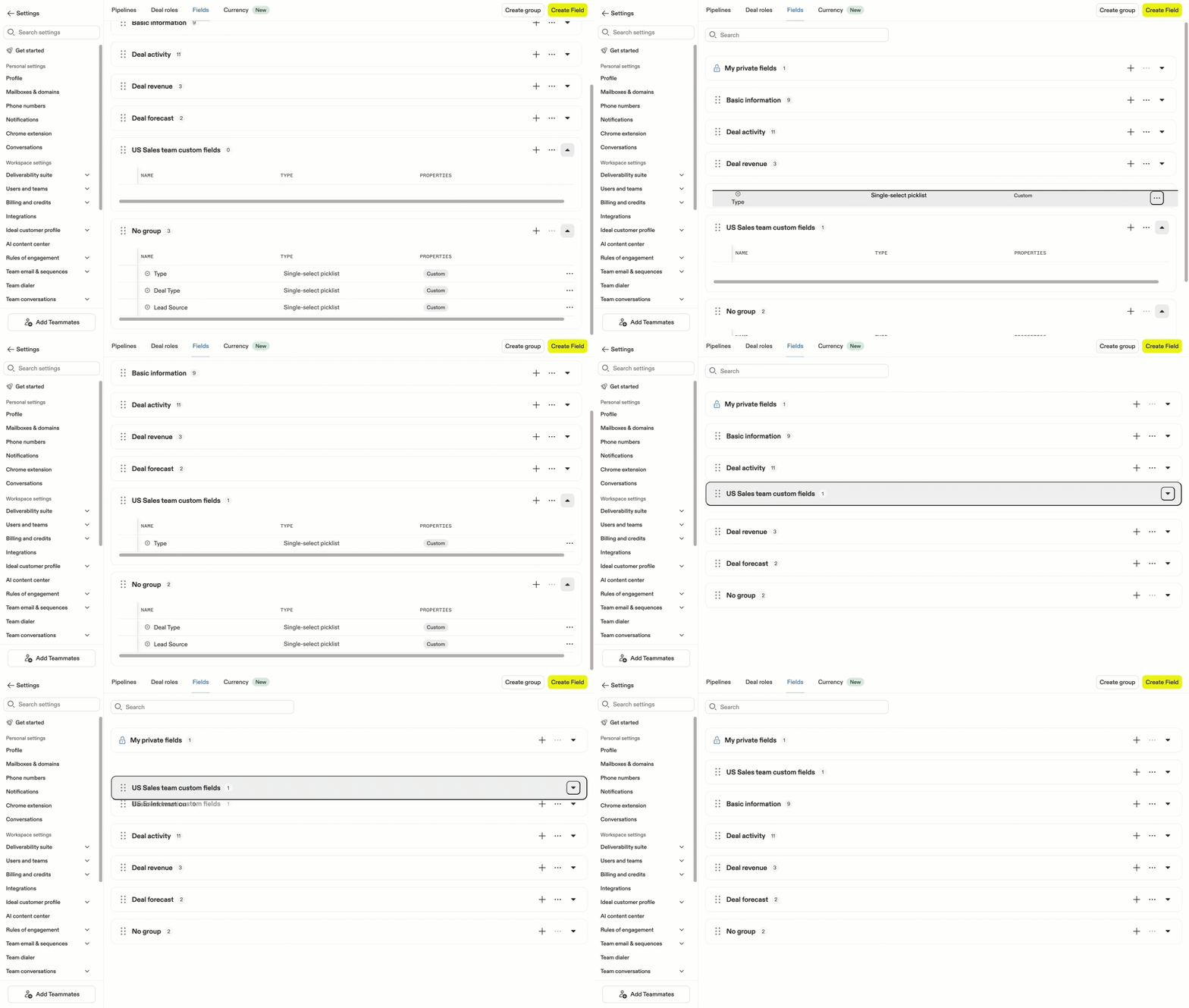
You've now created a new field group to store your custom deal fields.
Your field groups and order display across Apollo, including when you view All Fields for a deal.
Edit a Custom Deal Field
To edit a custom deal field:
- Go back to Fields.
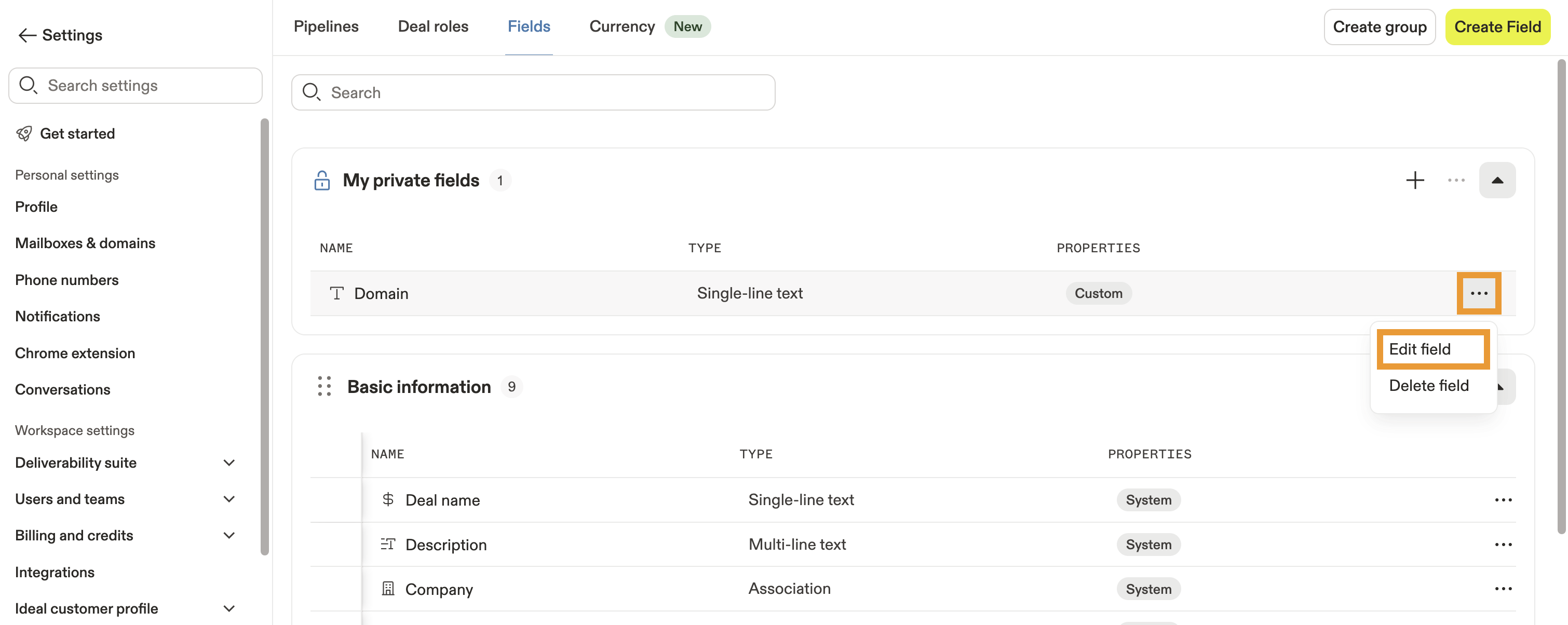
- Locate the custom deal field you want to update, then click ... > Edit field.
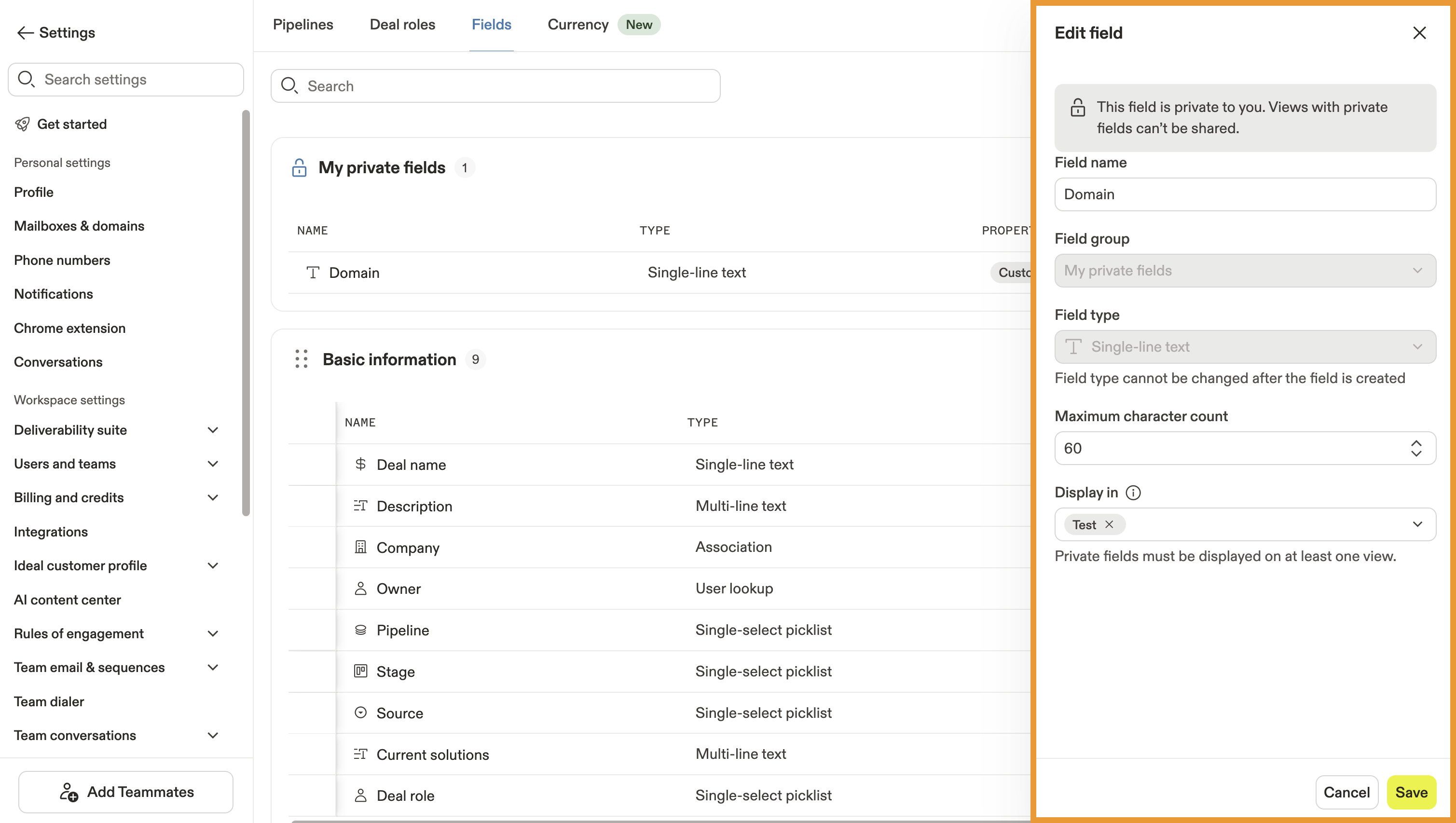
- Make any desired changes to your custom deal field. Note that you can't update the field type after creating a custom field. In addition, you can't update the field group for private custom fields.
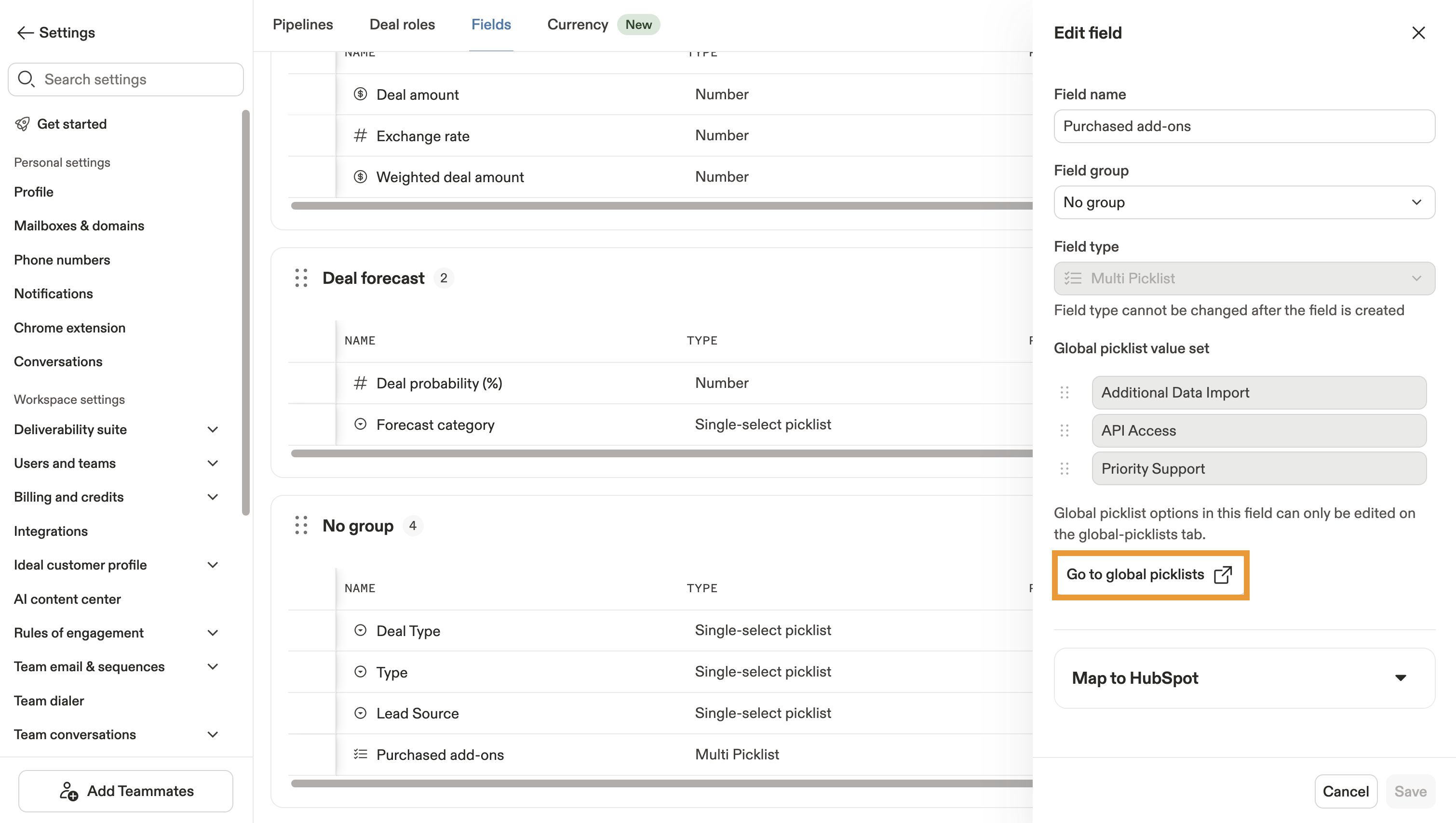
- If you edit a custom field with a global picklist, click Go to global picklists to edit your global picklist options.
- Click Save when you're done.
You've now edited your custom deal field.
Next Steps
Check out these additional resources to learn more about how your team can customize and manage deals in Apollo.
| Create Custom Contact Fields | Easily add and organize custom contact fields to capture the details your sales reps actually use in conversations. |
|---|---|
| Create Custom Account Fields | Quickly build custom account fields to store company-specific insights that align with your pipeline strategy. |
| Set Up Deals | Follow the steps to configure your deal stages and pipeline so every opportunity flows through the right process. |
| Create a Deal | Learn how to add new deals to your pipeline and start tracking progress toward revenue goals in Apollo. |
| Access and Manage Deals | Learn how to view, edit, and organize existing deals so your pipeline stays current and actionable. |