
Overview
You can export enriched contacts from Apollo to a CSV. This allows you to use your Apollo data in other tools that support CSV imports.
Did you know? When you export existing records, Apollo doesn't automatically enrich emails and mobile numbers. Use enrichment on your contacts before you begin a CSV export.
Check out the following sections to export contacts to a CSV.
Export Contacts to a CSV
You can use the AI assistant to export contacts to a CSV. The assistant helps you pull the right records and start your export, so you can get your data faster with fewer clicks.
To export contacts to a CSV:
- Launch Apollo and click Search > People.
- Apply search filters to narrow your results. You can filter for saved contacts, use a saved search, or use a list.
- Check one or more contacts, or use bulk selection along the top. Then click Export.
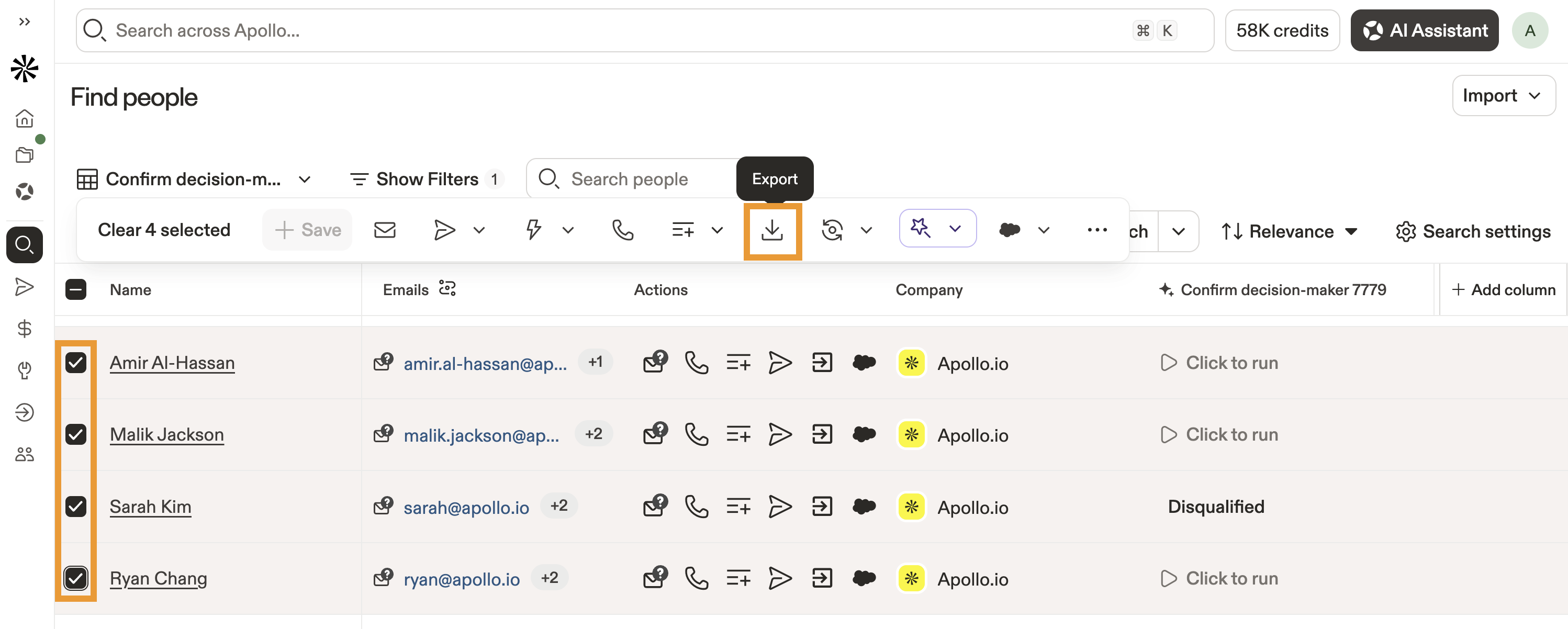
Exporting saved contacts to a CSV may require export credits, depending on your Apollo plan. Contacts that were already exported, imported from CRM, CSV, manual, API sources, or who don't have verified emails, don't consume export credits. Learn more about credit usage for accessing new contact emails.
- Select whether you want to export emails for all of the contacts you selected or just those with verified emails.
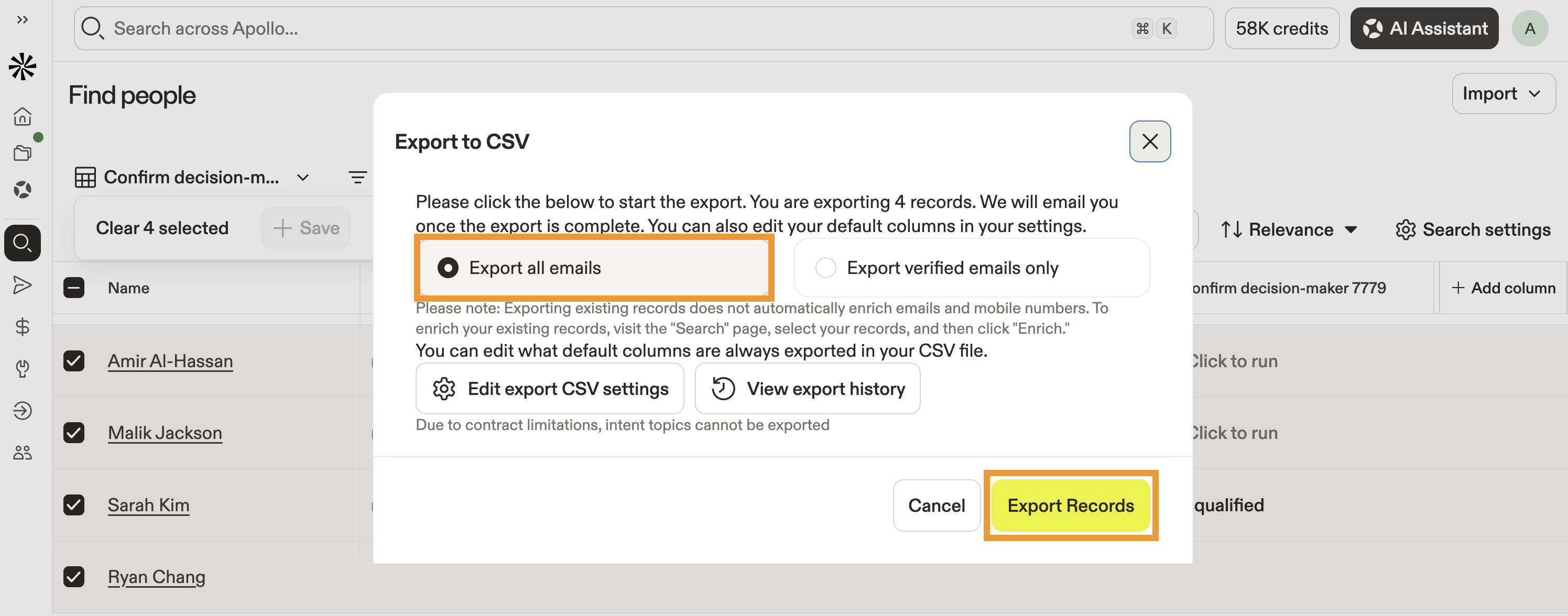
By default, Apollo data includes business email addresses. To prospect with personal email addresses instead, change your team's primary email type.
- (Optional) Click Edit export CSV settings to adjust the included fields on the export.
CSV exports might not retain the sort order displayed in Apollo. After exporting, open the file in Excel, Google Sheets, Apple Numbers, or another spreadsheet application to sort the data as needed.
Spreadsheet apps may reformat fields like ZIP codes, phone numbers, long IDs, or dates. To preserve formatting, import or format those columns as text before editing the file.
- When finished, click Export records.
Most exports run quickly, but larger exports, like those with more than 1,000 contacts, may take several minutes to complete. To check the status of your export, click Settings > Import & Exports > CSV Exports.
- When the export completes, click Download.
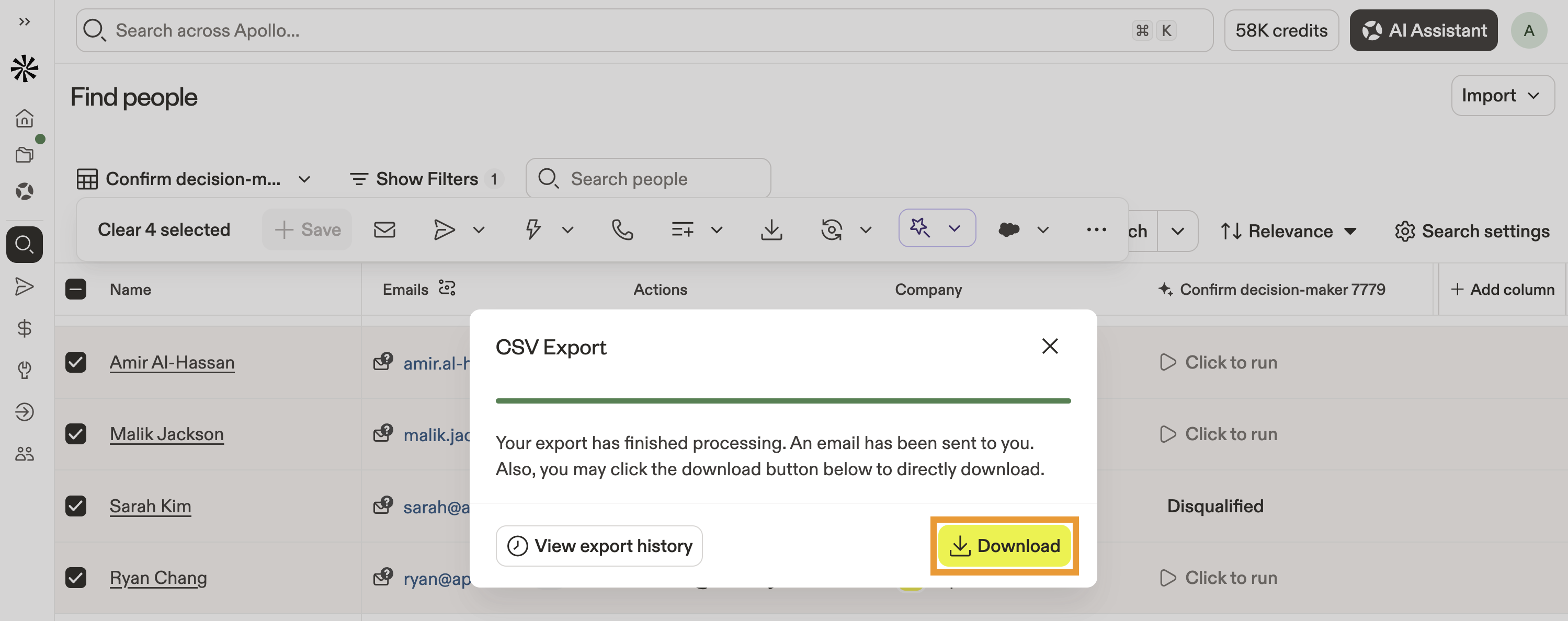
You have now exported your contacts to a CSV. You can review the file, share it with your team, or import the contact data into another tool.
Available Export Fields
Learn more about each field that you can configured to be exported:
You may see different field options when you export contacts than when you export accounts. Some fields are only available for specific export types, while others may not be available for either export.
If a field is missing from your export, confirm that the field is supported in the CSV export settings and include it when you export again. Emails and phone numbers aren't always included by default. If a field isn't selected in your export settings, its column appears blank in the exported CSV, even if data exists in Apollo.
Contact Export Fields |
||
|---|---|---|
| # employees | Account owner | Annual revenue |
| Apollo account id | Apollo contact id | Apollo record id |
| City | Company address | Company city |
| Company country | Company linkedin url | Company name |
| Company name for emails | Company phone | Company state |
| Contact owner | Corporate phone | Country |
| Custom fields | Demoed | Departments |
| Do not call | Email bounced | |
| Email confidence | Email open | Email sent |
| Email status | Facebook url | First name |
| Home phone | Industry | Keywords |
| Last contacted | Last name | Last raised at |
| Latest funding | Latest funding amount | Lists |
| Mobile phone | NAICS codes | Number of retail locations |
| Other phone | Person linkedin url | Primary email catch-all status |
| Primary email last verified at | Primary email source | Primary email verification source |
| Primary intent score | Primary intent topic | Replied |
| Secondary email | Secondary email source | Secondary email status |
| Secondary email verification source | Secondary intent score | Secondary intent topic |
| Seniority | SIC codes | Stage |
| State | Sub departments | Subsidiary of |
| Subsidiary of (Organization ID) | Technologies | Tertiary email |
| Tertiary email source | Tertiary email status | Tertiary email verification source |
| Title | Total funding | Twitter url |
| Website | Work direct phone | |
# employees
The number of employees at the contact's company. Use this field to understand company size and segment accounts by headcount.
Account owner
The Apollo user assigned as the owner of the account.
Annual revenue
The yearly revenue for the contact's company. Use annual revenue to evaluate company size, prioritize accounts, and refine prospecting segments.
Apollo account id
The unique Apollo identifier for the account associated with the contact. Use this ID to reference or match the account across exports, imports, and connected systems.
Apollo contact id
The unique Apollo identifier for the contact. Use this ID to reference or match the contact across exports, imports, and connected systems.
Apollo record id
The unique Apollo identifier for the exported record; this should match the contact ID.
City
The city associated with the contact.
Company address
The street address associated with the contact's company. Use this with company city, company state, and company country for the full company location.
Company city
The city associated with the contact's company.
Company country
The country associated with the contact's company. Use this field to segment, filter, or route accounts by country.
Company linkedin url
The LinkedIn URL associated with the contact's company.
Company name
The name of the account associated with the contact in Apollo.
Company name for emails
The company name value intended for use in email personalization, often a cleaned version of company name.
Company phone
The phone number associated with the contact's company.
Company state
The state or region associated with the contact's company.
Contact owner
The Apollo user assigned as the owner of the contact.
Corporate phone
The corporate or company-level phone number associated with the contact's company.
Country
The country associated with the contact.
Custom fields
Custom contact fields, including any contact-level AI research fields your team has created in Apollo.
Demoed
True or False indicating whether the prospect has shown interest through Apollo meetings or had a positive logged call outcome.
Departments
The department associated with the contact's role, such as sales, marketing, finance, or operations.
Do not call
This field reflects a contact's stored DNC status in Apollo. Enable DNC phone screening to export a DNC status. Apollo only uses the DNC status already stored for the contact. Apollo doesn't run a live DNC check during CSV export. TRUE indicates a phone number associated with the contact is on a supported DNC list. Before calling the contact, confirm that your team has a legitimate legal basis, such as a pre-existing business relationship. Use this field to help your team respect calling preferences and compliance requirements during outreach.
The contact's primary email address in Apollo.
Email bounced
TRUE or FALSE indicating whether an email sent to the contact bounced. Bounces can affect deliverability, so use bounced email troubleshooting to diagnose and resolve delivery issues.
Email confidence
This is a deprecated field.
Email open
TRUE or FALSE indicating whether the contact opened an email.
Email sent
TRUE or FALSE indicating whether an email has been sent to the contact.
Email status
The status of the contact's email address, such as verified, unavailable, user managed, or catch-all. Email statuses help you filter prospects and understand email deliverability risk.
Facebook url
The Facebook URL associated with the contact or company.
First name
The contact's first name.
Home phone
The home phone number associated with the contact, when available.
Industry
The industry associated with the contact's company.
Keywords
Keywords associated with the contact's company.
Last contacted
The most recent date and time in UTC your team contacted the person.
Last name
The contact's last name.
Last raised at
The date and time in UTC when the contact's company last raised funding.
Latest funding
The most recent funding round or funding type associated with the contact's company.
Latest funding amount
The amount associated with the contact's company's latest funding round.
Lists
The Apollo lists that include the contact or account. Lists help you organize saved contacts and accounts for prospecting, workflows, and outreach.
Mobile phone
The mobile phone number associated with the contact, when available.
NAICS codes
The North American Industry Classification System (NAICS) codes associated with the contact's company.
Number of retail locations
The estimated number of physical retail locations associated with the contact's company.
Other phone
An additional phone number associated with the contact or company.
Person linkedin url
The LinkedIn URL associated with the contact.
Primary email catch-all status
Indicates whether the contact's primary email belongs to a catch-all domain. Catch-all emails are accepted by a domain even when the exact mailbox may not exist, so Apollo verifies them differently than many third-party tools.
Primary email last verified at
The date or time Apollo last verified the contact's primary email.
Primary email source
The source of the contact's primary email address, such as Apollo data, a CRM, CSV import, API, or manual edit.
Primary email verification source
The source or method used to verify the contact's primary email. Apollo's verification process checks multiple data sources and signals to validate emails.
Primary intent score
The strongest buying intent score associated with the contact or account. Buying intent helps identify companies researching relevant topics so your team can prioritize outreach.
Primary intent topic
The strongest buying intent topic associated with the contact or account. Buying intent topics represent areas of interest that companies may be researching.
Replied
TRUE or FALSE indicating whether the contact replied to an email.
Secondary email
An additional email address associated with the contact.
Secondary email source
The source of the contact's secondary email address, such as Apollo data, a CRM, CSV import, API, or manual edit.
Secondary email status
The status of the contact's secondary email address, such as verified, unavailable, user managed, or catch-all. Email statuses help you understand how reliable an email is before outreach.
Secondary email verification source
The source or method used to verify the contact's secondary email. Apollo's email verification process helps determine whether an email is likely to reach the correct inbox.
Secondary intent score
The second strongest buying intent score associated with the contact or account.
Secondary intent topic
The second strongest buying intent topic associated with the contact or account.
Seniority
The contact's seniority level, such as manager, director, VP, or C-level.
SIC codes
The Standard Industrial Classification (SIC) codes associated with the contact's company. Use SIC codes to classify companies by industry and support industry-based segmentation.
Stage
The contact's stage in Apollo. Stages help teams track where prospects and accounts are in their outbound or sales process.
State
The state or region associated with the contact.
Sub departments
The more specific department categories associated with the contact's role.
Subsidiary of
The parent company associated with the account, when the contact's company is a subsidiary.
Subsidiary of (Organization ID)
The Apollo organization ID for the parent company associated with the account.
Technologies
The technologies Apollo associates with the contact's company.
Tertiary email
A third email address associated with the contact.
Tertiary email source
The source of the contact's tertiary email address, such as Apollo data, a CRM, CSV import, API, or manual edit.
Tertiary email status
The status of the contact's tertiary email address, such as verified, unavailable, user managed, or catch-all. Email statuses help you understand how reliable an email is before outreach.
Tertiary email verification source
The source or method used to verify the contact's tertiary email. Apollo's email verification process helps determine whether an email is likely to reach the correct inbox.
Title
The contact's job title.
Total funding
The total amount of funding associated with the contact's company.
Twitter url
The X (formerly Twitter) URL associated with the contact or company.
Website
The company's website URL.
Work direct phone
The direct work phone number associated with the contact, when available.
Next Steps
Here are a few quick next steps you can tackle right after exporting contacts, so your data stays clean and ready for outreach.
| Import a CSV of Contacts | Got a list sitting in a spreadsheet? Import your contacts from a CSV to pull them into Apollo and enrich key fields before your team starts reaching out. |
|---|---|
| Use CSV Enrichment | Want fresher titles, locations, and company details in one pass? Run CSV enrichment on your file to refresh your records so outreach and routing stay accurate. |
| Create and Use a List | If you're juggling segments for different plays, Create a list your team can use to keep prospects organized and ready for sequences, exports, and assignments. |
| Merge Duplicate Records to Consolidate Your Data | Seeing the same person twice (or five times)? Merge duplicate records to keep reporting clean and prevent your reps from double-touching the same prospect. |