
Overview
Sequences help your team reach contacts over time with emails, calls, social touches, and tasks. You can add contacts to a new or existing sequence from search, a saved list, a contact profile, a CSV file, or an automated workflow.
When you add contacts to an active sequence, Apollo enrolls eligible contacts at step one based on the sequence sending schedule. New contacts start at step one, even when other contacts are already further along in the same sequence.
By default, only sequence owners can add contacts to a sequence. If you don't have access to edit a sequence, ask the sequence owner to share access.
Before adding contacts, check that:
- Your sequence is active. Inactive sequences may not appear when you add contacts.
- Your mailbox is linked. Apollo needs a connected mailbox to send sequence emails.
- You have access to the sequence. By default, only sequence owners can add contacts. If you can’t edit a sequence, ask the owner to share access.
- You have enough credits for the contacts you want to add. Apollo may check credits for the full batch before enrollment starts.
- Your sequence steps are toggled on. Contacts won’t receive emails from steps that are toggled off.
Already added contacts to a sequence? Check out Manage Contacts in Sequences to review contact status, pause or resume outreach, finish contacts, remove contacts, or restart outreach.
Check out the following sections to add contacts to a sequence.
Add Contacts to a Sequence
You can add contacts from search, from a CSV file, from a list, or automatically via the outbound copilot.
Apollo warns you before adding contacts to a sequence if enrollment could create duplicate outreach, lower deliverability, or conflict with your team's permissions. You may see warnings for contacts already in another sequence, contacts with unverified or missing emails, outdated contact information, or ownership conflicts. You can proceed despite the warning, or resolve the issue before adding contacts.
Add contacts from search
Use search when you want to find new people in Apollo and add them to a sequence.
To add contacts from search:
- Launch Apollo and click Sequences.
- Select a sequence.
- Click Add contacts > Prospect Searcher.
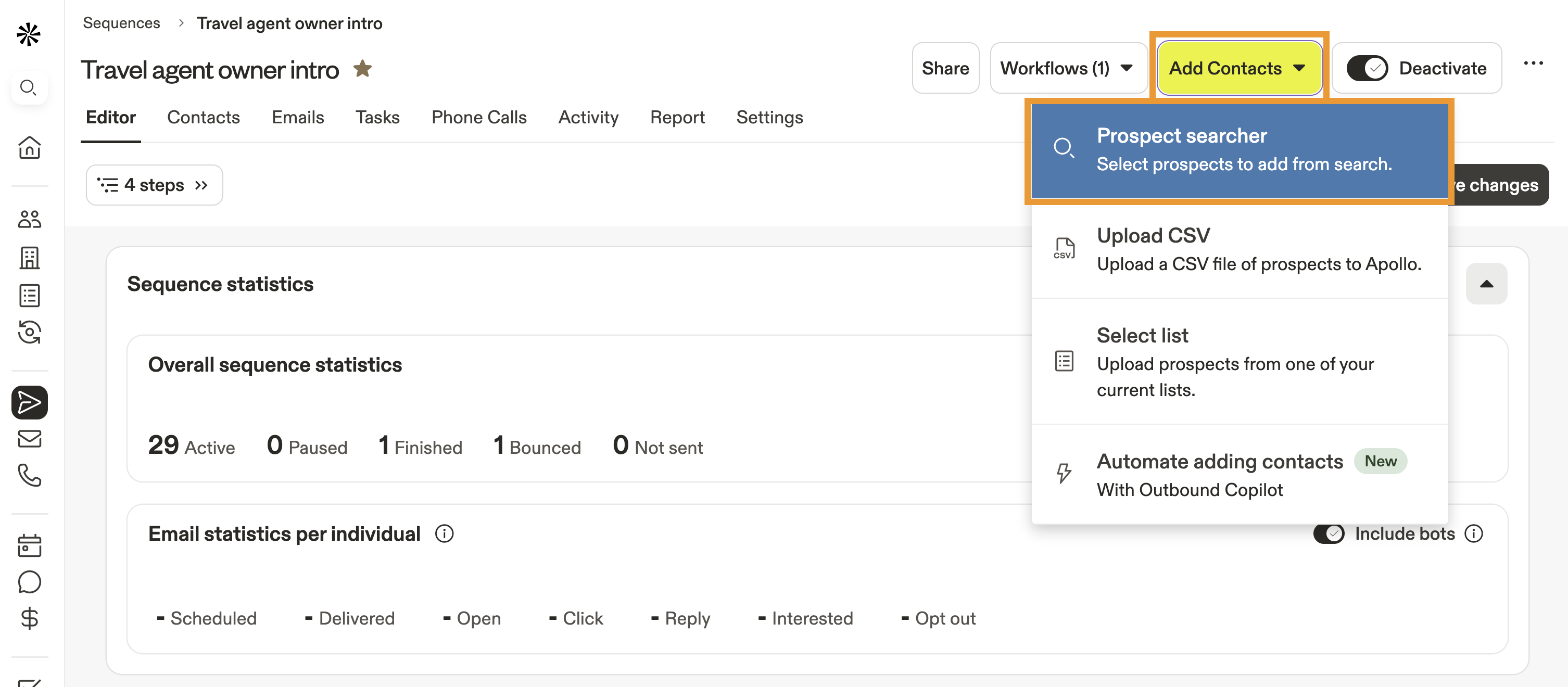
- Use search filters to find the right people for your sequence.
- Check each contact you want to add to the sequence.
- Click Add to sequence.
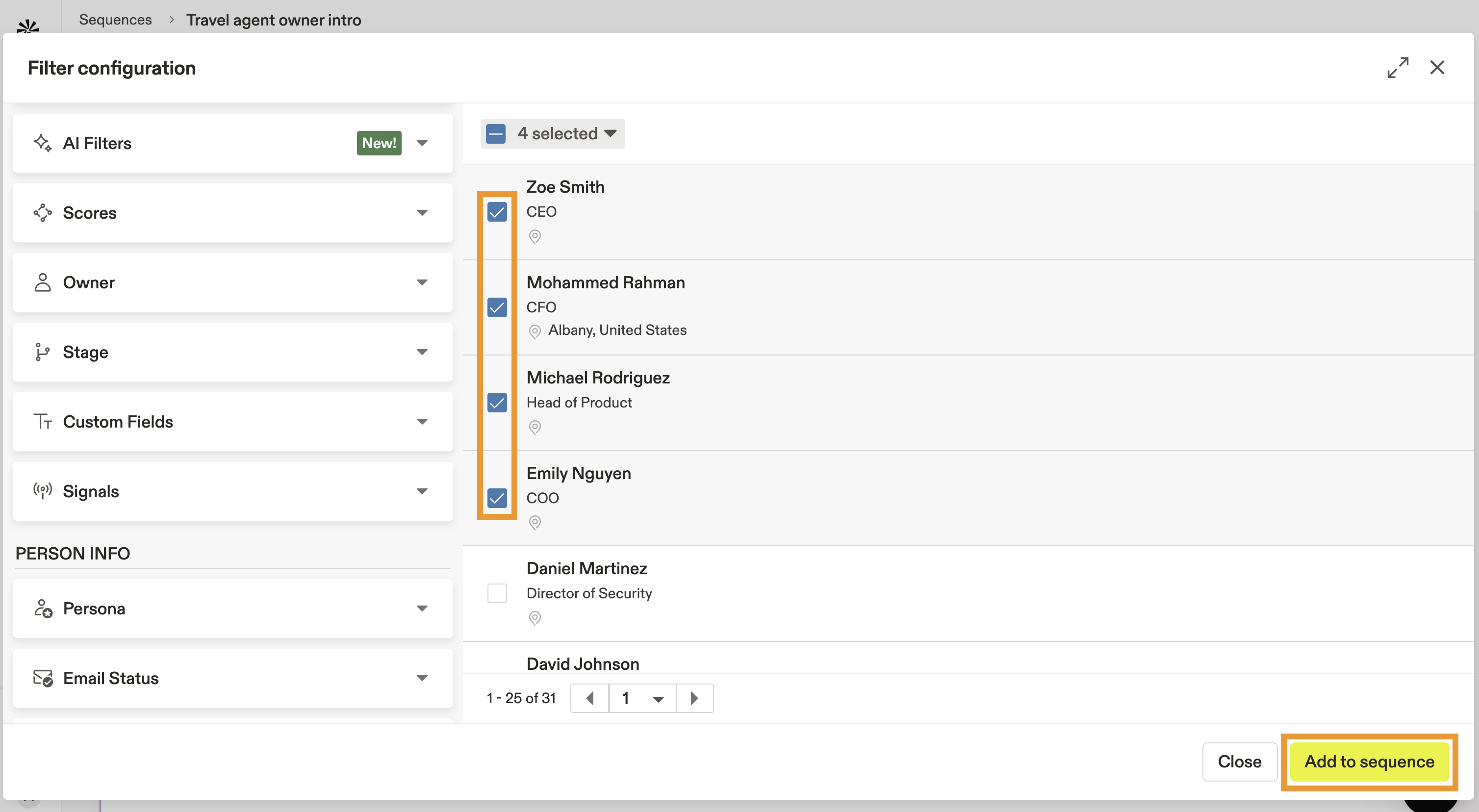
Apollo charges one credit per net-new verified contact you add to a sequence. There’s no charge if you add a saved contact with a verified email address to your sequence.
A credit warning can appear even when your balance looks fine. This usually happens because waterfall enrichment is pulling from paid providers, validation is turned on, or the preview shows the maximum possible spend. Check Settings > Credits or your waterfall enrichment report for actual usage. You can also review What Are Credits? and How Apollo Verifies Emails.
- Choose the mailbox you want Apollo to use to send sequence emails. Sequences don’t have a single mailbox setting. When you add contacts to a sequence, you choose the sending mailbox for those contacts.
-
(Optional) Select two or more mailboxes to rotate sends across connected mailboxes.
Mailbox rotation can help improve email deliverability by spreading outbound volume across connected mailboxes. Apollo assigns each new contact to the mailbox with the most remaining daily capacity, so sends may not split evenly. Changes to rotation settings only apply to new contacts.
-
(Optional) Check Skip Contacts Validation to add eligible contacts right away.
Apollo recommends keeping validation on. Validation helps catch missing emails, blocked stages, ownership conflicts, job changes, and contacts already active in another sequence.
- (Optional) Click Schedule to add the contacts at a specific date and time.
- Click Add contacts.

If Apollo finds issues with any contacts, review the warnings before you finish enrollment. You can resolve the issues, or continue with eligible contacts.
- If Apollo shows contact warnings, review the affected contacts and choose whether to resolve the warnings or continue with eligible contacts. Click Sequence selection.
You've now added contacts to your sequence.
Apollo prioritizes contacts based on their prospect score. Contacts with higher scores are more likely to engage with your outreach, so Apollo may move them through your sequence ahead of lower-scoring prospects.
Add contacts from a CSV
Download a sample CSV file that includes the required columns. Learn more about importing contacts via CSV.
Use a CSV file when you want to upload contacts from another source and add them to a sequence.
To add contacts to a sequence via a CSV file:
- Launch Apollo and click Sequences.
- Click the sequence you want to use.
- Click Add Contacts > Upload CSV.
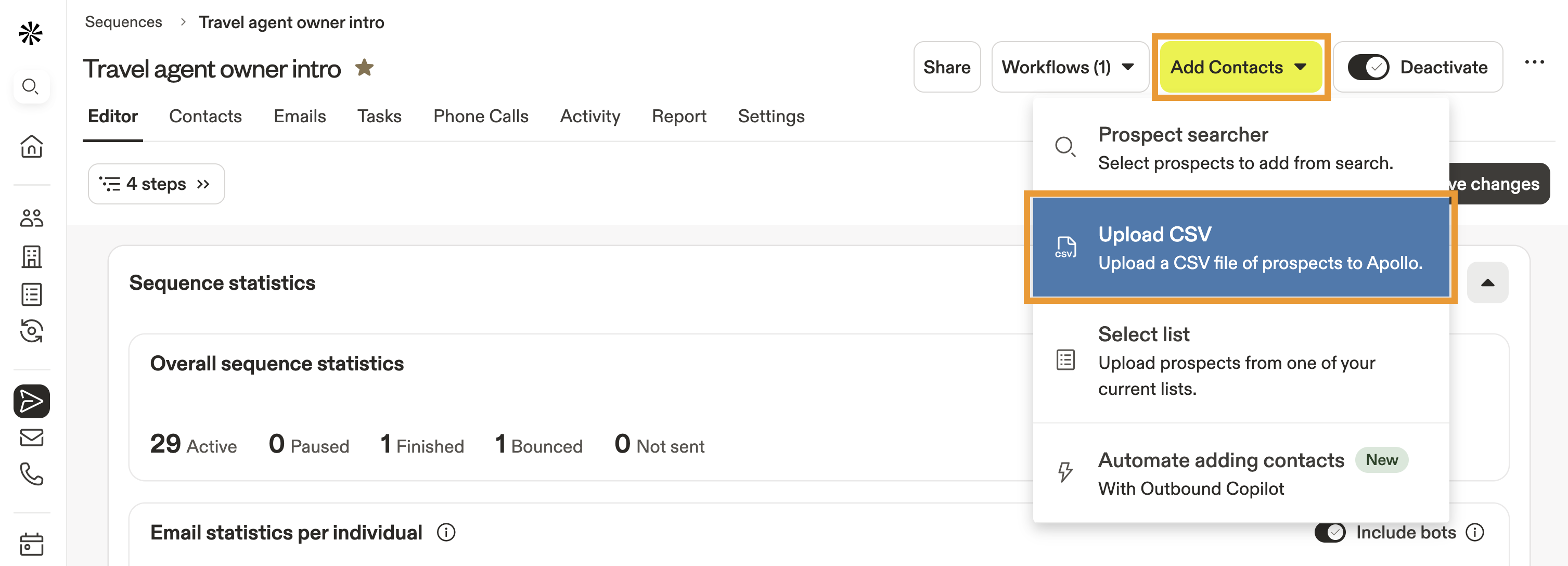
- Click Select CSV File, and select the file on your computer.

- Next, map each CSV column header to the matching Apollo field.

- Select the appropriate options for the import settings.

You can't rotate mailboxes when adding contacts via CSV. To rotate mailboxes for CSV contacts, click Search > People, import the contacts into a list, then add the list to a sequence and select two or more mailboxes to use rotation.
- When finished, click Import.
You've now added contacts to a sequence from a CSV.
Add contacts from a list
Use a saved list when you already grouped the contacts you want to add to a sequence.
To add contacts to a sequence from a list:
- Launch Apollo and click Sequences.
- Click the sequence you want to use.
- Click Add Contacts > Select list.

- Select one or more lists from the dropdown. There's no limit to the number of lists you can add to the sequence.
- Select the email address you want to use to message contacts in the sequence, or toggle Rotate mailboxes to rotate between the mailboxes you use in Apollo. Select multiple email addresses, or leave the dropdown blank to rotate all. Mailbox rotation helps improve email deliverability by spreading outbound emails across connected mailboxes.
- (Optional) Check Skip Contacts Validation if you don't want to review issues with contacts before sending them emails. Apollo recommends keeping validation on so you can catch important warnings before contacts are enrolled.
- (Optional) Click Schedule to set a specific time to add the contacts to the sequence, then choose a date and time.

If you're using someone else's mailbox to send sequence messages, the recipient may see that name as the sender of the email. Check out Manage User Mailboxes to change the sender name on Microsoft Exchange mailboxes. Alternatively, use a Microsoft Exchange mailbox that you created in your name, or any other connected mailbox from a supported email service provider. Apollo recommends Gmail to get the most out of Apollo.
- Click Add now.
You've now added contacts to a sequence from a list.
Add contacts with the outbound copilot
Use workflows or outbound copilot when you want Apollo to automatically add contacts to a sequence.
To add contacts automatically with workflows:
- Launch Apollo and click Sequences.
- Click the sequence you want to use.

- Click Add Contacts > Automate adding contacts.

- Configure the copilot workflow, then click Create workflow.

You have now automated adding contacts with the outbound copilot.
When you use workflows or the outbound copilot to enroll contacts in a sequence, Apollo runs the workflow based on its trigger and schedule, such as every hour, daily, or when a condition changes. That means new contacts may not appear in the sequence right away. They appear after the workflow meets their trigger conditions.
Check out Use the Outbound Copilot to learn more.
FAQs
Frequently asked questions |
||
| Why can’t I find my sequence when I add contacts? | Why do I see an insufficient credits error when I have credits? | Why did Apollo warn me or skip contacts when I added them? |
| Why aren't my contacts showing in scheduled emails? | Which mailbox sends emails to contacts? | Why did my CSV add zero contacts? |
| Why aren’t workflows adding contacts to my sequence? | ||
Why can’t I find my sequence when I add contacts?
Your sequence needs to be active before you can add contacts. Open the sequence, turn it on, then try adding the contacts again.
You also need edit access to add contacts to a sequence. If you can’t edit the sequence, the sequence owner may need to share access with you.
Why do I see an insufficient credits error when I have credits?
Apollo may check whether your credits can cover the full batch before enrollment starts. Waterfall enrichment and email verification can also affect the credit estimate.
If you see this error, try adding a smaller batch. You can also review your credit usage and waterfall enrichment settings, then try again.
Why did Apollo warn me or skip contacts when I added them?
Apollo warns you before adding contacts when enrollment could create duplicate outreach, lower deliverability, or conflict with your team’s settings.
You may see a warning when:
- The contact is already active in another sequence.
- The contact has an unverified email address.
- The contact has outdated information.
- The contact has ownership restrictions.
Apollo may skip contacts that aren’t eligible for enrollment, such as contacts who are unsubscribed, bounced, marked Do Not Contact, already in the sequence, or limited by your team’s ownership and permission settings.
Review the enrollment warnings to see which contacts may need updates before you add them.
Why aren't my contacts showing in scheduled emails?
Check the sequence status, email step status, and mailbox connection. The sequence needs to be active, email steps need to be toggled on, and your mailbox needs to be connected before Apollo can schedule emails.
If the sequence uses manual steps, those steps appear as tasks instead of scheduled emails.
If contacts still don’t appear, open the sequence and click Contacts. Use the Sequence Status filters to check whether the contacts are paused, finished, bounced, not sent, or blocked by a sequence rule.
Which mailbox sends emails to contacts?
Apollo uses the mailbox you choose when you add contacts to the sequence. The sequence itself doesn’t have a single mailbox setting.
After contacts are enrolled, their assigned mailbox stays the same unless you remove and re-add them.
Mailbox rotation helps distribute sending volume across connected mailboxes. Apollo assigns each new contact to a mailbox based on available sending capacity. Rotation may not split contacts evenly across every mailbox.
Why did my CSV add zero contacts?
Check that your CSV includes the required fields and that each column is mapped to the right Apollo field.
Apollo may also skip contacts that already exist in the sequence, have missing email addresses, or aren’t eligible for enrollment.
Why aren’t workflows adding contacts to my sequence?
Check that both the sequence and workflow are active. Review the workflow filters and run log to confirm the workflow is finding the right contacts.
A Net New Check filter or another workflow condition may keep some contacts from enrolling. Workflow enrollments can also take time, depending on the workflow trigger and schedule.
Next Steps
Now that you can add contacts to sequences, use these resources to manage progress, automate enrollment, and improve outreach performance.
| Manage Contacts in Sequences | Need to adjust outreach after enrollment? Manage contacts in sequences to pause, resume, finish, remove, or re-enroll contacts as your conversations evolve. |
|---|---|
| Use the Outbound Copilot to Automate Prospecting | Want Apollo to keep your pipeline moving? Use the outbound copilot to automate prospecting to find, enrich, and enroll the right contacts without adding each one manually. |
| Email Deliverability Best Practices | Before you scale outreach, improve email deliverability to protect sender reputation and help more sequence emails land where prospects will see them. |
| Use an A/B Test in a Sequence | Not sure which message will resonate? Use an A/B test in a sequence to compare email versions and refine your messaging based on real engagement. |
| Report on Sequences | Once contacts start moving through outreach, report on sequences to measure performance, spot what’s working, and fine-tune your team’s next campaign. |