
Overview
You can add, manage, or deactivate users in Apollo any time your team grows or changes.
Admins have a robust set of controls and permission profiles to limit what each new user can do in Apollo. This ensures that everyone on your team has the appropriate level of permissions to succeed based on their role.
Check your Apollo plan to review the number of seats available to your team. If you've run out of seats, you can buy more to invite additional users to your Apollo account.
Check out the following sections to add, manage, deactivate, and reactivate users.
Add Users
To make changes to users and their roles, you need an admin account in Apollo.
To invite new users to Apollo:
- Launch Apollo, then go to Settings > Users & teams > Users.
- Click New User.
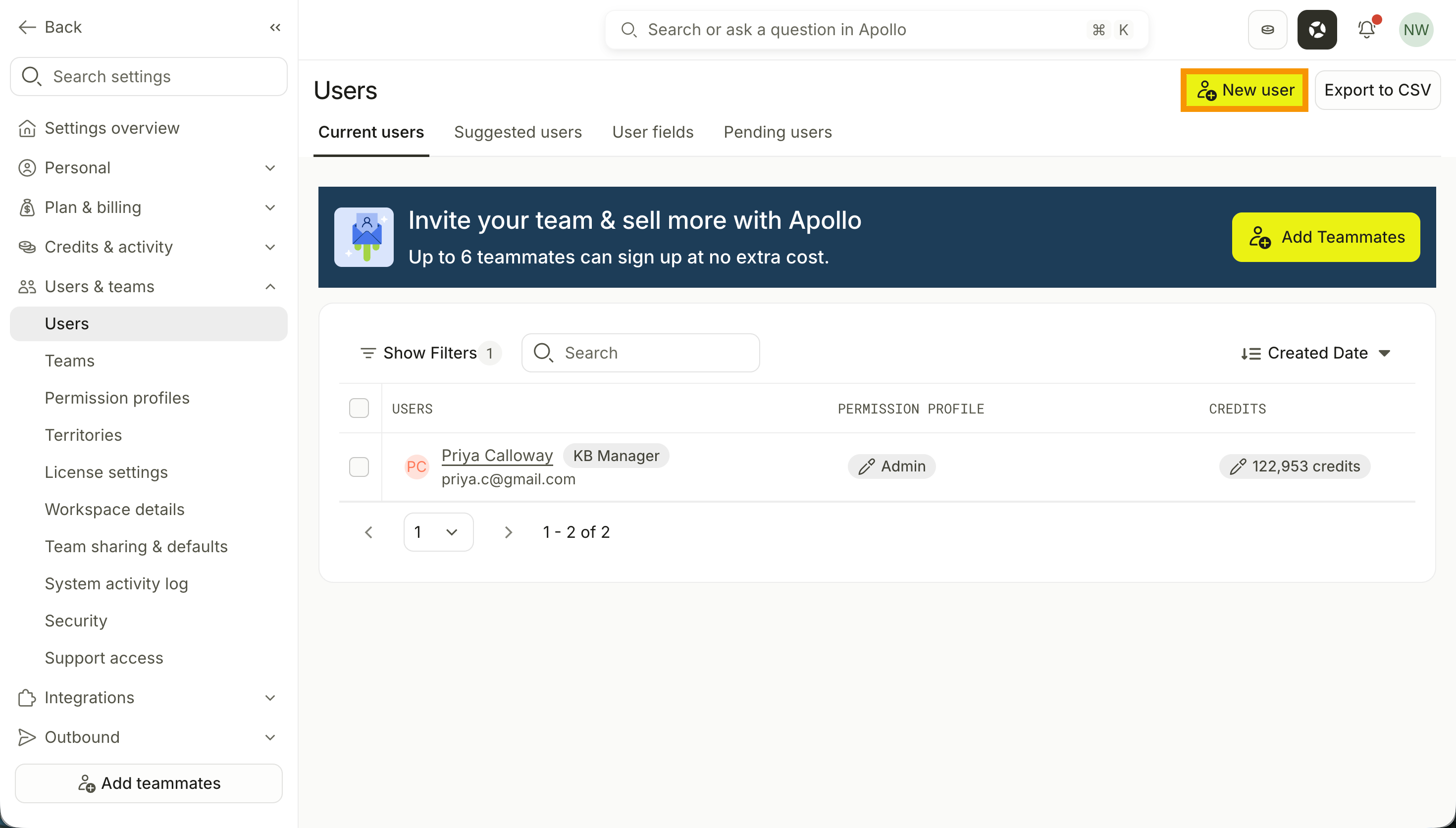
- Select a permission profile, then enter the email addresses of the people you want to add. Click Send Invites.
Check out the following articles to learn more about permission profiles and seat types in Apollo:
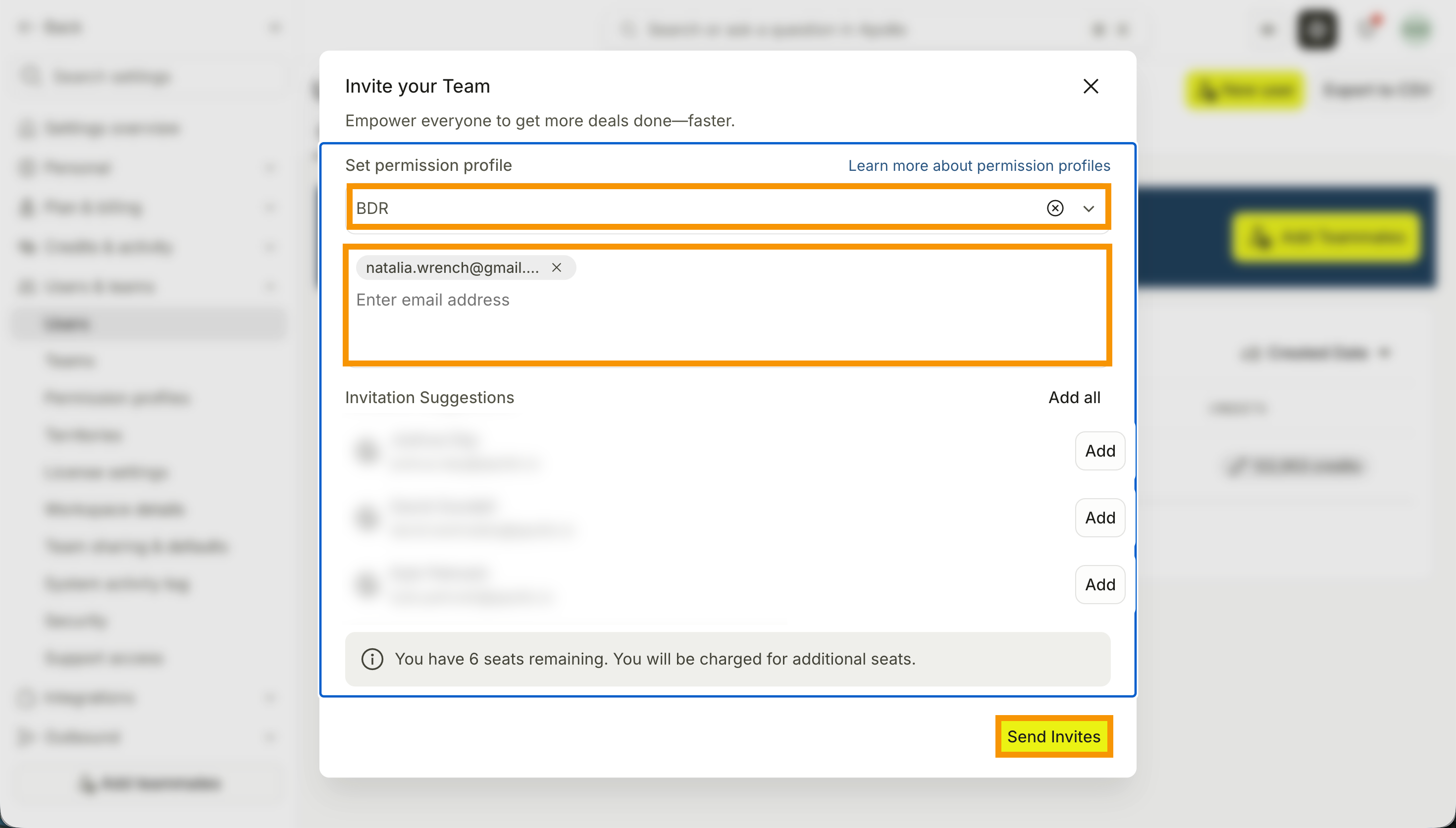
- Apollo will send email invites for new users to create their account. They'll click Accept Invitation to set up a new login or sign in with your organization's single sign-on credentials.

- If your teammate hasn't received their invite, ask them to check their spam folder. Otherwise, repeat steps 1-4 to resend an invitation.
Newly created accounts appear on the Users page.
If you've integrated your Salesforce account, click Pull users from Salesforce to add your team's Salesforce users to Apollo automatically. Once Apollo pulls their emails, you can select a permission profile and review before sending their invites.

Manage Users
Apollo admins can manage the following settings for existing users on the Users page:
| User setting | Description |
|---|---|
| Permission Profile |
Review users' assigned permission profiles. Click on a user's permission profile to assign a different one. Permission, Please!
Need to create a new permission profile? Check out Create and Assign Permission Profiles to learn how. 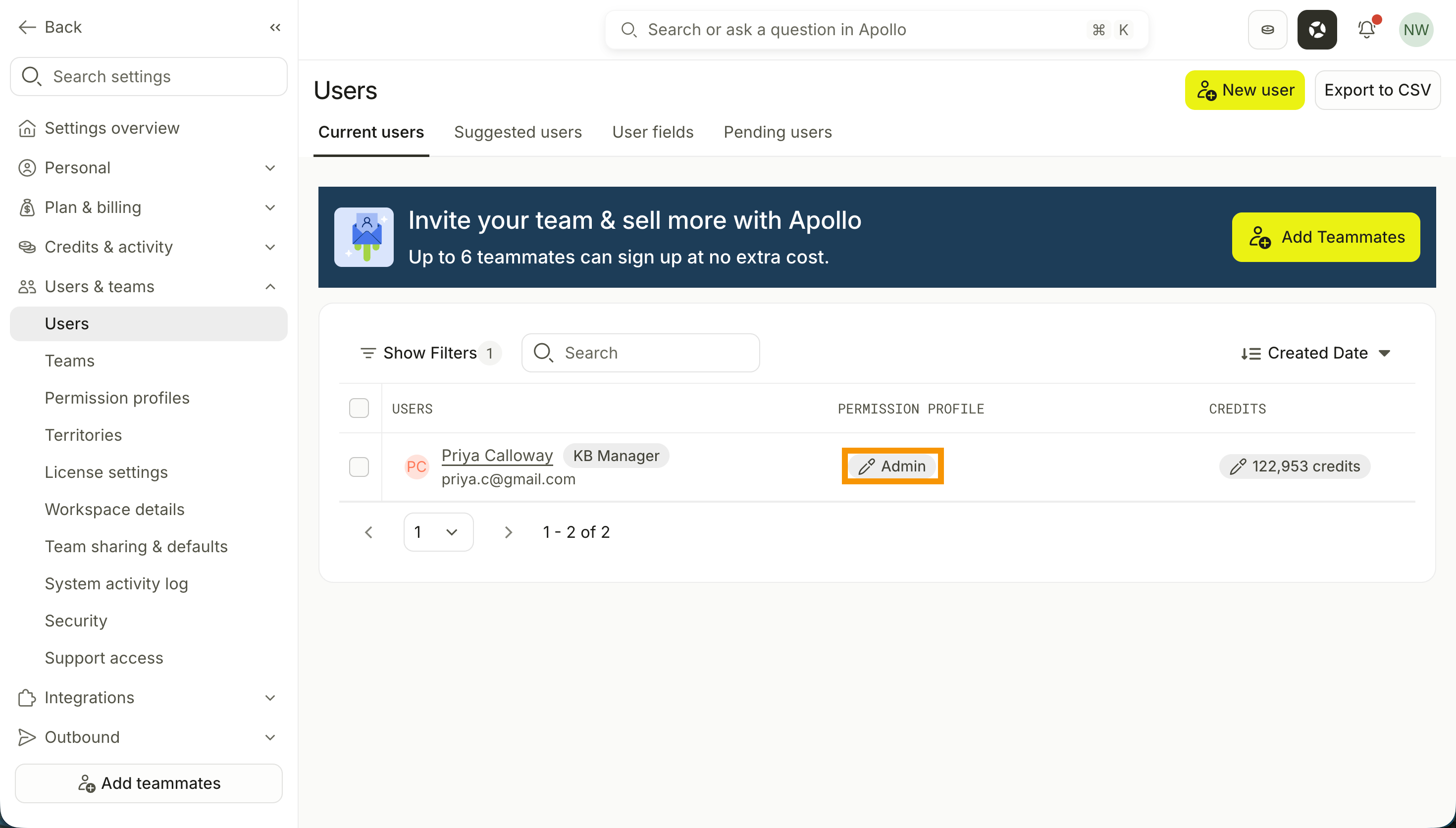
|
| Credits |
Click to set a credit limit for a user. This gives admins granular control over how many credits each user can consume on sales activities throughout Apollo. 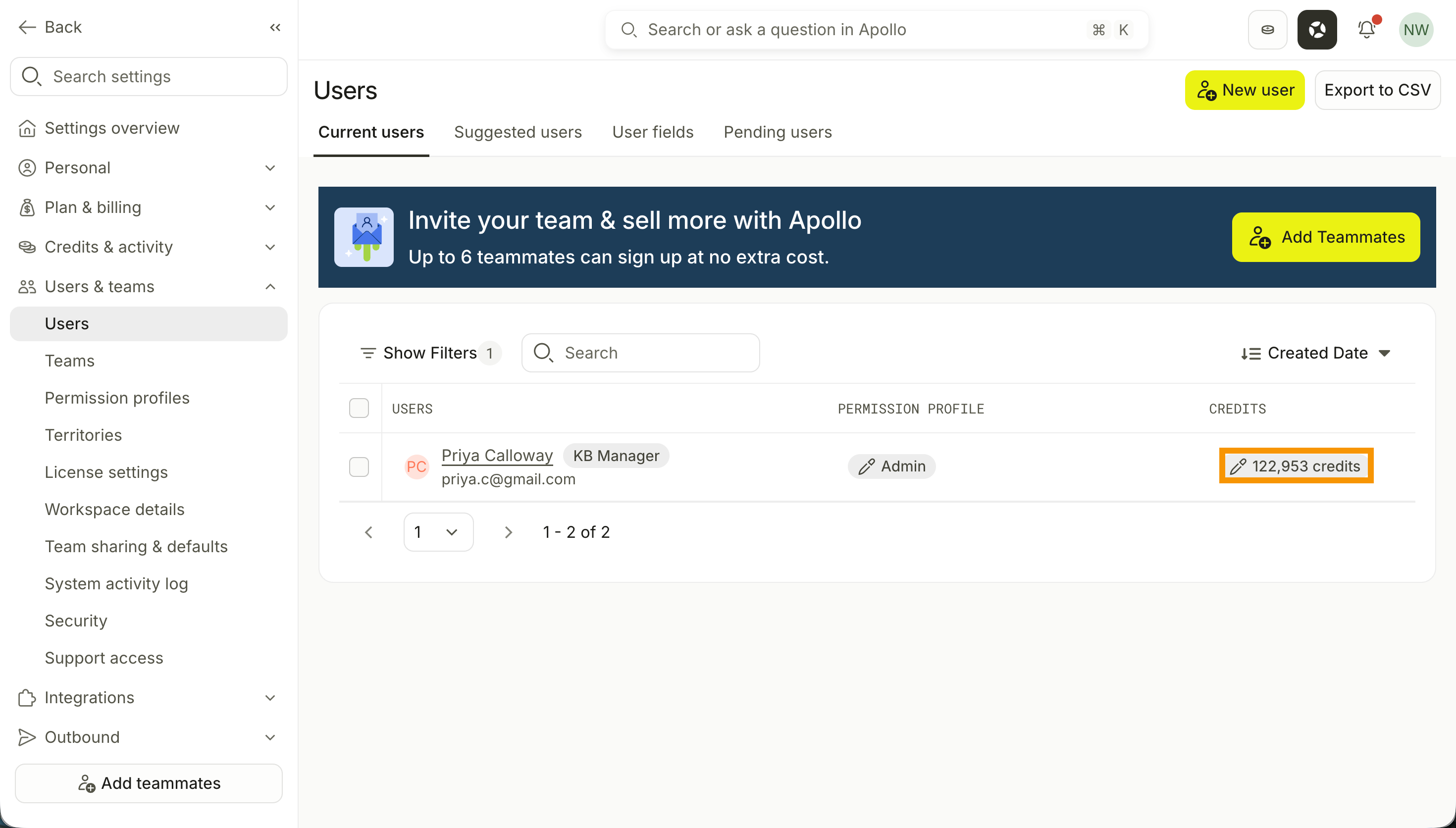
You can also check multiple users to update their credit limit in bulk. Check each user you want to update, then click Edit credit limit. Use the dropdown to set a new limit, then click Save. 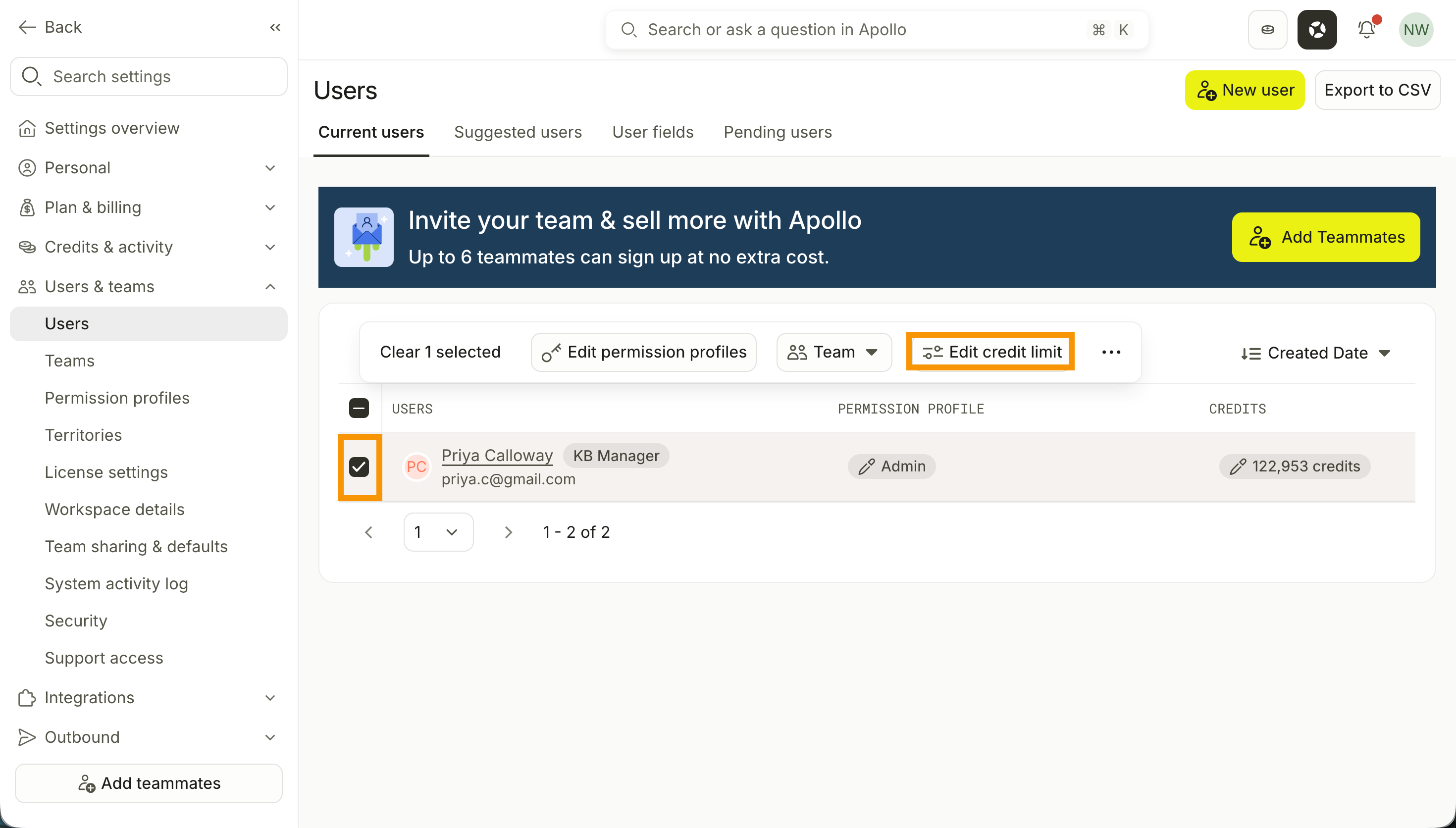
Credits 101
Jump into Apollo to learn more about credits or review your team's credit usage. |
| Territories |
Click Assign territory to set each user's territory. This limits users to prospecting only the contacts or accounts located in their assigned territory. 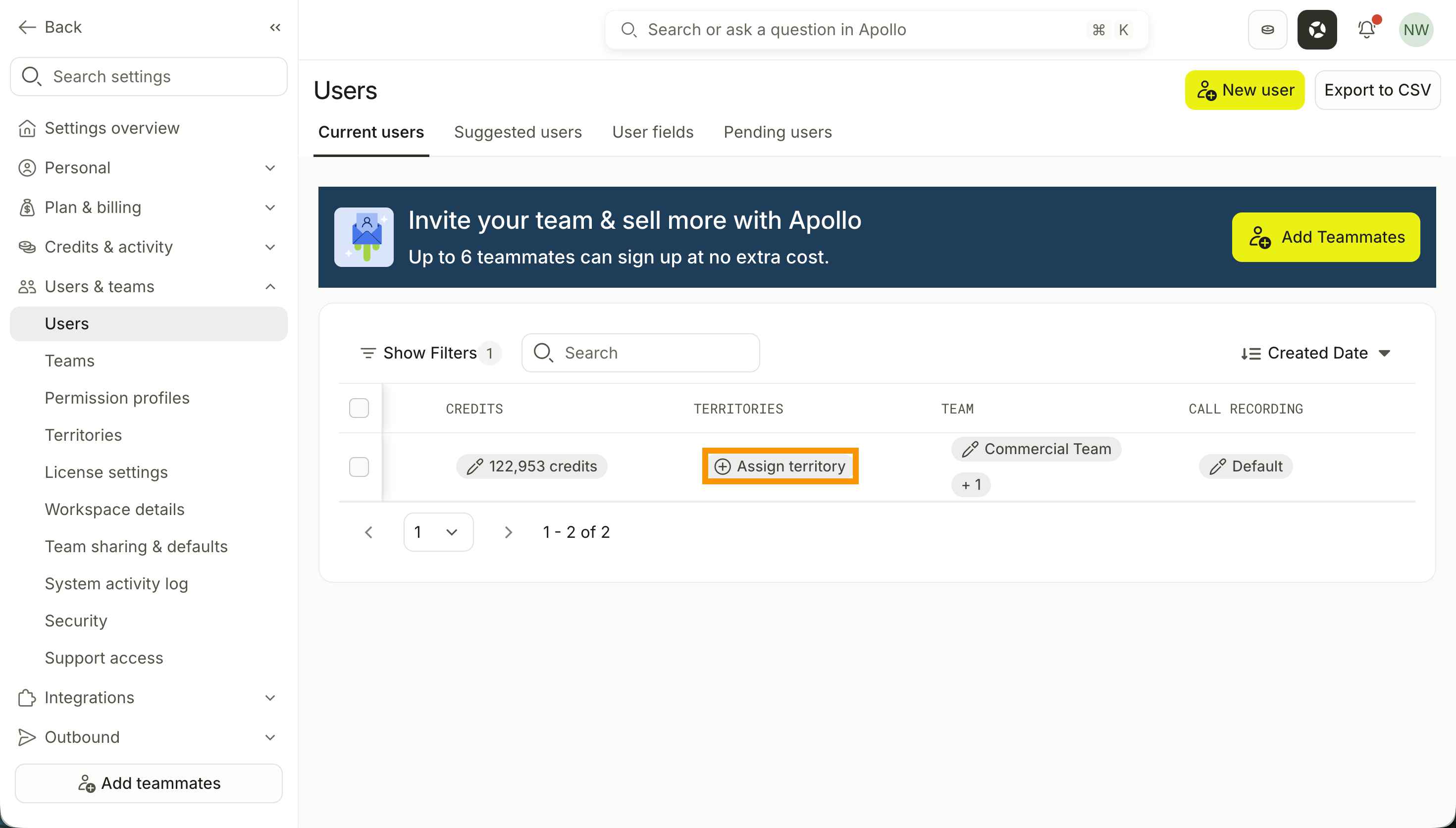
|
| Team |
Click Assign team to add a user to a team within your Apollo instance. Teams are useful for grouping users to assign permission profiles or to use in filters on analytics reports. 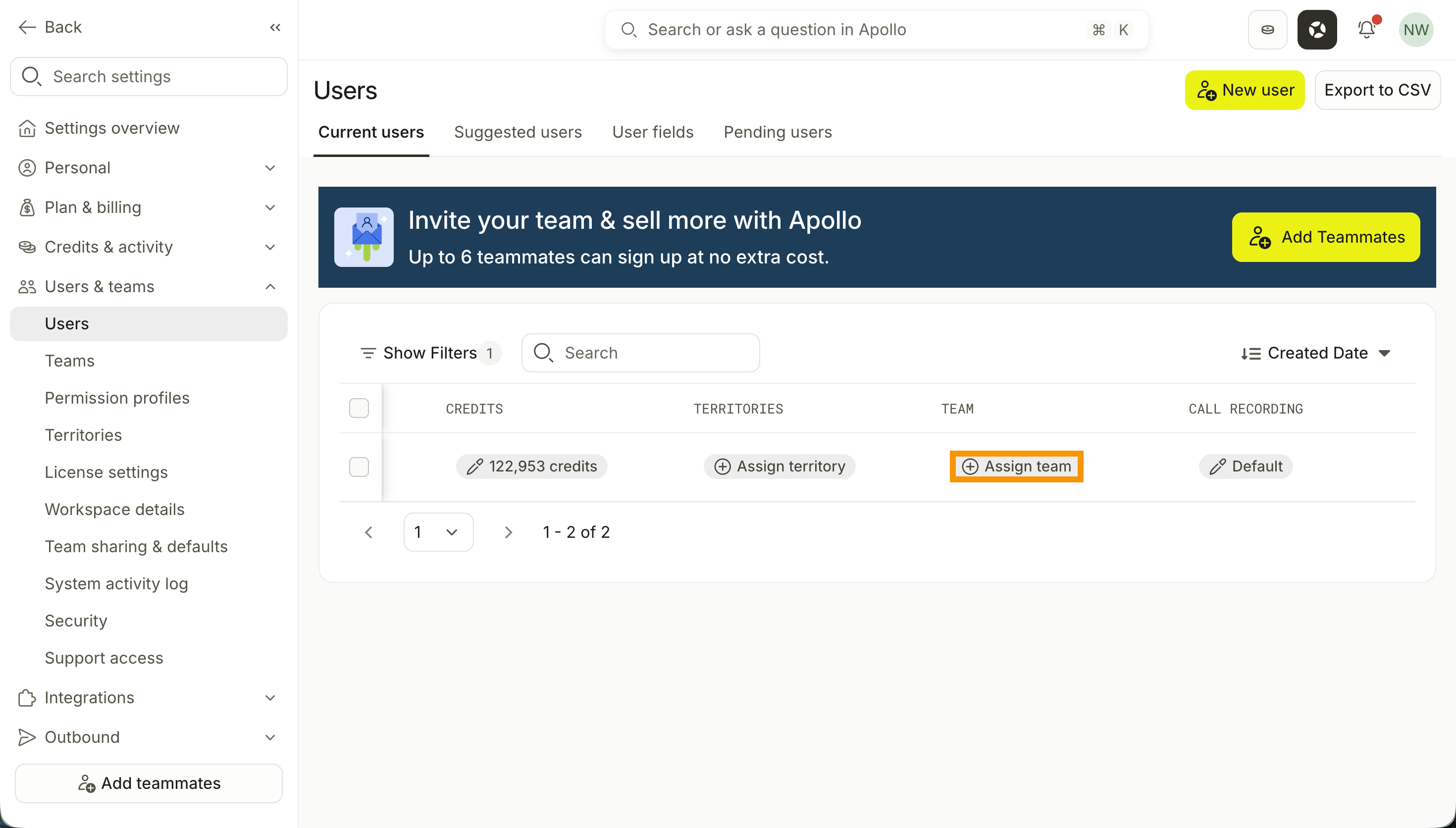
|
| Manager |
Assign, change, or remove a user's manager. Manager assignments establish reporting relationships in Apollo but don't affect teams, permission profiles, ownership, or visibility. 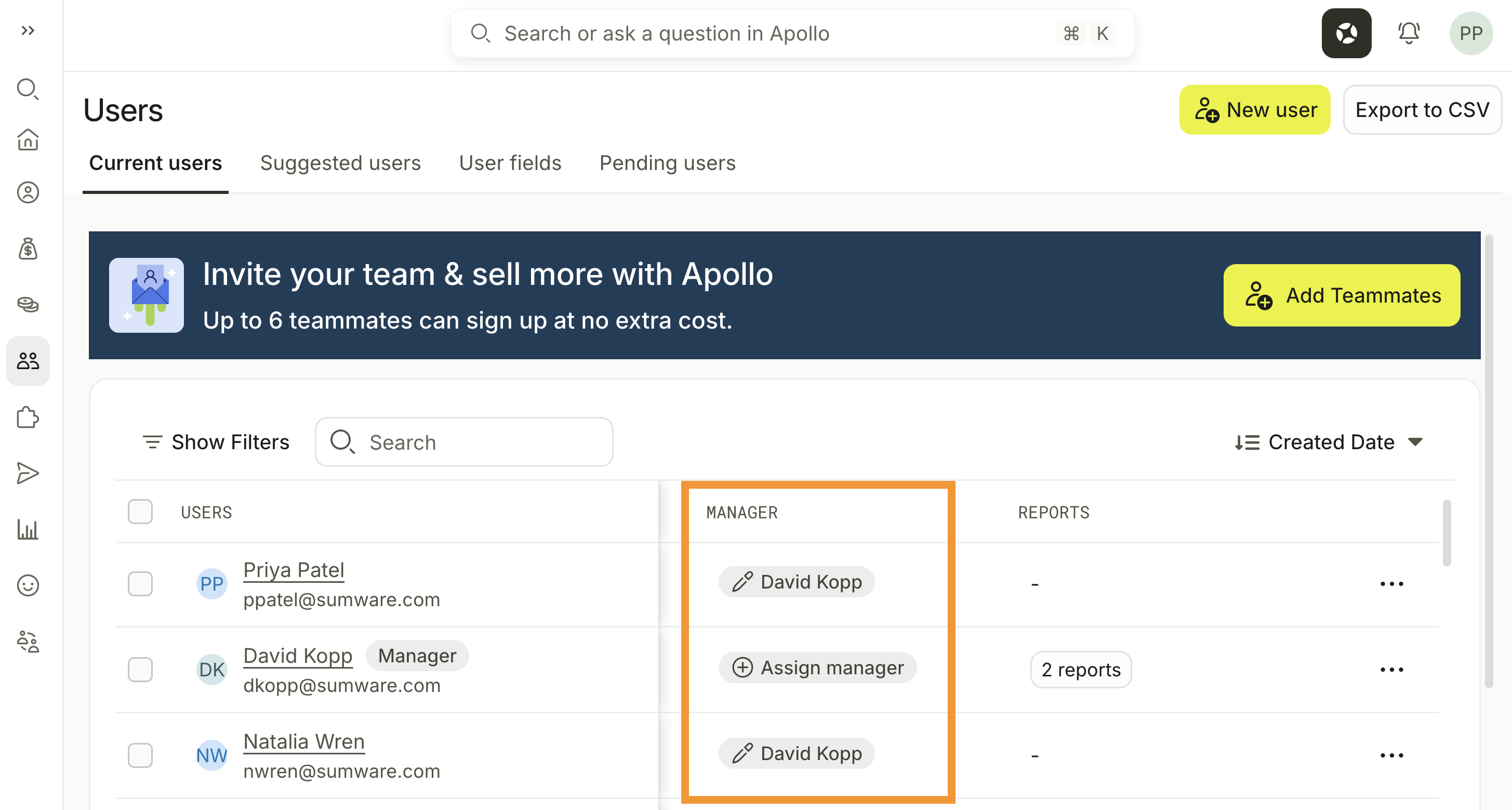
|
| Reports |
Review the number of active users who report directly to a manager. Click the report count to view the manager's direct reports. 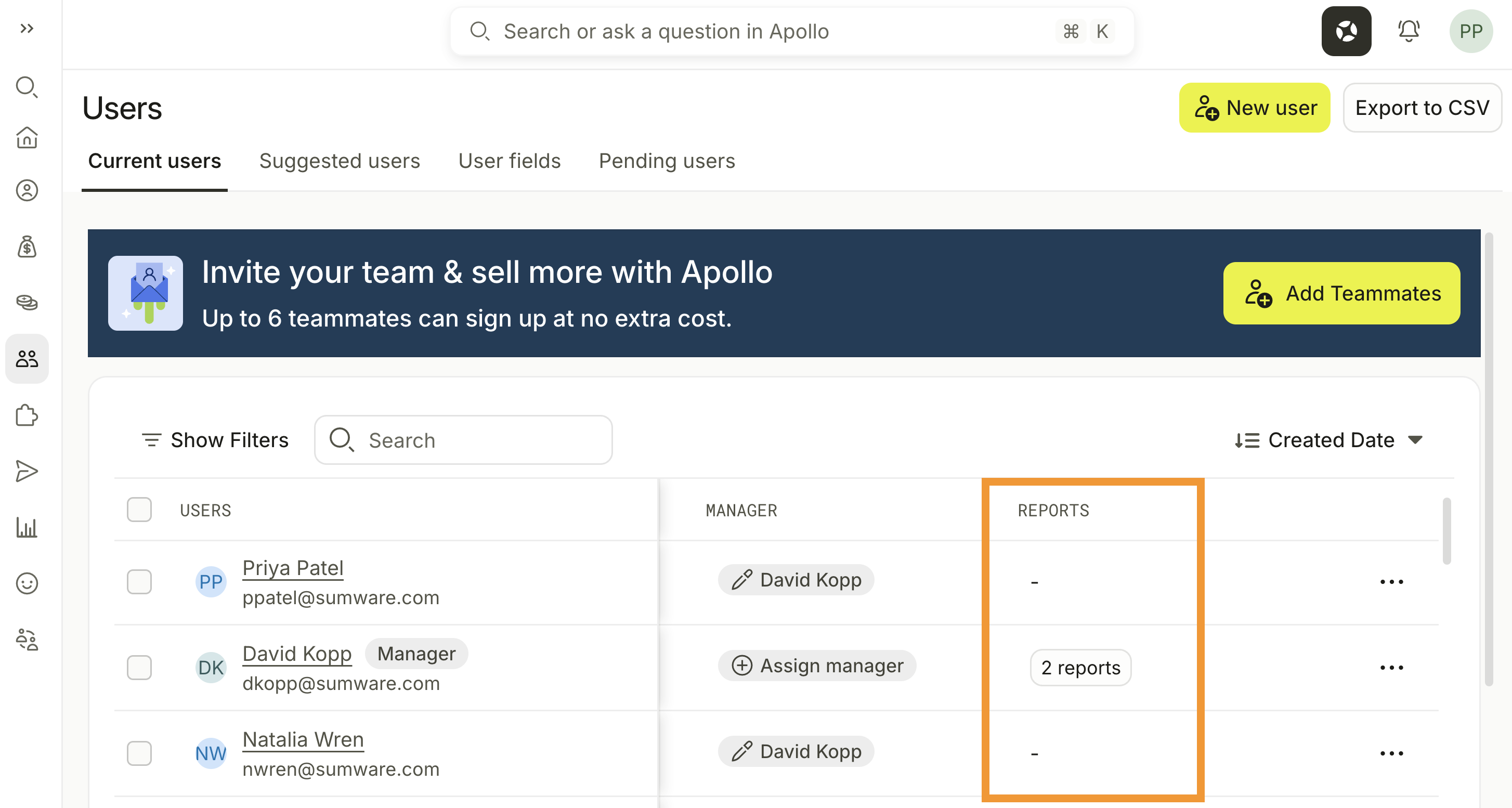
|
| Call Recording |
Click Default to select a user's call recording mode. This allows users to record calls made from the dialer. 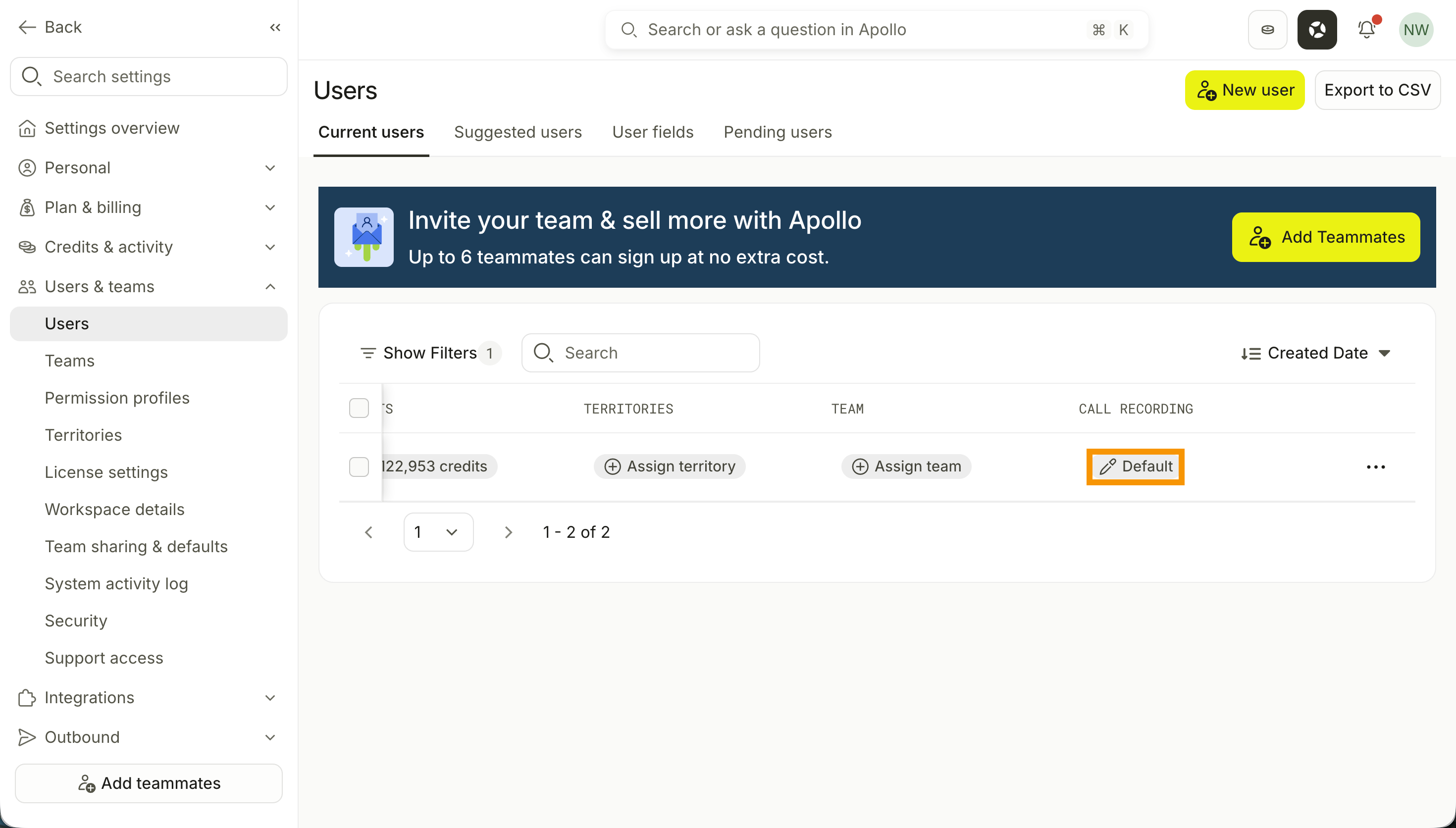
|
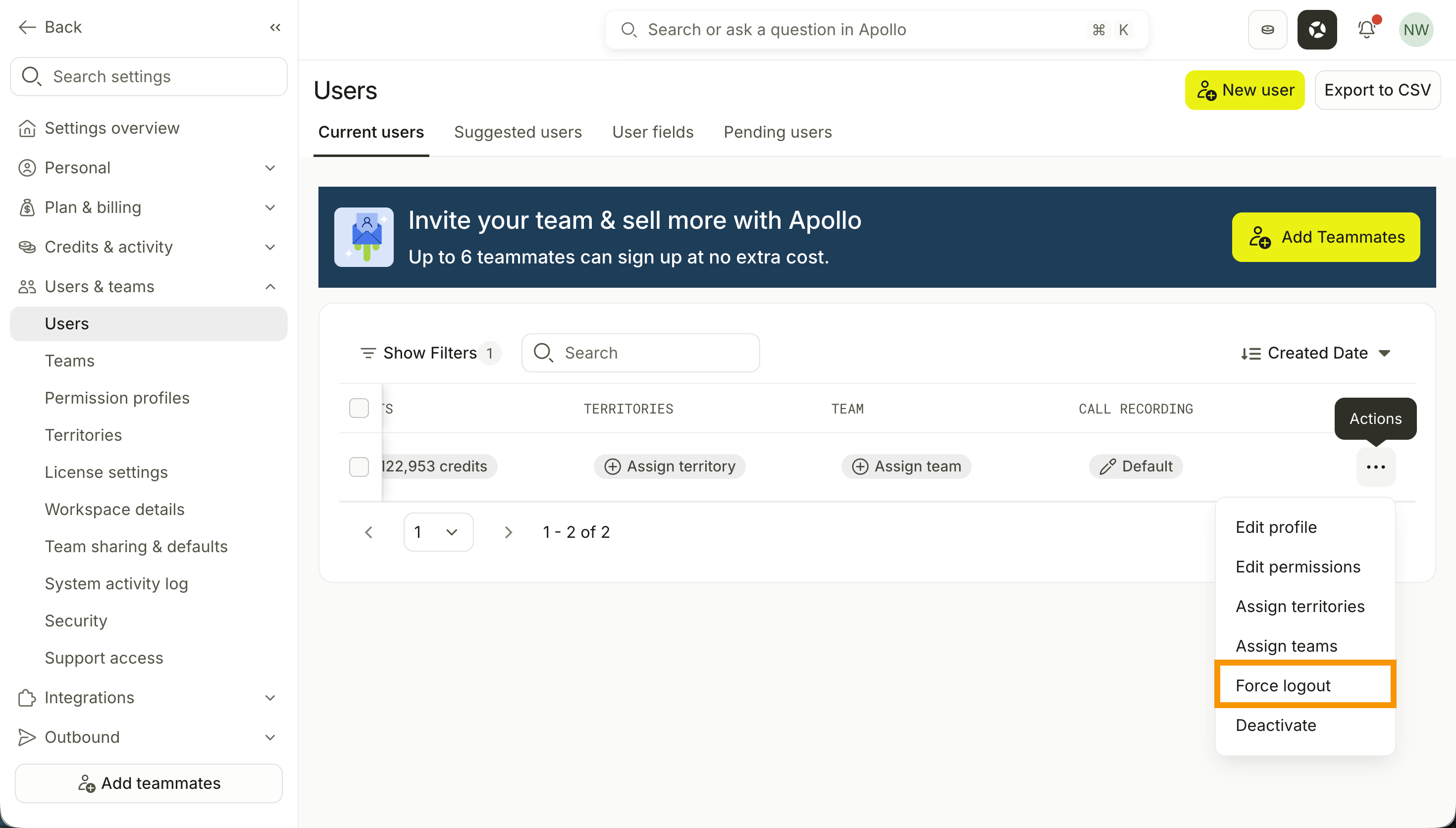
Want to end a user's active Apollo sessions on all devices? On the Users page, click … next to the user, then click Force logout.
Deactivate Users
If you're an admin, you can deactivate user accounts in Apollo when teammates leave your organization. As a best practice, you should deactivate an Apollo user's account when that employee leaves your organization and assign their seat to a new user if necessary. You should also transfer ownership of the deactivated user's active sequences or deals to another team member in Apollo.
To deactivate a user:
- Launch Apollo, then go to Settings > Users & teams > Users.
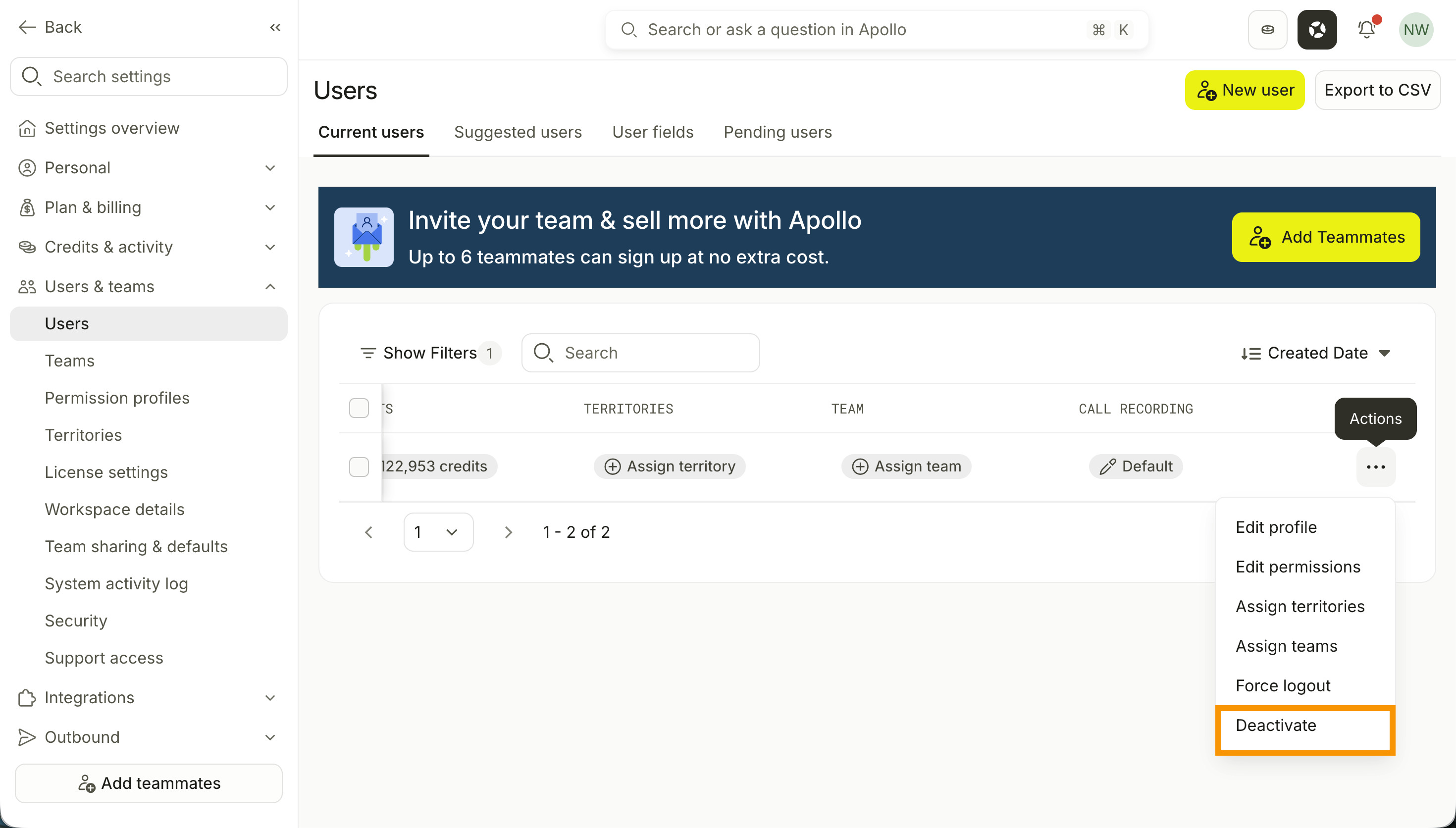
- Click … next to the person that you want to deactivate, then click Deactivate.
- Click Deactivate to confirm.
If you deactivate a manager, Apollo removes that manager from their active direct reports. The affected users become unassigned, and Apollo doesn't automatically reassign them to another manager.
After you deactivate a teammate, Apollo temporarily removes any mailboxes purchased through Apollo that are assigned to them. Admins have about thirty days to restore a mailbox or assign it to an active teammate, which also restores it. The exact recovery period varies by mailbox type and its scheduled permanent deletion date.
Reassign any scheduled emails to another mailbox. Otherwise, Apollo will mark scheduled emails from the deactivated account as Not sent.
Deactivating a user doesn't affect your Apollo subscription or plan. If you need to reduce the number of seats on your plan, manage your subscription in Apollo.
Reactivate Users
If you're an admin, you can also reactivate an inactive user:
- Launch Apollo, then go to Settings > Users & teams > Users.
- Click … next to the inactive user that you want to reactivate, then click Reactivate.
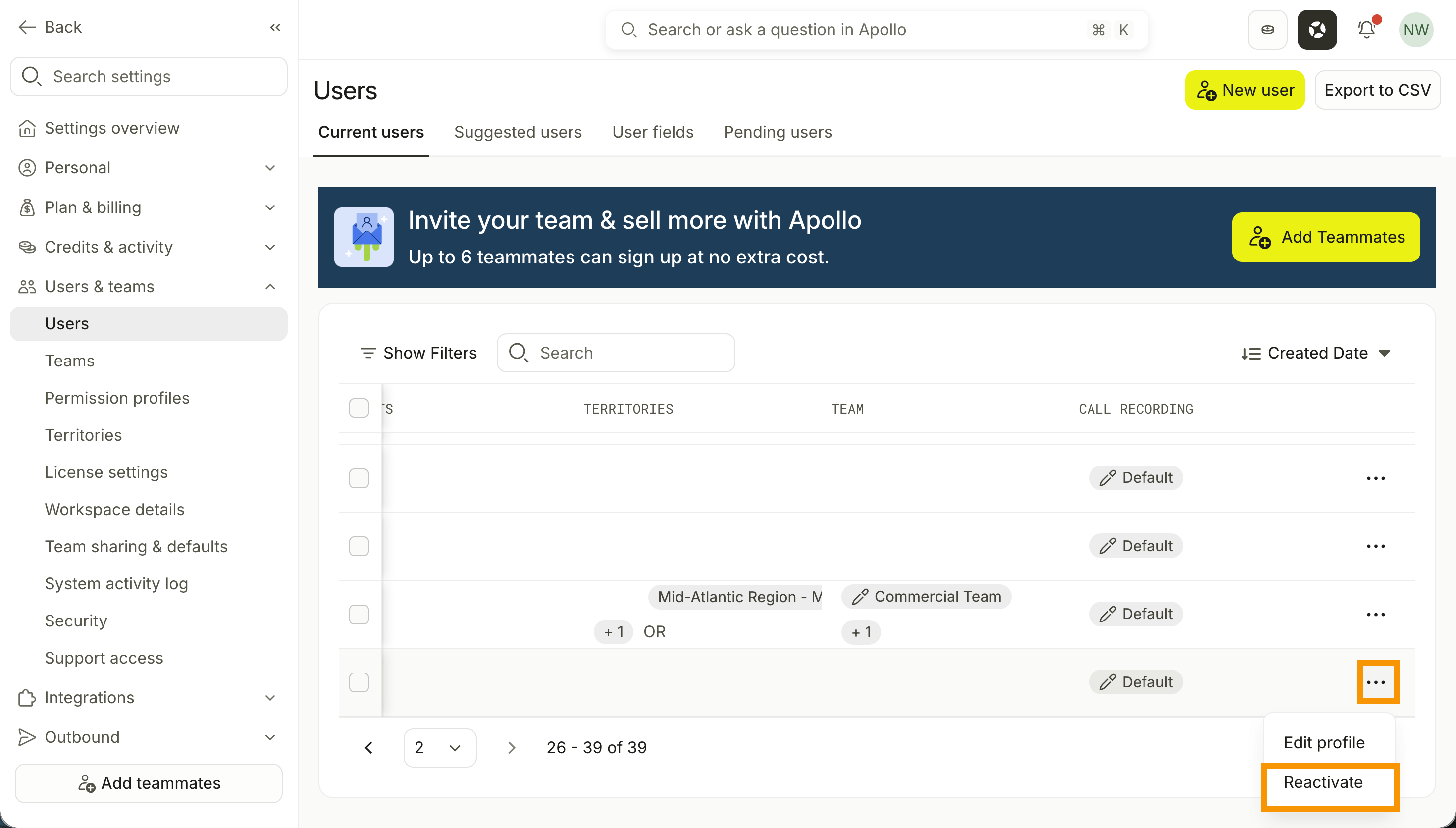
- Click Reactivate to confirm.
Your teammate's account is now reactivated.
Manage Reporting Relationships
Apollo admins can assign managers to users and review reporting relationships from the Users page. Manager assignments don't affect a user's team, permission profile, record ownership, or visibility in Apollo.
The manager hierarchy is available to teams on Professional and Organization plans.
Choose an action to manage reporting relationships in Apollo:
| Action | Description |
|---|---|
| Assign or Change a Manager | Assign, change, or remove an individual user's manager. |
| Edit Managers in Bulk | Assign or remove a manager for multiple users at once. |
| Filter Users by Manager | Find users who report to selected managers or don't have a manager. |
| View a Manager's Direct Reports | Review the active users who report directly to a manager. |
| Manage Salesforce-Synced Reporting Relationships | Learn where to update manager assignments managed by Salesforce. |
Assign or Change a Manager
To assign or change a user's manager:
- Launch Apollo, then go to Settings > Users & teams > Users.
- Find the user, then click Assign manager or their current manager in the Manager column.
- Search for and select an active teammate as the manager. Apollo excludes the user themselves and any teammate that would create a circular reporting relationship. To remove the existing manager without assigning a replacement, select No manager.
- Click Save changes.
You have now updated the user's manager.
Edit Managers in Bulk
To assign the same manager to multiple users:
- From the Users page, check each user you want to update.
- Click Edit manager.
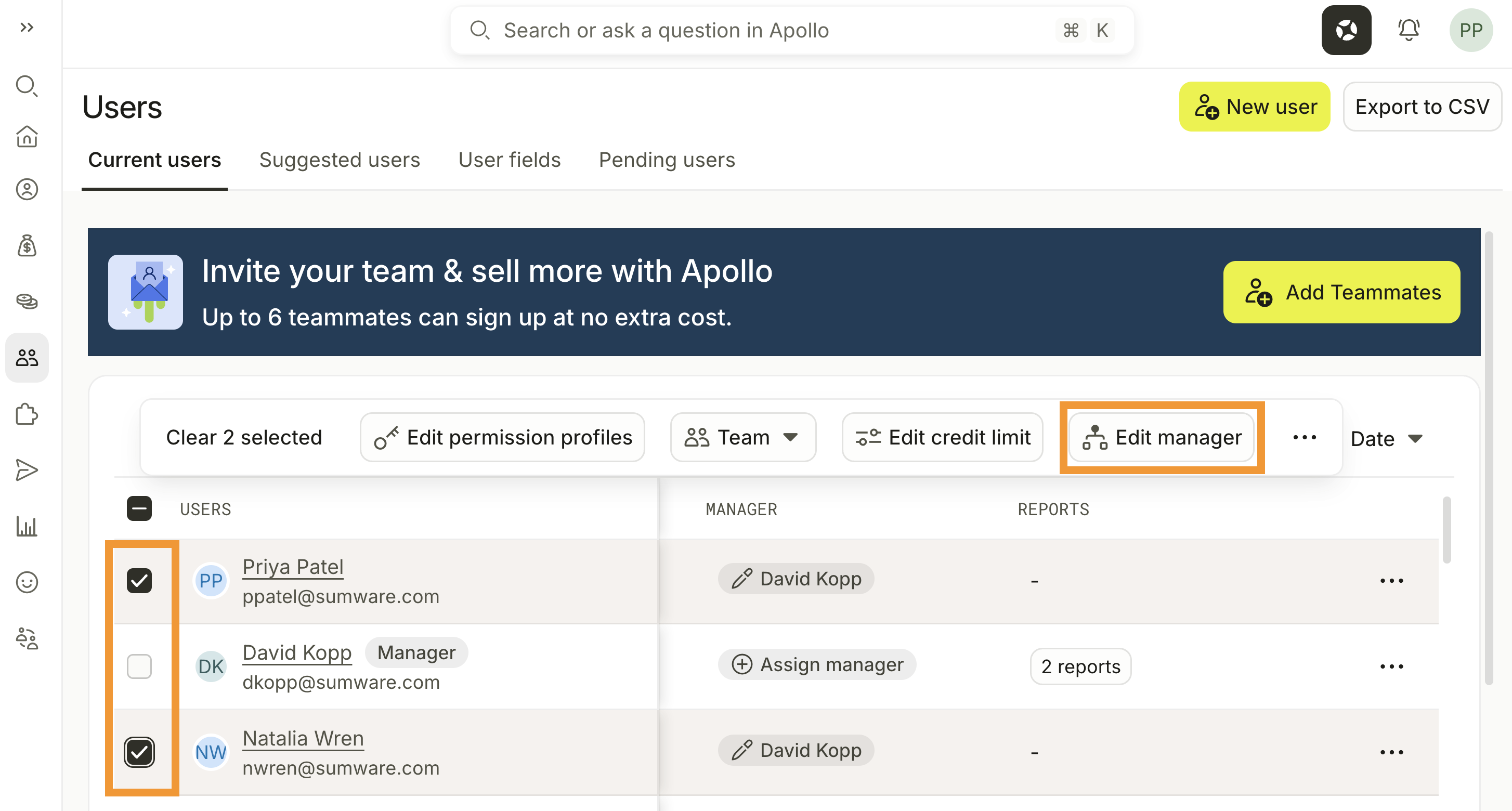
- Search for and select a manager. To remove the existing managers without assigning replacements, select No manager. If Salesforce manages a selected user's reporting relationship, update that user in Salesforce instead. Check out Manage Salesforce-Synced Reporting Relationships for details.
- Click Save changes.
You have now updated the manager for the selected users.
Filter Users by Manager
Use the Manager filter to find users based on their reporting relationships:
- From the Users page, click the Manager filter.
- Select one or more managers. Select Unassigned to find users who don't have a manager.
Apollo displays users who report to any of the selected managers. You can also click Manager in the table header to sort users by manager.
View a Manager's Direct Reports
To view a manager's direct reports:
- From the Users page, find the manager in the table.
- Click the report count in the Reports column.
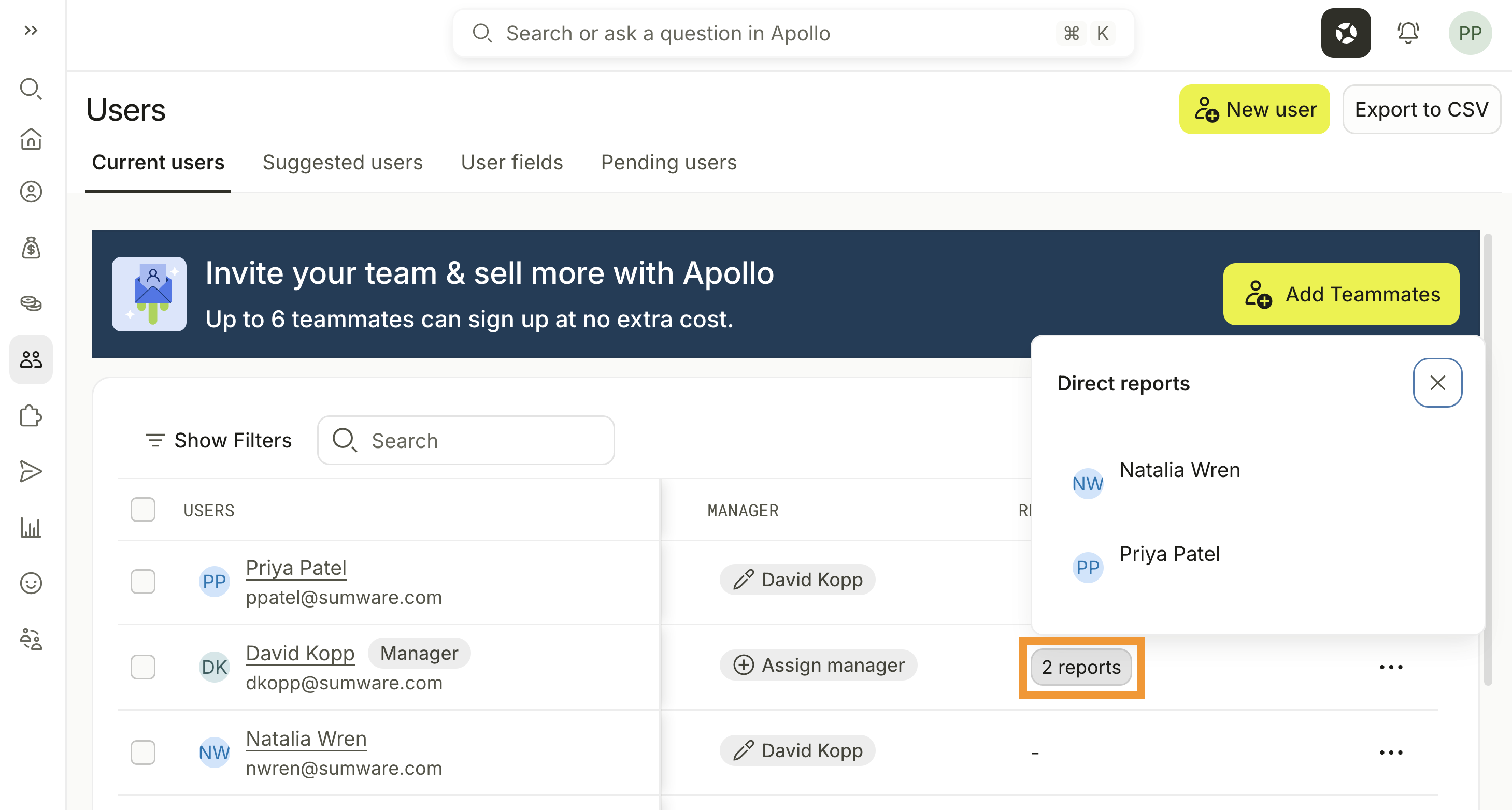
Apollo displays the manager's active direct reports. Click a user to open their profile. The report count doesn't include indirect reports or deactivated users.
Manage Salesforce-Synced Reporting Relationships
If Salesforce manages a user's reporting relationship, update their manager in Salesforce. Apollo syncs manager assignments from Salesforce daily.
If Salesforce doesn't provide a manager assignment for a linked user, you can assign their manager directly in Apollo.
FAQs
|
Frequently asked questions |
||
| How do I regain access to our Apollo account if our admin left the organization? | A user is leaving my organization. How do I transfer their work to another Apollo user? | I already have an Apollo workspace. Can I join a different team’s workspace? |
| Why can’t I deactivate a user in my Apollo account? | ||
How do I regain access to our Apollo account if our admin left the organization?
If your team's only Apollo admin has left your organization and you need to reassign admin permissions to another user, reach out to Apollo support to regain access.
As a best practice, we recommend assigning admin permissions to at least 2 users to ensure that your team can always access Apollo, especially in cases when an admin leaves your organization.
If you know your team's Apollo admin will leave your organization soon, ask them to assign the admin permission profile to another user by following the these simple steps.
If your Apollo admin is the only Apollo user at your organization, ask them to invite another team member to Apollo and assign them admin permissions. Once the original admin leaves, the new Apollo admin can deactivate the first admin's account.
A user is leaving my organization. How do I transfer their work to another Apollo user?
Deactivating a user does not delete their data or assets. Emails that use the deactivated user's mailbox may fail to send and appear as Not Sent. Any tasks or sequences assigned to the deactivated user may stop progressing until they are reassigned.
Before you deactivate the user's account and unlink their mailbox, reassign ownership of their contacts and accounts, sequences, deals, tasks, and workflows to another teammate.

I already have an Apollo workspace. Can I join a different team’s workspace?
Yes. If you receive an invitation to join another Apollo workspace, Apollo asks you to confirm the switch. If the new workspace uses the same corporate email domain and is on a paid Apollo plan, you can access your old workspace for 30 days while you move supported data. Otherwise, your data doesn’t transfer, and you lose access to the old workspace when you switch. Learn how to consolidate multiple Apollo workspaces into one before you accept the invitation.

Before you accept the invitation, check whether you can consolidate your workspaces. If you can, move any data you need within 30 days. If you can’t consolidate and you’re the only user in your current account, Apollo permanently deletes the account when you switch, and you can’t recover it.
Why can’t I deactivate a user in my Apollo account?
If your Apollo account has only one user, you can’t deactivate that user. Apollo requires at least one admin on an active account.
If you need to replace the current user, you can either:
- Add another user, assign them admin permissions, then deactivate the original user. If you do not have enough available seats, purchase an additional seat in Customize and Manage Your Apollo Plan.
- Update the existing user’s email and profile details to the new person’s information.
If your goal is to stop using Apollo, you may need to cancel your subscription instead. Refer to Customize and Manage Your Apollo Plan for next steps.
Next Steps
Want to keep your Apollo user management streamlined? Here are a few steps your team can take next:
| Create and Assign Permission Profiles | You can set up custom permission profiles to give your teammates just the access they need to succeed. |
|---|---|
| Organize Users Into Teams | You can group users into teams to organize access and filter analytics reports. Use manager assignments to create reporting relationships between users. |
| Configure SCIM User Provisioning for SSO | If you use SSO, you can automate user onboarding and deactivation between your identity provider and Apollo. |
| Assign Billing and Seat Managers | You can invite leadership as billing and seat managers—they get admin visibility without consuming a paid seat. |