
Overview
Use the dialer to make and receive calls as part of your prospecting workflow. Call saved contacts or new prospects directly from Apollo, then log call outcomes and notes so you have the context you need for follow-ups.
While this guide explores dialing one contact at a time, you can also call multiple people at once with power and parallel dialing.
Check out the following sections to make and receive calls.
Make a Call
Before you start dialing, get an Apollo phone number and set your dialer preferences. Then get familiar with cold call best practices to optimize your dialing strategy.
You can make calls to saved contacts or net-new prospects.
If you purchased multiple phone numbers, Apollo dials from your default number. To change the default, go to Settings > Phone numbers. Click ... beside the phone number you dial from most often > Set as default.
- Launch Apollo and click People > Saved.
- Alternatively, click Tasks > Call tasks, or click Calls > Upcoming calls.
- Click Call beside the saved contact you want to dial.
- Select the number you want to dial or click Call default to dial the contact's primary number.
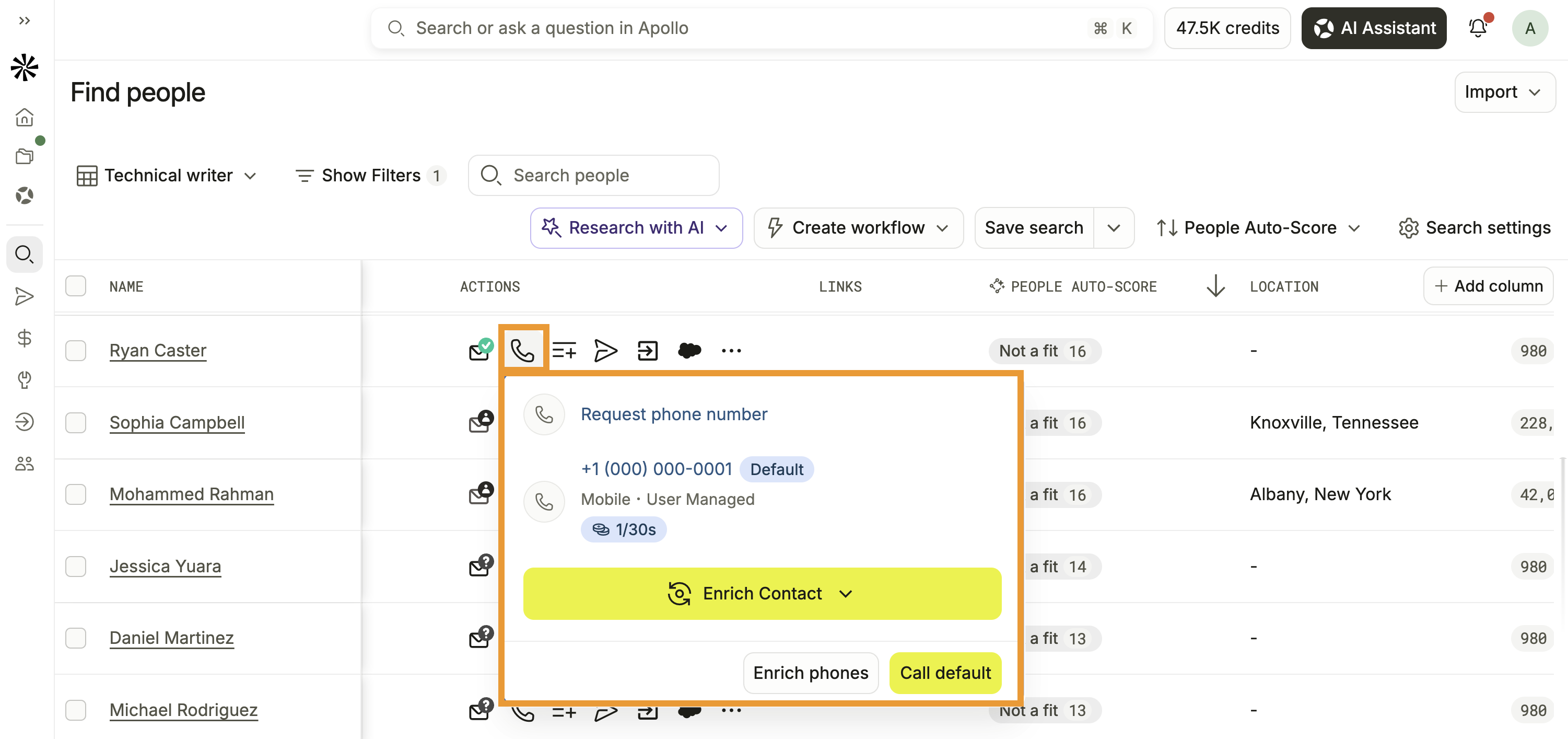
Click Enrich contact to use enrichment before you dial. Enrichment can help you find the most up-to-date contact information.
- Alternatively, to enter a phone number manually, navigate to Calls > New call, or click Call on the navbar. Then enter a phone number, or search for a contact.

- Start the call:
- If you're on bridge, your Apollo phone number calls your personal phone. Answer the call and follow the prompt to complete the bridge and connect with your contact.
- If you're on VoIP, the call connects in your browser using your computer sound settings. Use the controls at the bottom to manage the call.
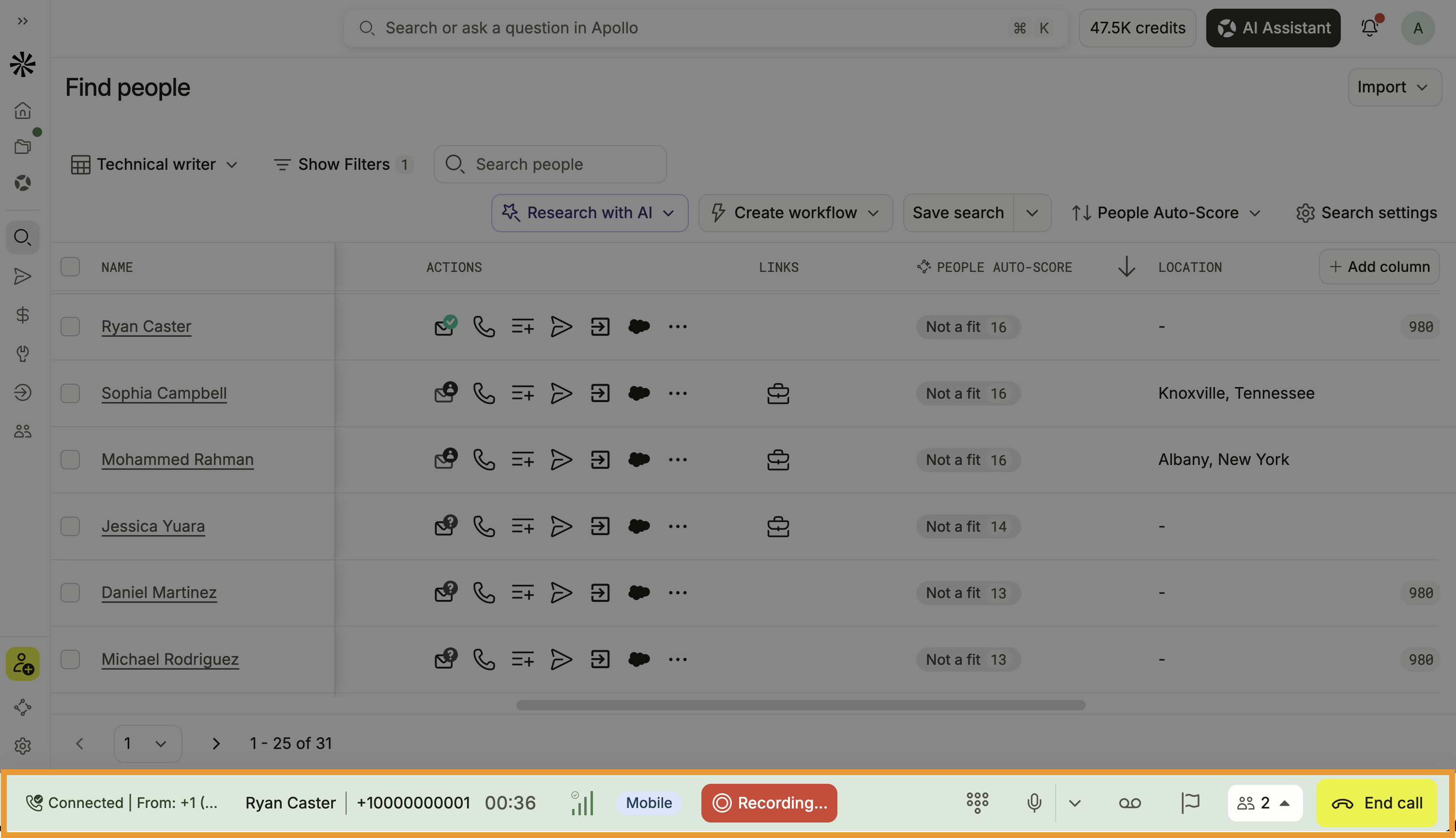
- The contact sees your Apollo phone number as the dialing number, or on eligible devices, your business name if you use a caller ID. If you use local presence, the contact sees a phone number with an area code local to theirs.
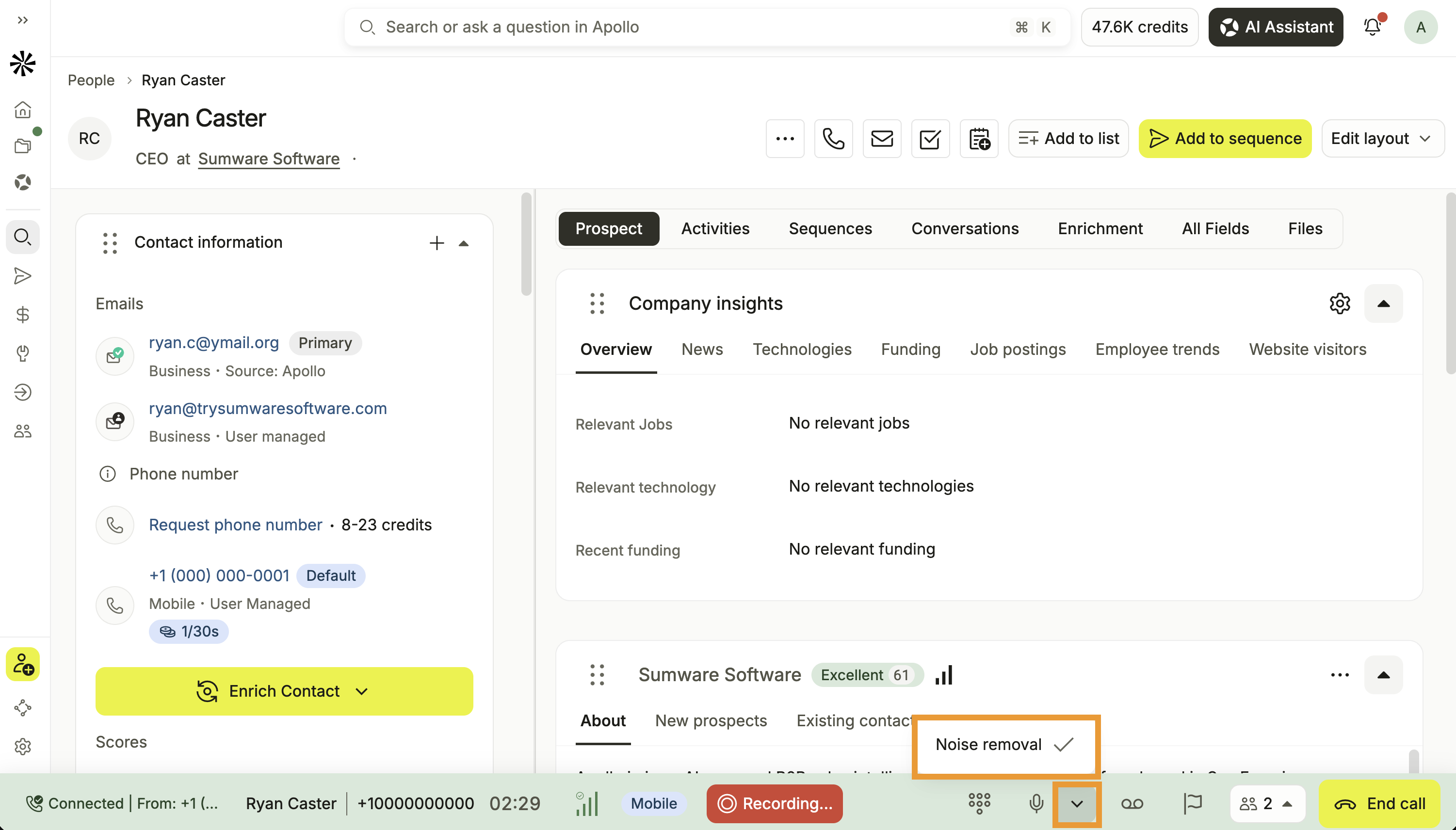
Apollo uses noise suppression by default to reduce keyboard clicks, background chatter, and other ambient noise so the person on the call can hear you more clearly. To turn noise suppression off or back on during an active call, click ⌄ > Noise removal. Apollo remembers your choice for future calls.
- If no one answers the call and you enabled voicemail drops, you can end the call and automatically leave a voicemail.
- When the call ends, enter details about the call. Select a call purpose, call disposition, and add notes. If you enabled call recording, you can play back the call, or click Delete to remove it.

Some phone numbers you dial may be blocked or rejected by Apollo's telephony provider, Twilio, due to dynamic fraud risk and carrier analytics. These controls can change over time, meaning a number that works today may be restricted later based on provider or carrier policies. Because these decisions happen outside of Apollo's direct control, Apollo can't override them.
- When finished, click Save.
You have now made a call to a saved contact on Apollo.
You can access your saved calls to find key takeaways, and share calls to celebrate your wins with the team.
To make an outgoing call to a new prospect:
- Launch Apollo and click People > Net New.
- Use search filters to find the person you want to dial.
- Click Access mobile or Request phone number beside the prospect.
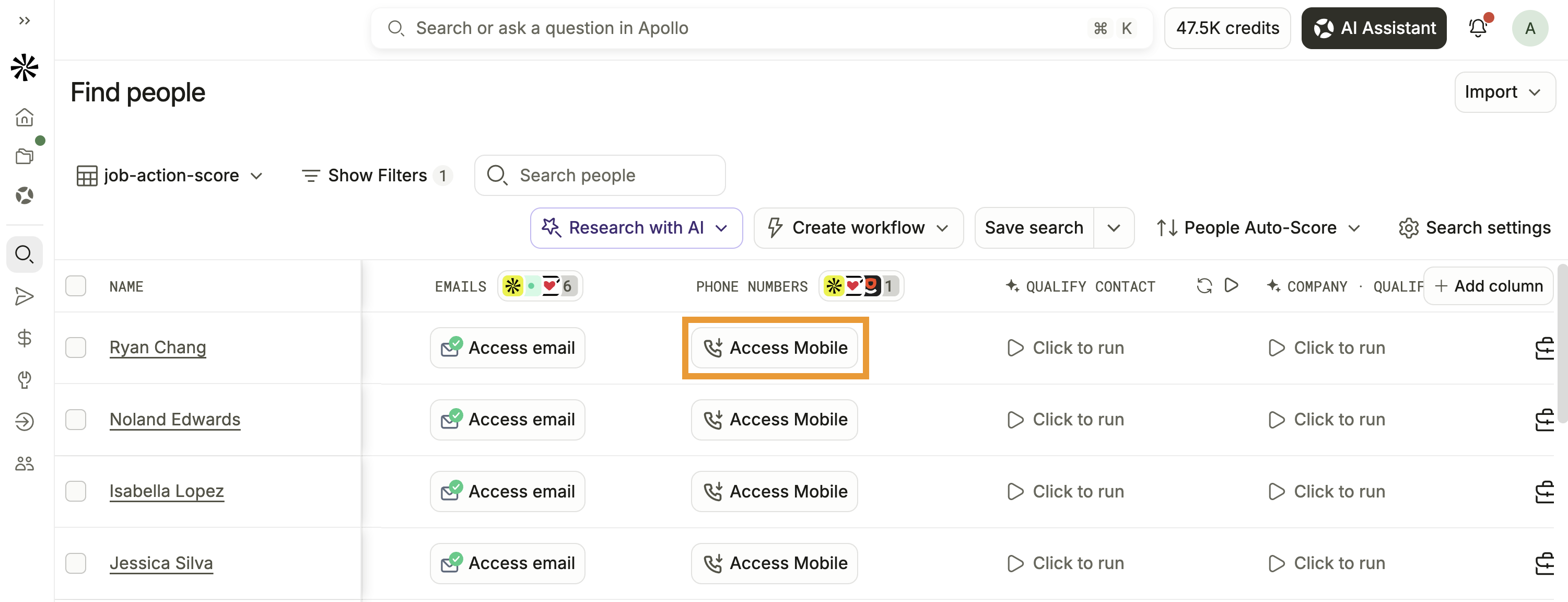
Apollo charges you credits to access a contact phone number, regardless of whether the number is on a do not call registry. Apollo doesn't charge credits for HQ phone numbers. Learn more about accessing a prospect's phone number.
- Click the phone number to dial the prospect.
- Alternatively, to dial manually, navigate to Calls > New call, or click Call on the navbar. Enter a phone number, or search for and select a contact.
- Complete the call:
- If you're on bridge, your Apollo phone number calls your personal phone. Answer the call and follow the prompt to complete the bridge and connect with your prospect.
- If you're on VoIP, the call connects in your browser using your computer sound settings. Use the controls at the bottom to manage the call.
- The prospect sees your Apollo phone number as the dialing number, or on eligible devices, your business name if you use a caller ID. If you use local presence, the contact sees a phone number with an area code local to theirs.
Apollo uses noise suppression on calls by default to reduce keyboard clicks, background chatter, and other ambient noise so the person on the call can hear you more clearly. To turn noise suppression off or back on during an active call, click ⌄ > Noise removal. Apollo remembers your choice for future calls.
- If no one answers and you've enabled voicemail drops, you can end the call and automatically leave a voicemail.
- When the call ends, enter details about the call. You can enter a call purpose, a call disposition, and notes for key takeaways. If you enabled call recording in the dialer preferences, you can play back the call or click Delete to remove it.
- When finished, click Save.
You have now made a call on Apollo.
You can access your saved calls to find key takeaways, and share calls to celebrate your wins with the team.
Back to TopReceive Calls
To answer incoming calls:
- When a contact calls your Apollo phone number or a local presence number you generated, your phone rings based on your calling preferences:
- If you're on bridge, your personal phone number rings and displays the contact's caller ID information. Answer the call to connect, or let the call go to your voicemail.
- If you're on VoIP, a dialer rings in browser and displays at the bottom of your screen. Use the controls to manage the call. Apollo uses your computer sound settings for calls.

Apollo uses noise suppression by default to reduce keyboard clicks, background chatter, and other ambient noise so the person on the call can hear you more clearly. To turn noise suppression off or back on during an active call, click ⌄ > Noise removal. Apollo remembers your choice for future calls.
- When the call ends, enter details about the call. You can enter a call purpose, a call disposition, and notes for key takeaways. If you enabled call recording in the dialer preferences, you can play back the call or click Delete to delete the recording.
- When finished, click Save.
You can access your saved calls to find key takeaways, and share calls to celebrate your wins with the team.
FAQs
Frequently asked questions |
||
|---|---|---|
| Do I need to unlock prospect phone numbers with credits before making calls? | Does Apollo record calls? | How many credits does dialing use? |
| Can I set a caller ID for my phone number on Apollo? | Why didn't my call record? | Why was the dialer deactivated even though I have credits remaining? |
Do I need to unlock prospect phone numbers with credits before making calls?
It depends on the source of the phone number:
- If a phone number is uploaded from a CRM integration, or you already saved a contact with their phone number, you don't need to use credits.
- If you haven't synced a phone number from your CRM or previously saved the phone number, you use credits to unlock them.
Does Apollo record calls?
Yes, if enabled in your dialer preferences, Apollo can automatically record calls. You can access recordings, transcripts, and AI summaries from the call. Some US states and some countries require that all call participants consent to recording calls. Obtain this consent before using call recording.
Why was the dialer deactivated even though I have credits remaining?
The dialer may be deactivated across your team if Apollo detects unusual or high-cost usage, even if you have credits left. To prevent fraud, Apollo temporarily removes your team's access to the dialer when your usage meets all of the following conditions:
- Your team already spent more than 70% of your monthly subscription price on call charges, with a $10 minimum threshold.
- Your team made at least five minutes of billable calls in the past seven days.
- The average cost of those calls exceeds $0.15 per minute, indicating you're dialing higher-priced destinations.
After Apollo deactivates your team's dialer, access resumes at the start of your next billing cycle.
Can I set a caller ID for my phone number on Apollo?
Yes, on eligible plans you can set a caller ID name for US-based phone numbers on Apollo. Learn more about using caller ID on Apollo.
How many credits does dialing use?
On plans with dialer credit usage, you use credits only when a call connects to a person, voicemail, or an answering machine. Apollo applies a thirty-second minimum per connected call, then rounds longer calls up to the next thirty-second increment. This applies to US and international calls. Calls that ring out, are busy, fail, or are canceled use zero credits.
For more details, check out Dialer Overview.
Why didn't my call record?
You can configure the dialer to record calls, but location based recording rules govern how you can record calls in various locations. Because call recording laws vary by country and US state, your team may define different rules for regions where you make calls. These rules dictate when and whether calls may be recorded by your team.
If your call didn't record as expected, check your location based recording rules. To identify which rule may have affected your recording, search your recording rules by the prospect's area code or your Apollo number's area code.
Next Steps
Keep up the momentum with these next steps:
| Cold Call Best Practices | Make sure your outreach aligns with cold calling best practices, including legal compliance and effective techniques for connecting with prospects. |
|---|---|
| Use Voicemail Drops | Save time on unanswered calls by setting up voicemail drops that deliver a consistent message without manual effort. |
| Log Call Outcomes | Track results consistently by using call dispositions and purposes to tag each call with a goal and outcome. |
| Review and Share Calls | Revisit key moments by reviewing your call recordings and transcripts. Apollo AI generates call summaries, insights, and transcripts. You can even share standout calls with teammates, or get coaching from a team lead. |
| How to Cold Call | Learn the fundamentals and level up your cold call strategy with How to Cold Call: Scripts & Tricks, a webinar by Apollo Academy. |