
Overview
The Apollo Chrome Extension brings Apollo's features directly into supported platforms, including Google Calendar, Gmail, HubSpot, Salesforce, Pipedrive, Salesloft, and company websites.
The extension includes a set of general features available across all supported sites. The sections below explains how to use these features.
Use the Apollo Chrome Extension
Once the Apollo Chrome Extension is installed, you can take action on prospects directly from supported platforms. The actions below are available wherever the extension is supported.
When viewing a saved contact, you can take the following actions:
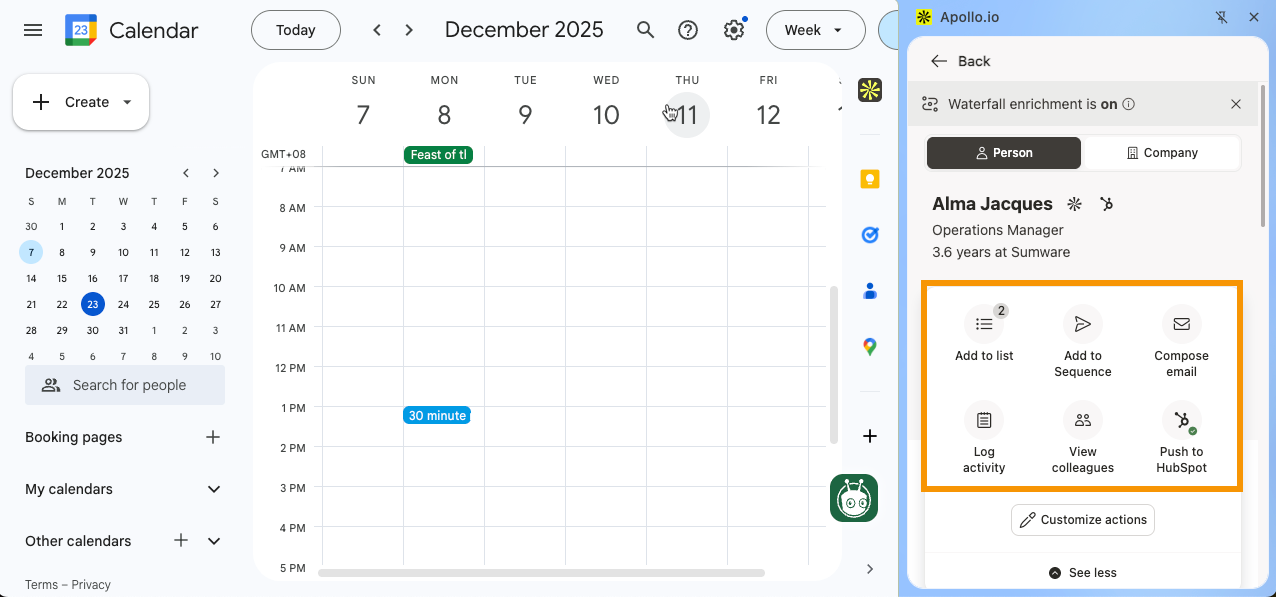
People | ||
| Add to list | Add to Sequence | Compose Email |
| Log Activity | View colleagues | Push to CRM |
| Review Additional Information | ||
Add to list
To add a contact to a list with the Apollo Chrome Extension:
- Open a saved contact.
- Click Add to list.
- Select your preferred lists.
- Click Apply.
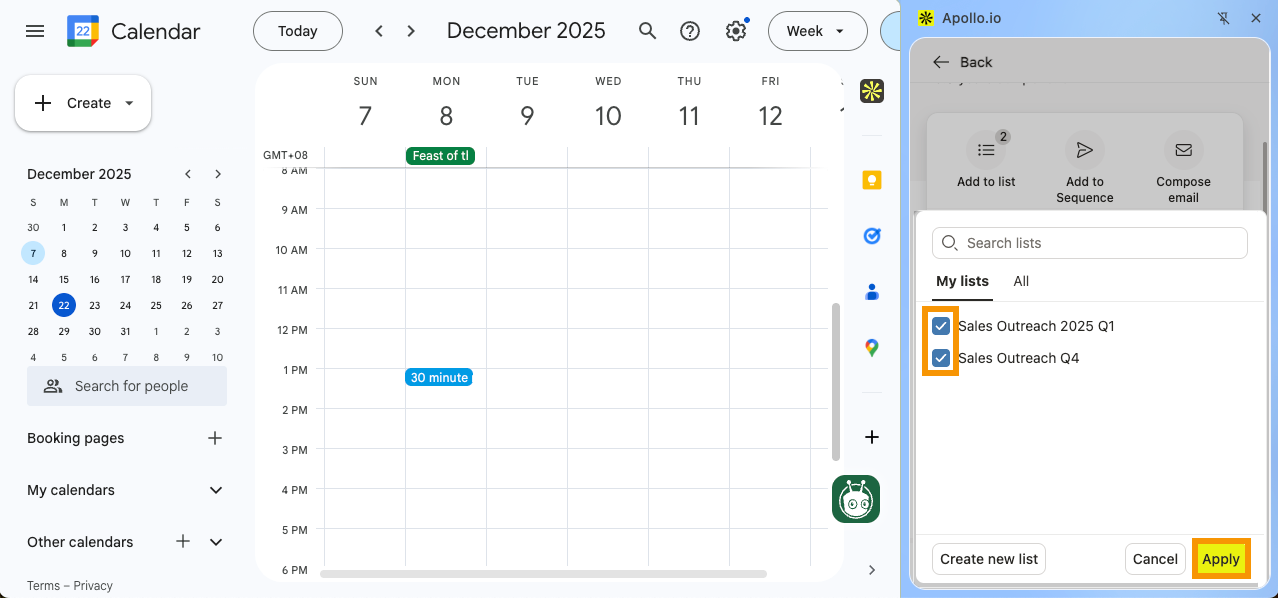
- (Optional) To add the contact to a new list, click Create a new list > Enter a list name > Click Create list & add.
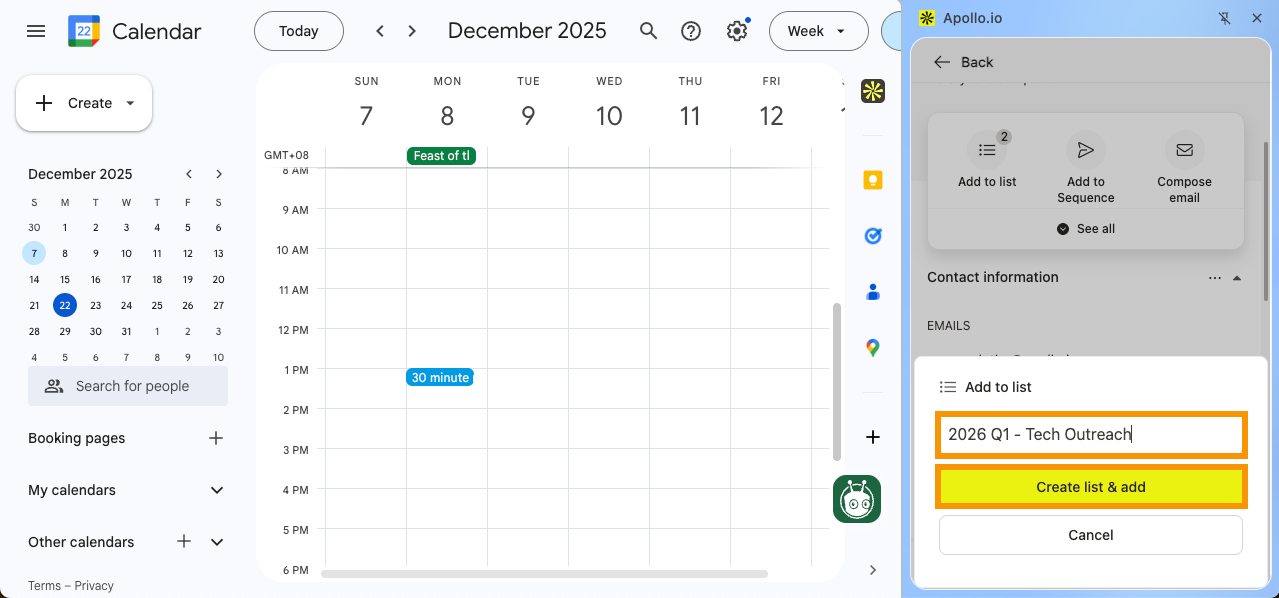
You have now added a contact to a list with the Apollo Chrome Extension.
Add to Sequence
To add a contact to a sequence with the Apollo Chrome Extension:
- Open a saved contact.
- Click Add to sequence.
- Select your preferred sequence.
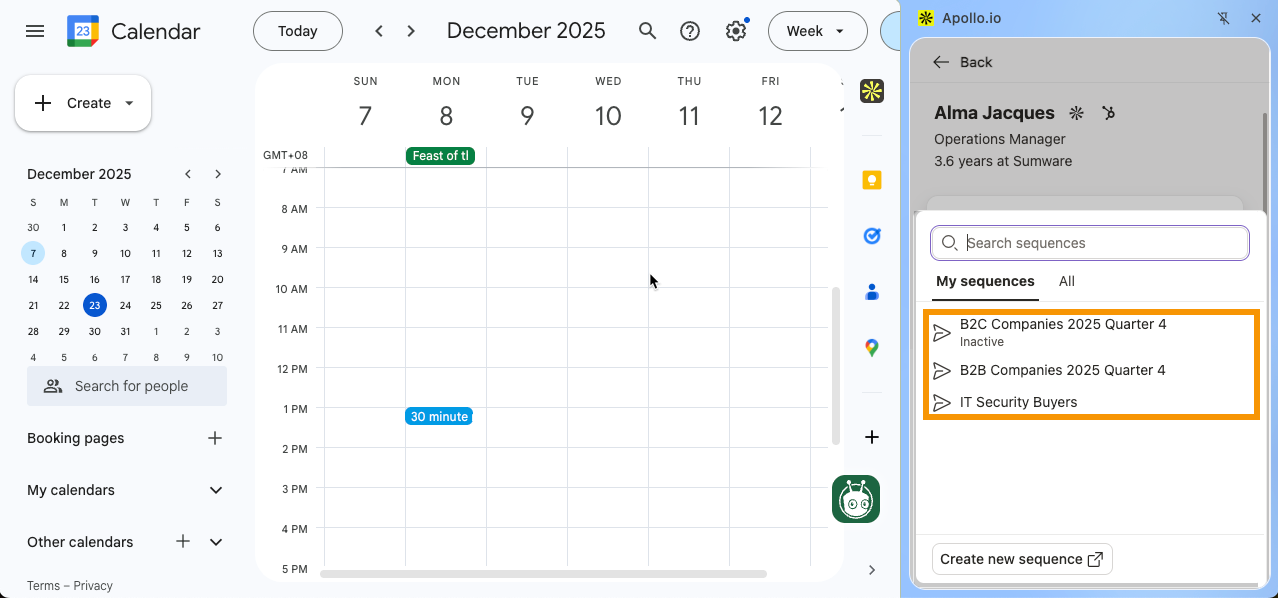
- Click Add now.
- (Optional) To add the contact later, click ▾ > Schedule for later > Choose a date and time > Click Schedule add.
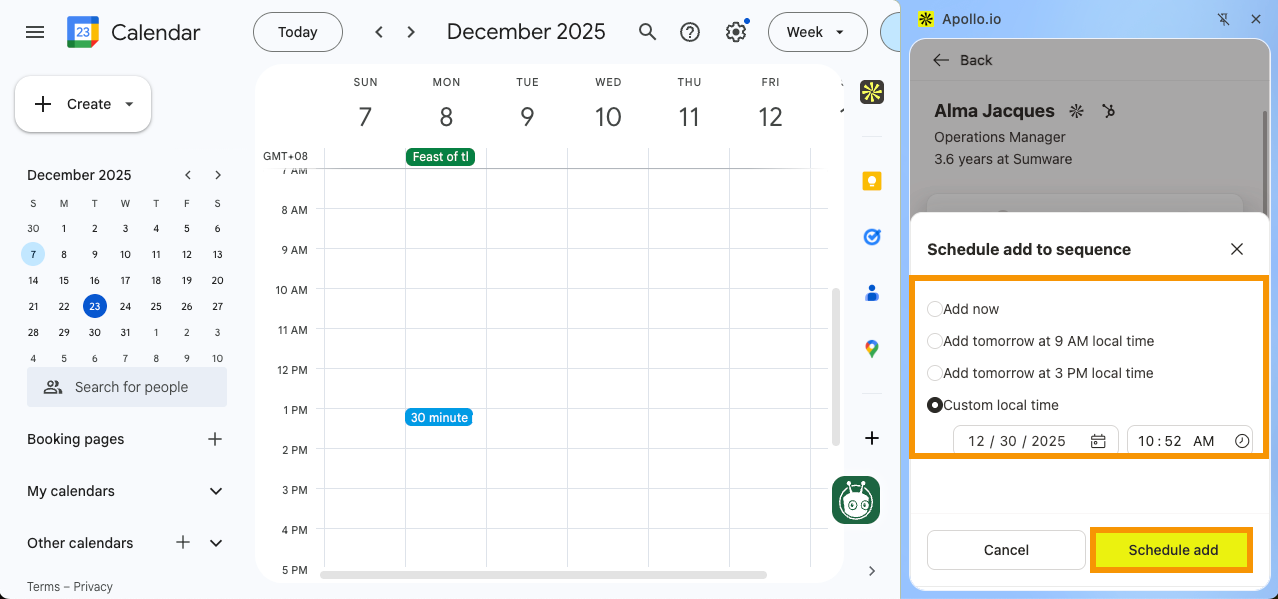
You have now added a contact to a sequence with the Apollo Chrome Extension.
Compose Email
To send an email with the Apollo Chrome Extension:
- Open a saved contact.
- Click Compose email.
- Enter a subject and body for your email.
- Click Send Now to send the email immediately.
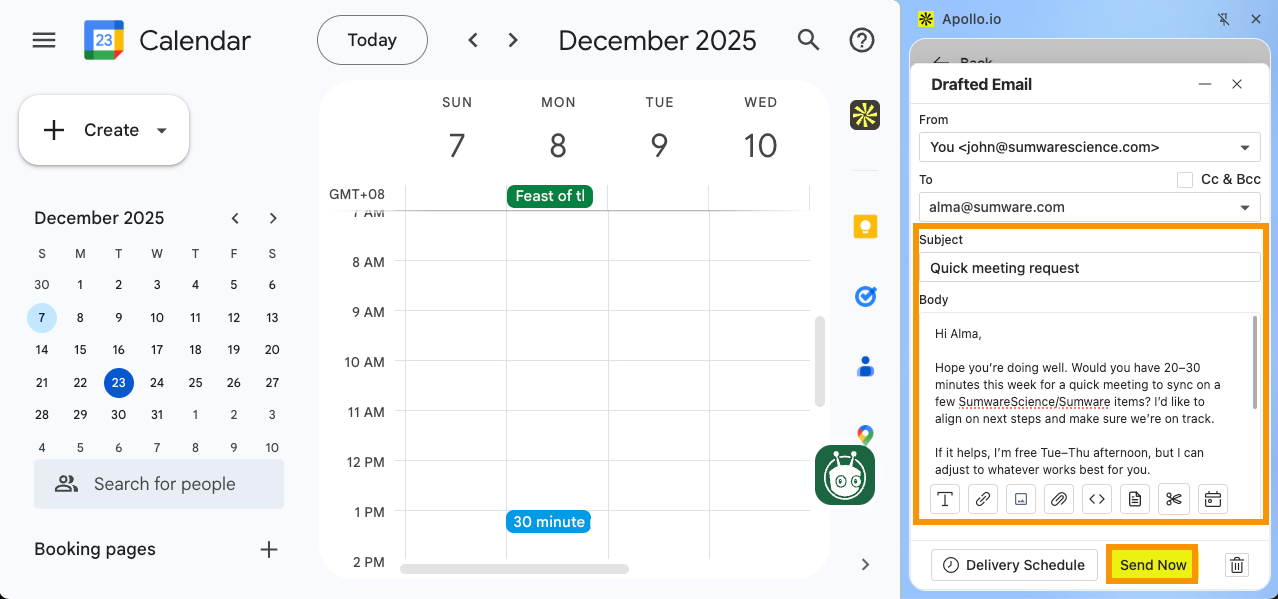
- (Optional) To send your email later, click Delivery Schedule > Select when you want to send the email > Click Schedule.
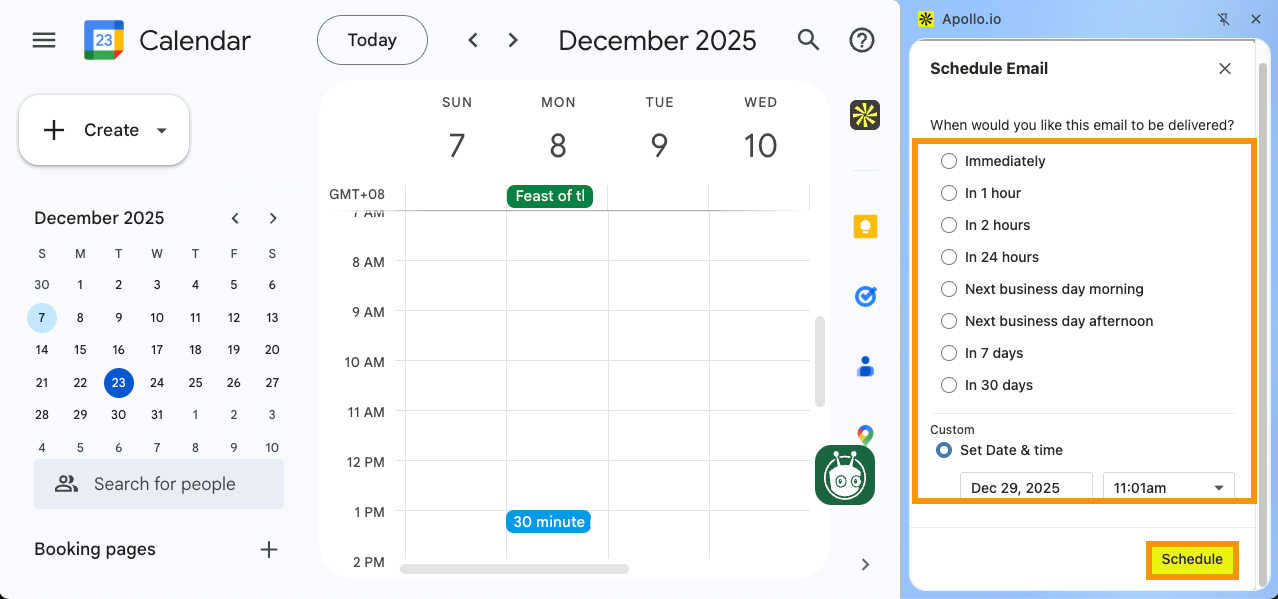
You have now sent an email using the Apollo Chrome Extension.
Log Activity
To log a note or a call with the Apollo Chrome Extension:
- Open a saved contact.
- Click Log activity.
- Select an activity type.
Note
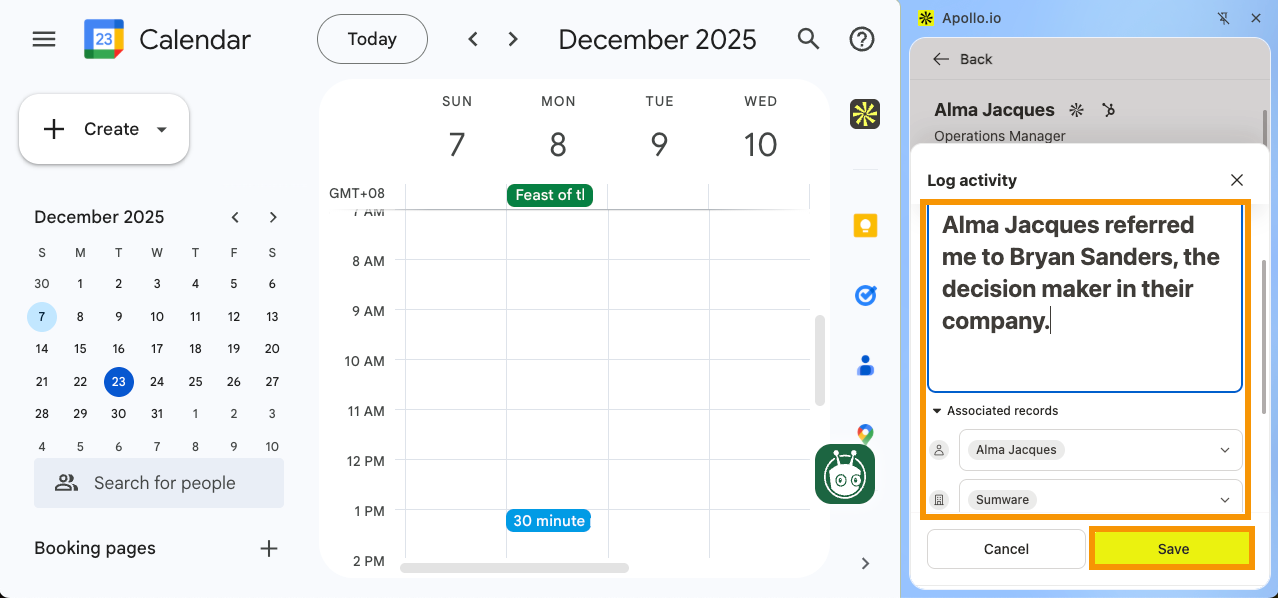
- Enter your note.
- (Optional) To associate the note to records, click Associated records. You may associate the note with the following:
- Contact
- Company
- Deals
- Meetings
- Conversations
- Click Save.
Call
- Select a Call outcome.
- Select a Call purpose.
- Enter your note.
- Click Save.
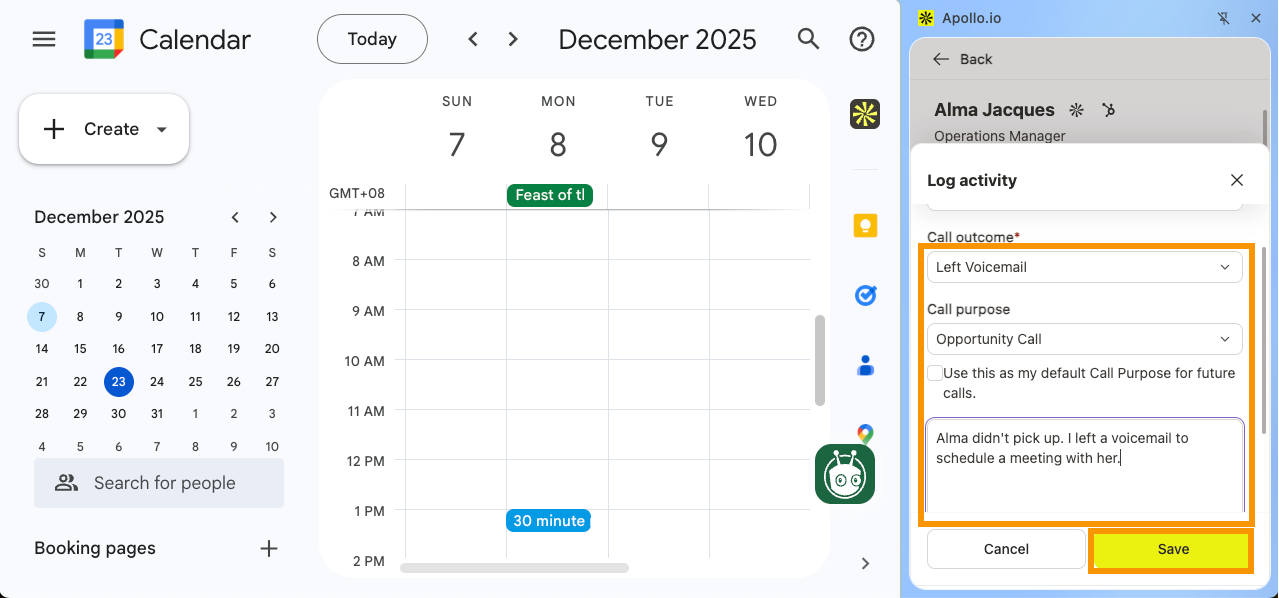
You have now logged an activity with the Apollo Chrome Extension.
View colleagues
To view the contact’s colleagues:
- Open a saved contact.
- Click View colleagues.
- Click New for unsaved contacts, Suggested for contacts suggested by Apollo, or All for both.
Suggested contacts are based on your target personas, past prospecting, and prospect score.
When you save a contact, you may be charged for credit.
- Click the prospects you want to include for your next actions.
- Click your preferred action for the prospects. You can save the contact, add them to a list or sequence, push their information to your CRM, send an email, or access their contact info.
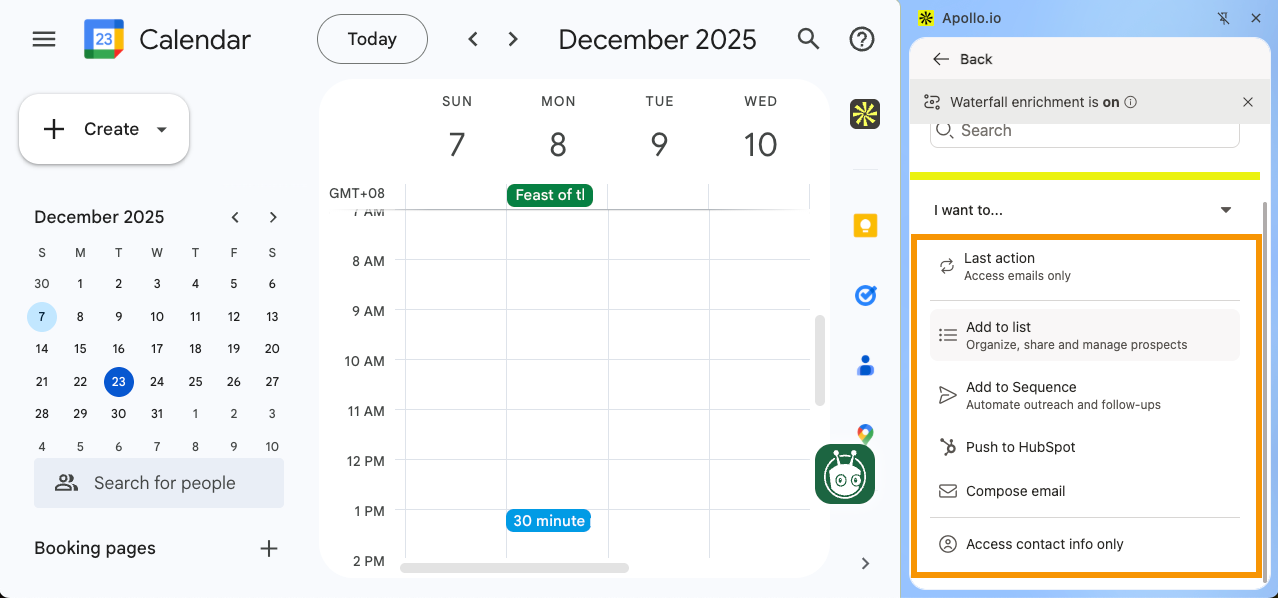
You have now viewed the contact’s colleagues with the Apollo Chrome Extension.
Push to CRM
Apollo integrates with multiple CRMs, and the options available depend on the CRM connected to your Apollo account.
| CRM | Steps |
|---|---|
| HubSpot | Click Push to HubSpot to sync the contact's information to HubSpot. |
| Salesforce | Click Push to Salesforce to sync the contact's information to Salesforce. |
| Salesloft |
|
| Outreach |
|
Review Additional Information
The following tabs are also available for additional context:
| Information Tab | Description |
|---|---|
| Contact information |
View your contact’s email address or phone number. Hover your mouse over the email address or phone number to: Email address:
Phone numbers:
|
| Record fields |
View your contact fields:
Click See all fields to view all related fields to the contact. |
| Compatibility check | View the contact’s compatibility based on your scores and signals. This will help you determine whether the contact matches your ICP. |
| Notes | View the notes associated with the contact. Click on Add note to add a note related to the contact. (Reference to note above). |
| Latest activity | View the activities related to this contact. Click on Log activity to log a note or a call to the contact. (Reference to note above). |
| Links | Access relevant contact information through their related links. |
| Conversations | View the contact's recorded conversations to gather contextual information. |
| Similar people | View lookalike contacts that are similar to the prospect. This helps you find contacts with similar characteristics, making it easier to identify those most likely to benefit from your outreach. |
If you want to reorder the contact tabs, click Customize & Reorder > click and drag the ⋮⋮ icon to adjust the order > click Save.
When viewing a saved company, you can add it to a list or review informational tabs to gather actionable insights.
Add to list
To add a company to a list:
- Access a saved company.
- Click Add to list.
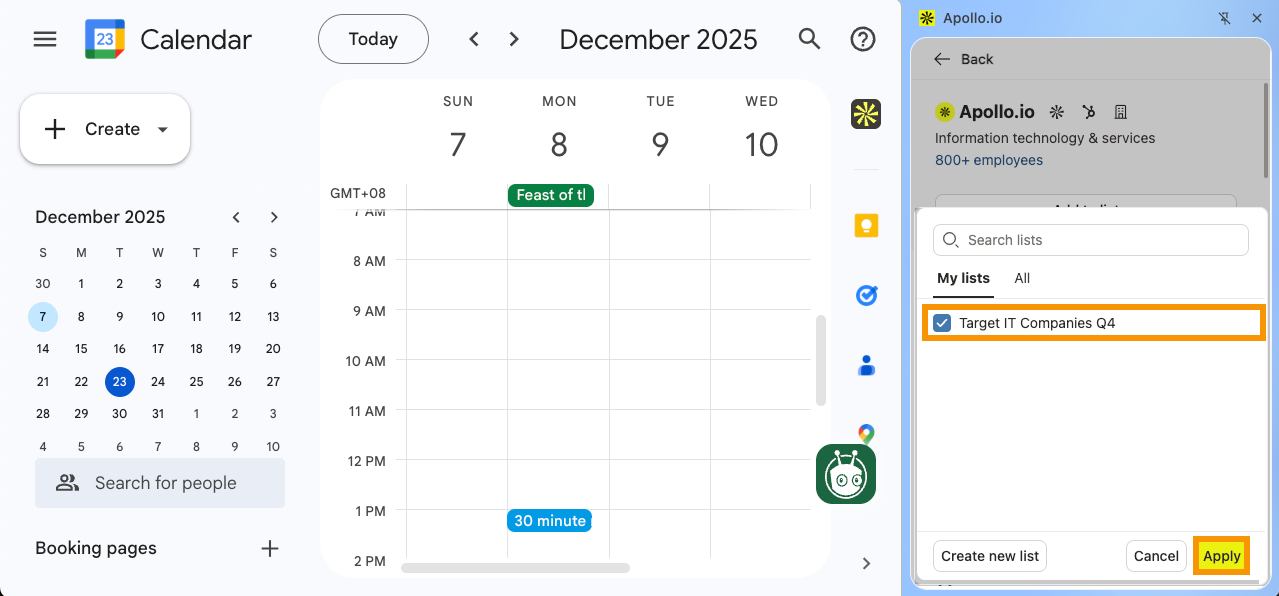
- Select your preferred lists.
- Click Apply.
- (Optional) To add the company to a new list, click Create a new list > Enter a list name > Click Create list & add.
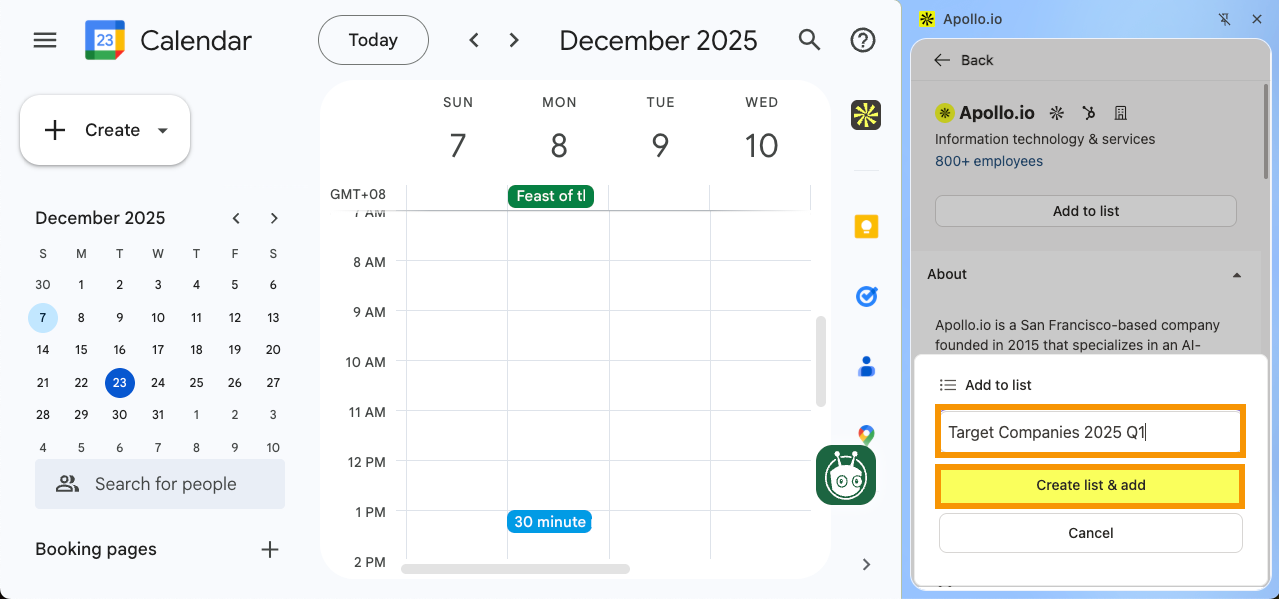
You have now added a company to a list with the Apollo Chrome Extension.
Review Additional Information
The following tabs are also available for additional context:
- Account owner
- Stage
Click See all fields to view all related fields to the contact.
| Information Tab | Description |
|---|---|
| About | Learn key details about the company, including its brief description, industries and keywords, location, number of employees, technologies used, and annual revenue. |
| Record fields | View your company fields: |
| Compatibility Check | Determine if a company fits your Ideal Customer Profile at a glance by leveraging signals based on demographic and behavioral filters that matter to you. |
| News | Stay up to date with the latest news about the company using this section. Use these insights to target and customize your messaging. |
| Conversations | Review and listen to recorded conversations for contacts within the company. |
| Links | Access relevant company information through their related links. |
| Similar Companies |
View lookalike companies that are similar to the account. This helps you find organizations with similar firmographic characteristics, making it easier to identify those most likely to benefit from your outreach. |
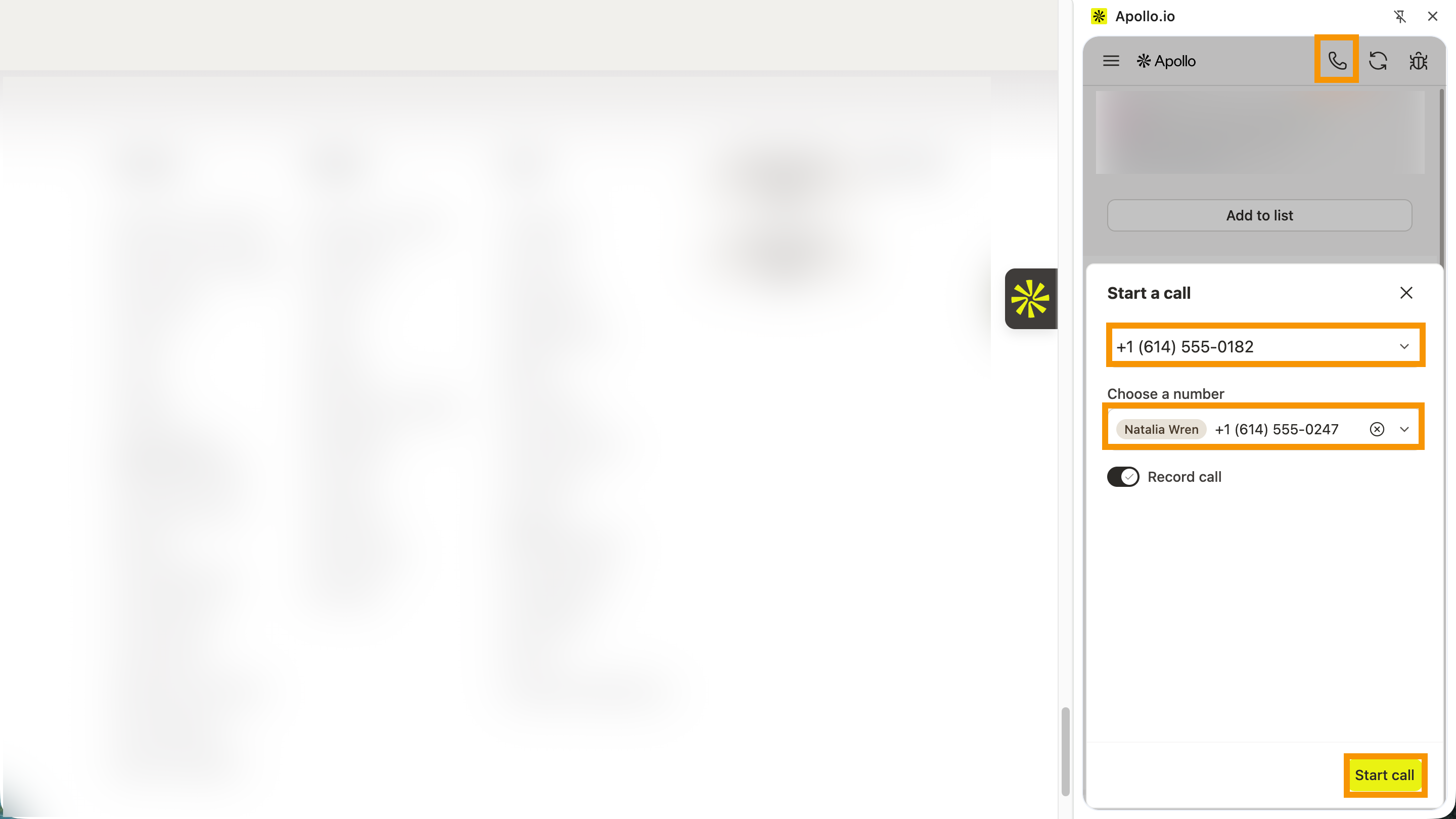
You can start a call directly from the extension. Click the Dialer > Select the number you want to call from > Select the number you want to call. Toggle on Record call to record the call, then click Start call.
View and Fulfill Tasks
You can view, filter, and fulfill your Apollo tasks wherever the Chrome extension is supported. To view and fulfill your tasks:
- Open the Apollo Chrome Extension from a supported website.
- Click Settings, then click Tasks.

- (Optional) Click Filters to filter your tasks.
- Select a task. You can complete email tasks directly from the extension. For other task types, such as phone calls or LinkedIn actions, perform the action manually, then mark the task as complete.

You have now viewed and fulfilled tasks using the Apollo Chrome Extension.
Next Steps
If you’re rolling out the Apollo Chrome Extension, these are the next clicks that make it feel “always-on” for you and your team.
| Install the Apollo Chrome Extension | Install and pin the Apollo Chrome extension to put prospecting and engagement tools right inside Gmail, Google Calendar, and the sites you already work in. |
|---|---|
| Apollo Chrome Extension Overview | Map out what the extension can do to pick the highest-impact surfaces (Gmail, Google Calendar, CRMs, company websites) for your rollout instead of trying everything at once. |
| Use the Apollo Chrome Extension Across All Websites | Surface Apollo insights on any company website to qualify accounts faster while you browse. |
| Troubleshoot the Apollo Chrome Extension | Run the Chrome Extension troubleshooting steps to fix missing widgets, login hiccups, or sync oddities before they derail your team’s workflow. |