
Overview
Lists allow you to consolidate related people and companies in a common location so you can easily prospect and engage. You can create a list, share lists with your teammates, use lists in a search, add lists to a sequence or workflow, enrich prospects in a list, and export lists for use in a CSV or your CRM.
Check out the following sections to create, share, and use lists in Apollo.
Create a List
You can create a list from people, companies, or lists on Apollo:
New people and company lists are shared with everyone in your organization with Can edit access by default. Admins can turn on Make new lists private in Settings > Outbound > Prospecting configuration. Changes apply only to new lists. Existing lists keep their current sharing settings.
To create a people list:
- Launch Apollo and click People.
- Click Show filters to use filters and find the right people.
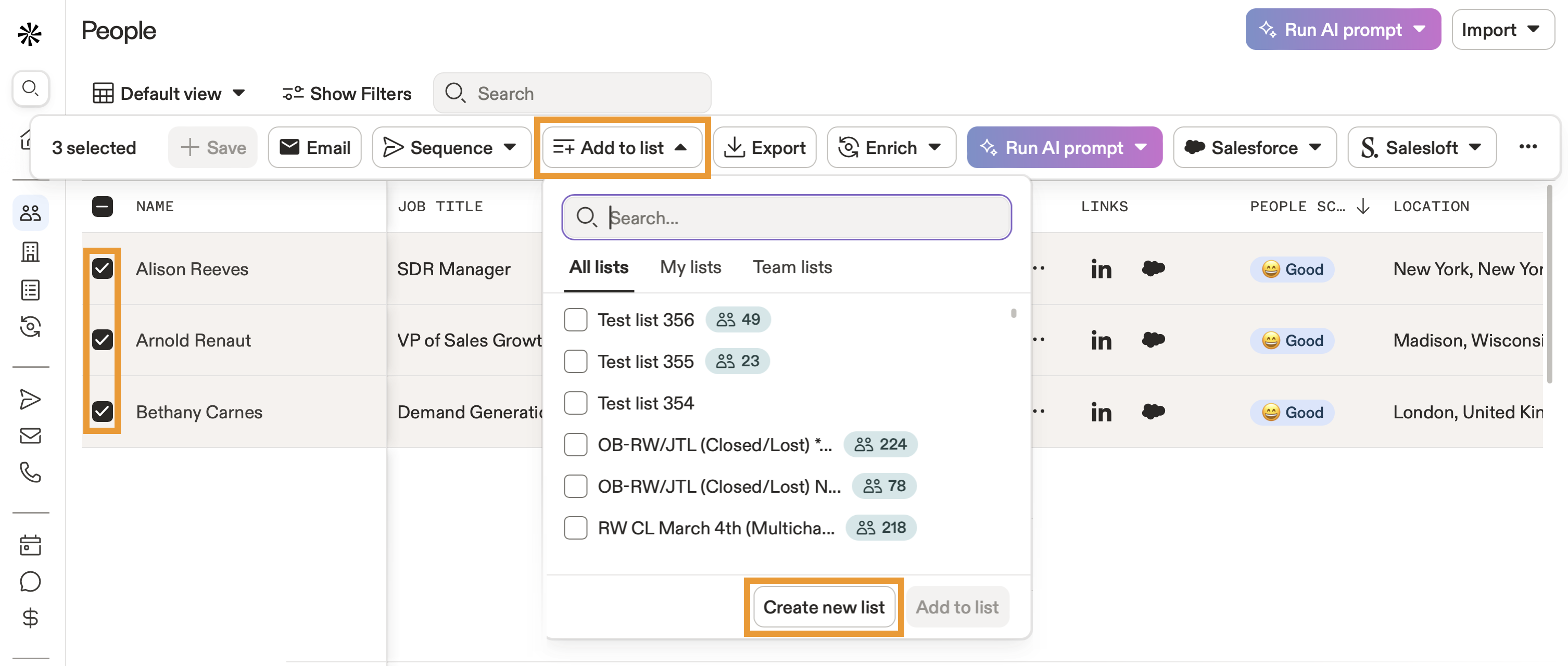
- Check each person you want to add, and click Add to list > Create new list.
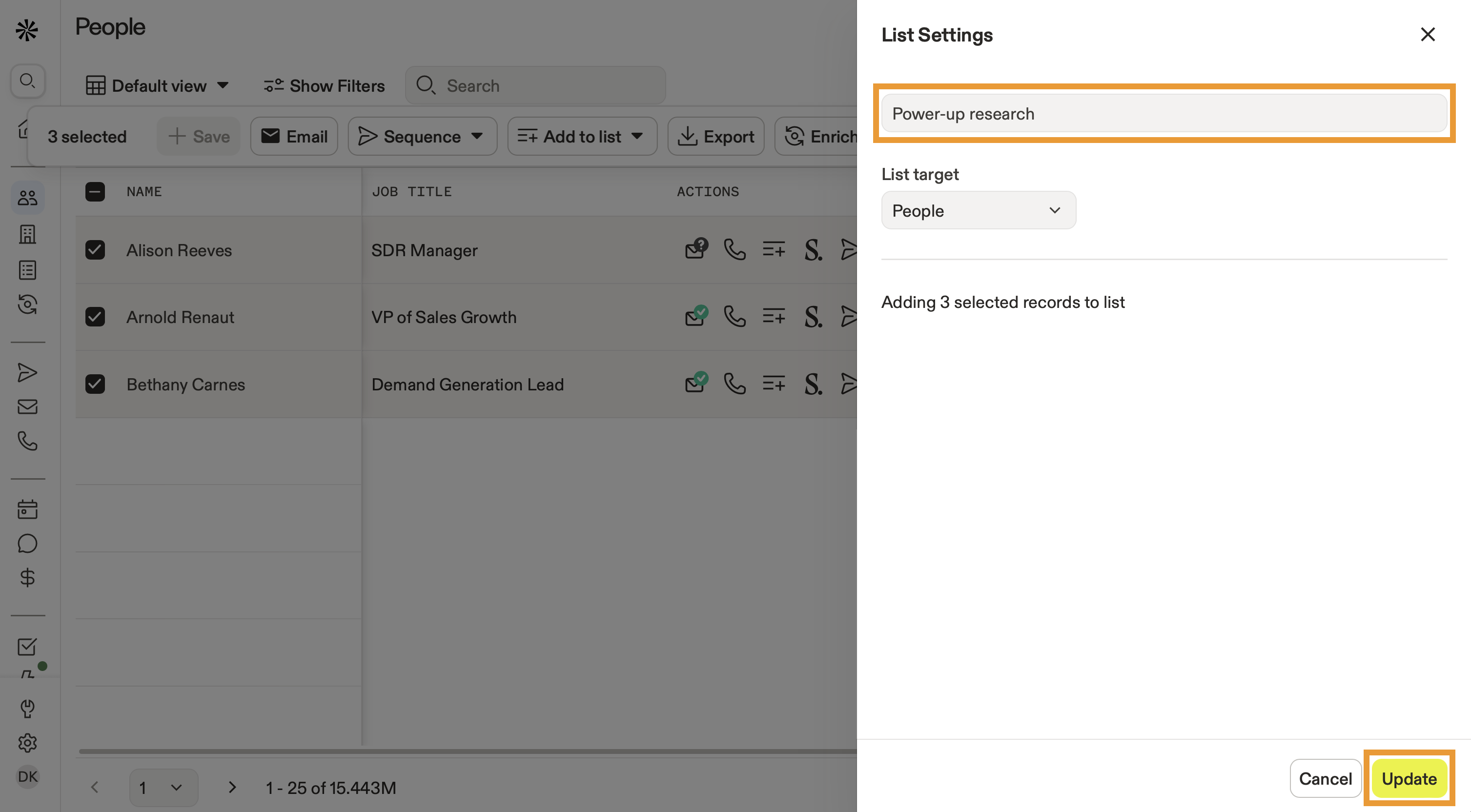
- Enter a name for your list, then click Update.
It costs one email credit per verified email to add net new contacts to a list. It doesn't cost credits to add previously saved contacts to a list. To track credit usage, launch Apollo and click Settings > Manage Plan.
Check out Apollo plans to see plans and credit packages.
You have now created a list. You're ready to use your list.
To create a companies list:
- Launch Apollo and click Companies.
- Click Show filters to use filters and find the right companies.
- Check each company you want to add, and click Add to lists > Create new list.

- Enter a name for your list, then click Update.

You have now created a companies list. You're ready to use your list.
To create a list from the lists hub:
- Launch Apollo and click Lists.
- Click Create a list.

- Give your list a name, and choose whether to create a people or companies list. Then click Select filters.

- Use search filters to find the right prospects. Check the ones you want to add, and click Add to list.
- Alternatively, click Upload CSV to import prospects via a CSV.
- When finished, click Create.

You have now created a list. You're ready to use your list.
Do it faster and easier with the AI Assistant on Apollo. Check out how to use the AI Assistant to create a list.
Share a List
You can keep a list private, share it with specific teammates or teams, or share it with everyone in your organization.
To change a list's sharing settings, you must have Full access to the list or the Can view, edit, share and delete all lists permission. If you have Can edit or Can view access, ask someone with full access to update the sharing settings.
To share a list:
- Launch Apollo and click Lists.
- Use one of the following options:
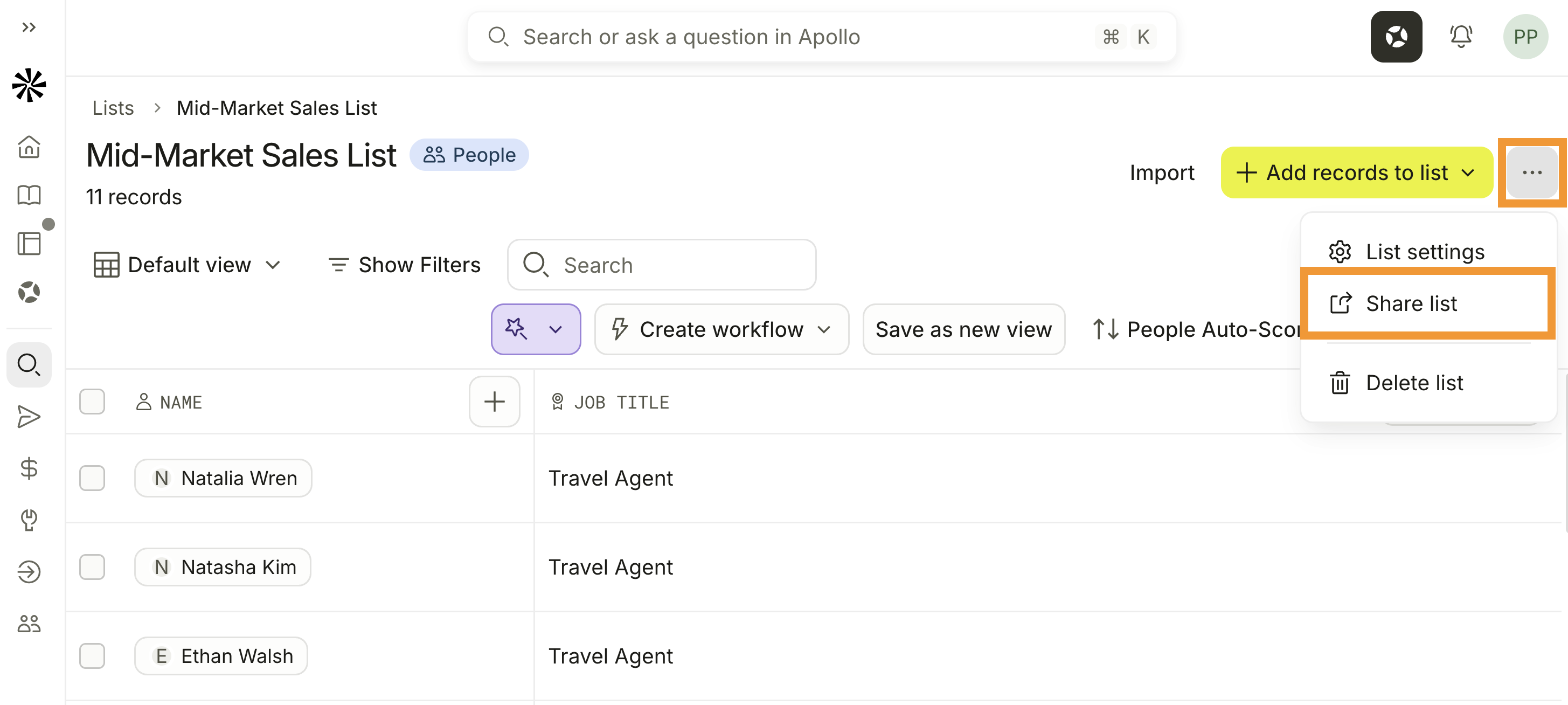
- Open the list, then click … > Share list.
- From the Lists page, click … beside the list, then click Share list.
- To share the list with everyone in your organization, update the list visibility.
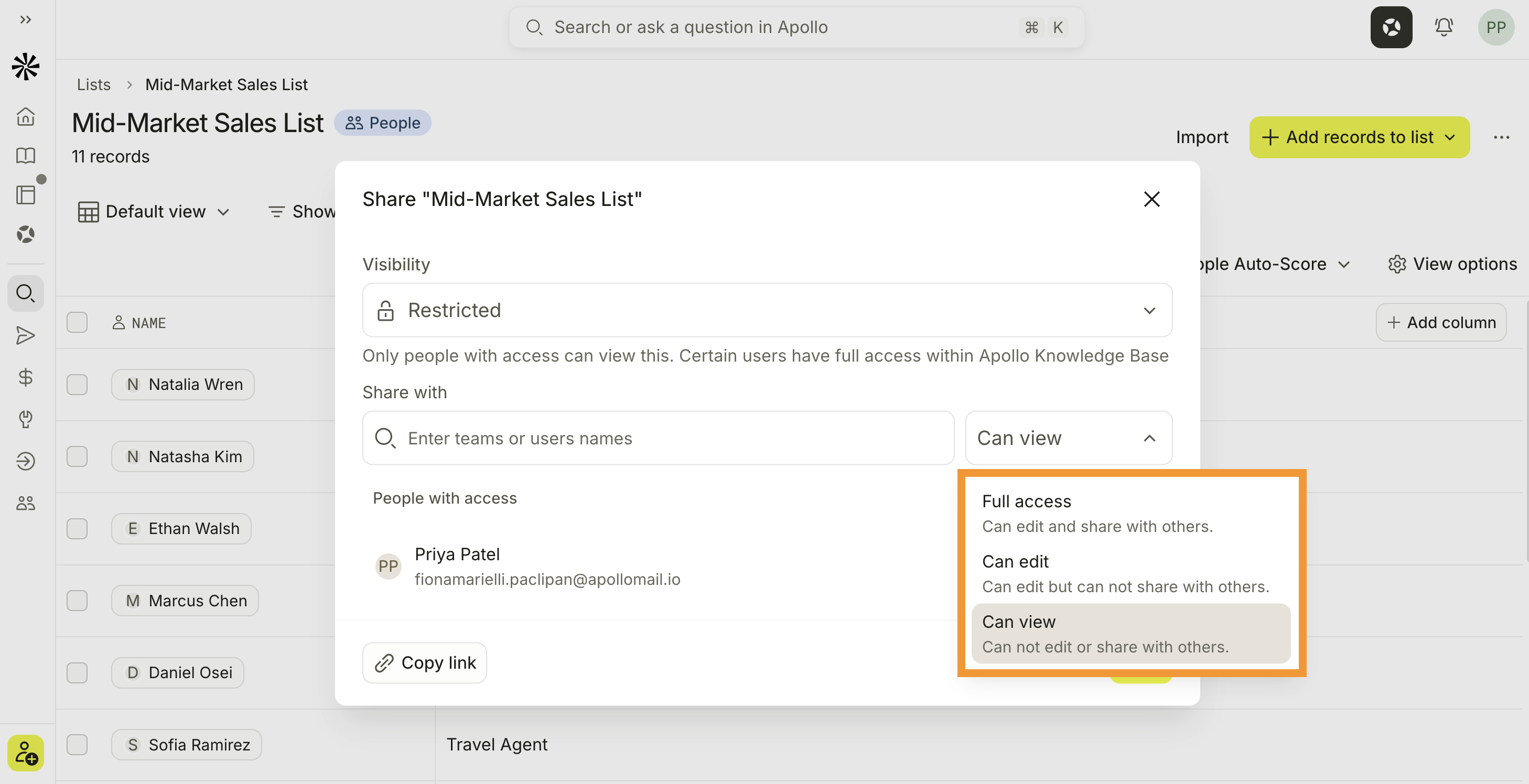
- Alternatively, enter specific team or teammate names, then select their permission level:
- Full access: Teammates can view, use, edit, and share the list.
- Can edit: Teammates can view, use, and edit the list, but they can't share it.
- Can view: Teammates can view and use the list, but they can't edit or share it.
- (Optional) Click Copy link to copy a direct link to the list.
- When finished, click Done.
You have now shared a list. Teammates you shared the list with can access it when they use Apollo.
Apollo only shows lists you can access. If a list is missing or a direct link displays a no-access page, contact the list owner. Apollo doesn't currently support access requests.
Use a List
Use lists to email prospects, add people to sequences or workflows, export lists to a CSV, or enrich the data in your list so that phone numbers and email addresses are up-to-date.
Did you know? You can use AI research on a list to accelerate your manual research or to craft personalized messaging for your outreach. AI research helps you uncover insights about the people or companies you're researching. Learn more about how AI research works.
To use a list:
- Launch Apollo and click Lists.
- Apollo shows the people and company lists you can access.
- Click Show filters to search for specific lists.

- To add people lists to a sequence, check one or more people lists, then click Add to sequence, and choose a sequence.

- Click a list to view the people or companies associated with it.
- Apollo shows your list. To take action on prospects, check one or more records, or use bulk selection. Then select an action.

You can take the following actions on prospects in a list:
You can also use lists in a search. When you have a large group of contacts or accounts in a list, narrow your focus with additional search filters like buying intent or personas.
You have now used a list on Apollo.
FAQs
|
Frequently asked questions |
||
| How do I add and remove prospects from a list? | How do I delete a list? | Who can see lists that I create? |
| How do I view companies from a people list? | How do I find people from a companies list? | How do I export a contact or account list to a CSV? |
| How do I import records from a CSV or CRM and add to a list? | Can I create and manage lists through an AI tool or with API? | |
How do I add and remove prospects from a list?
You can add and remove prospects from lists.
Add contacts
To add people or companies to a list:
- Launch Apollo and click People or Companies.
- Use search filters to narrow your results.
- Check one or more prospects, then click Add to list.
- Select one or more lists you can access, then click Add to list.
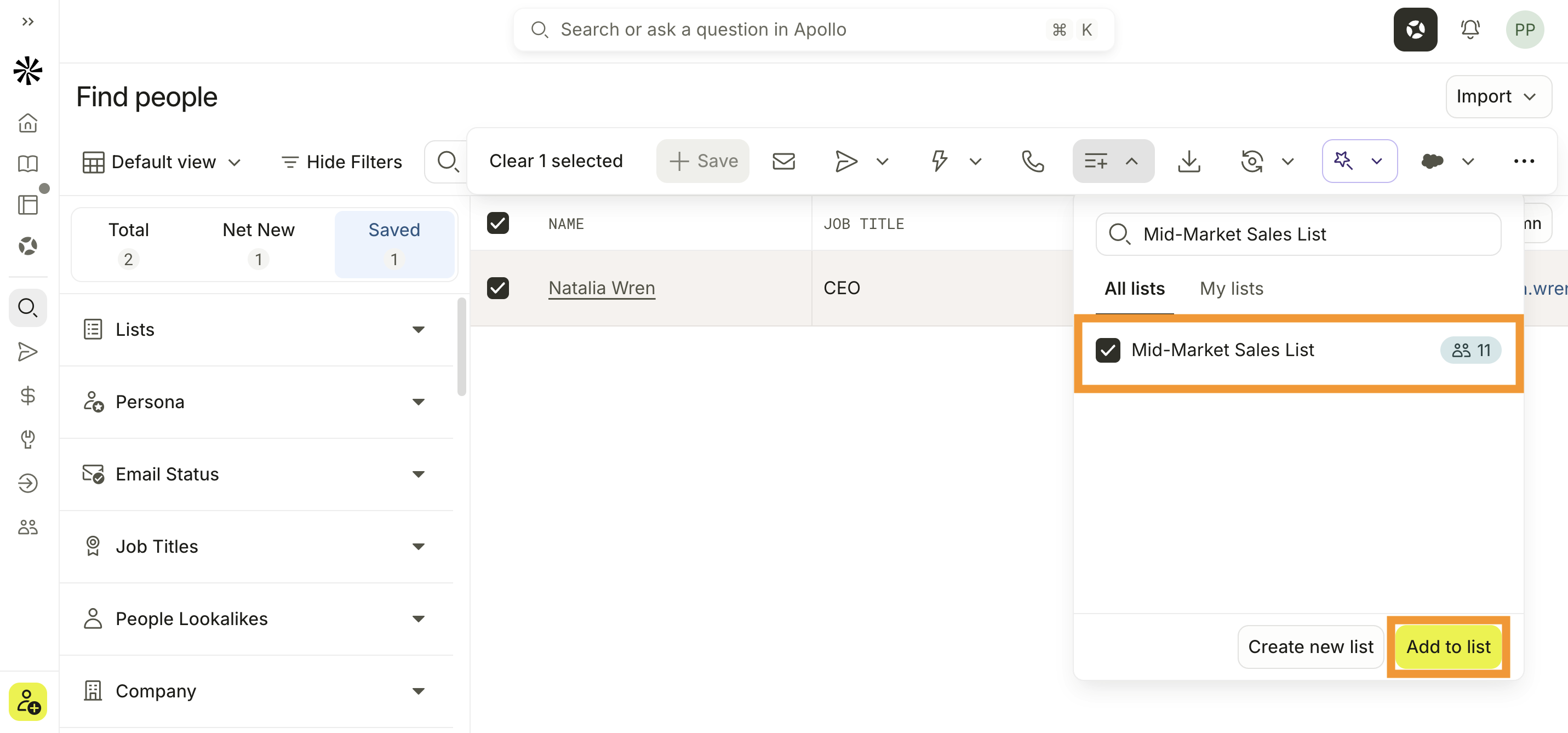
Apollo adds the selected people or companies to the list. If you no longer have permission to edit a selected list, Apollo displays an error that identifies the list it couldn't update.
Remove contacts
To remove people or companies from a list:
- Launch Apollo and click Lists.
- Click a list.
- Check one or more prospects, then click ... > Remove from lists.
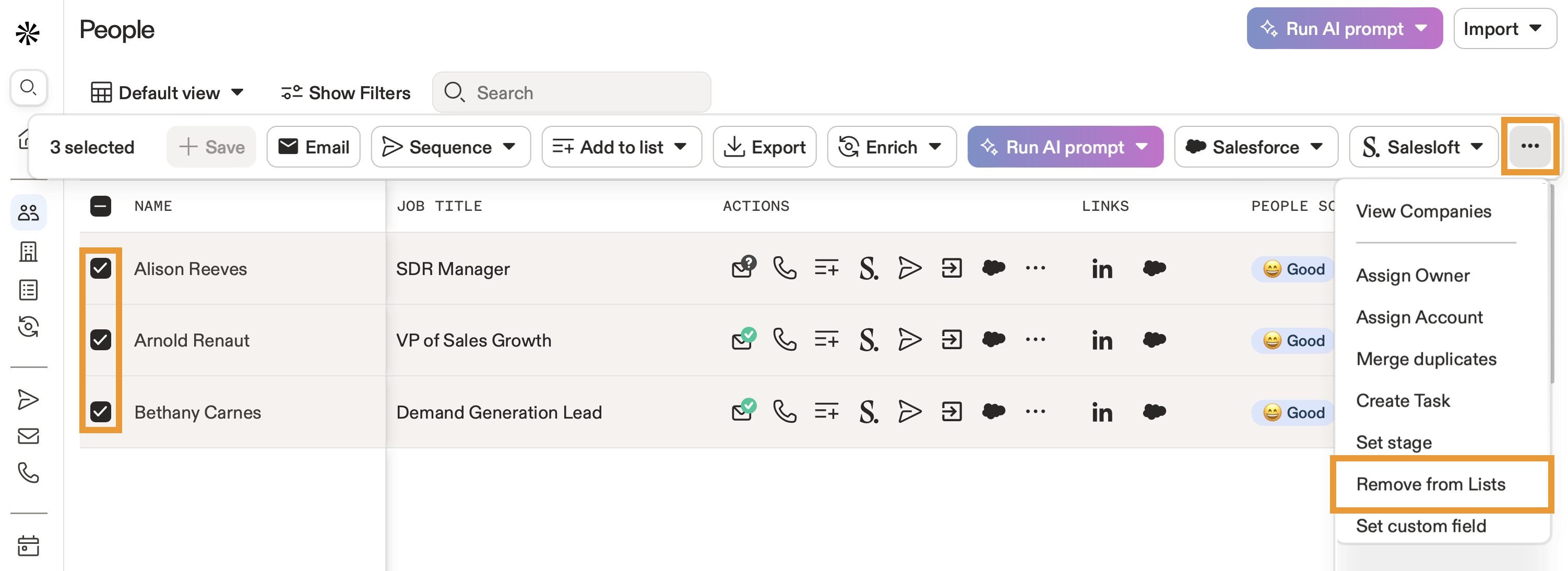
You have now edited a list.
How do I delete a list?
To delete a list:
- Launch Apollo and click Lists.
- Click … beside the list, then click Delete list.
- Click Delete to confirm.
To delete a list created by someone else, you must have access to the list and the Can delete lists created by others permission. The same requirements apply when you delete multiple lists at once. Teammates with Can view, edit, share and delete all lists can manage every list, including private lists.
You have now deleted a list.
Who can see lists that I create?
New people and company lists are shared with everyone in your organization with Can edit access by default. You can keep a list private, share it with specific teammates or teams, or share it with everyone in your organization.
Apollo admins can turn on Make new lists private in Settings > Outbound > Prospecting configuration. Changes to this setting don't affect existing lists.
Teammates with the Can view, edit, share and delete all lists permission can access and manage every list, including private lists.
Apollo only shows you lists you can access. If you can't find a list, contact the list owner to ask for access.
How do I view companies from a people list?
To view companies from a people list:
- Launch Apollo and click Lists.
- Click a people list.
- Check one or more contacts, then click ... > View companies.
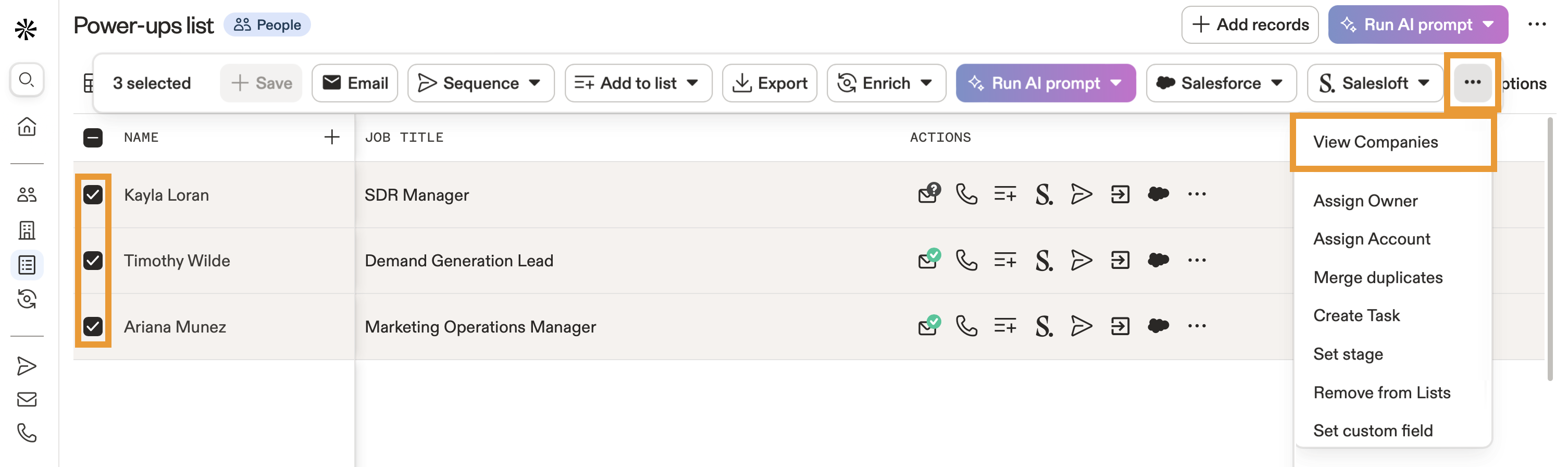
- Apollo shows companies associated with the people you selected.
You have now viewed companies from a list.
How do I find people from a companies list?
To find people from a companies list:
- Launch Apollo and click Lists.
- Click a companies list.
- Check one or more companies, then click View contacts in selected accounts.
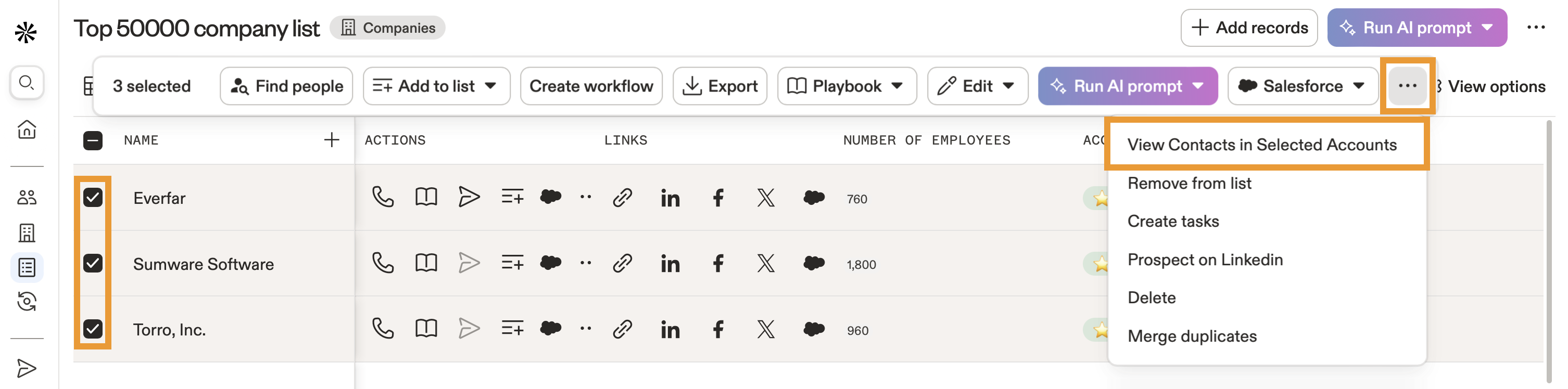
- Apollo shows people associated with the companies you selected.
You have now found people from a list.
How do I export a contact or account list to a CSV?
To export a list to a CSV:
- Launch Apollo and click Lists.
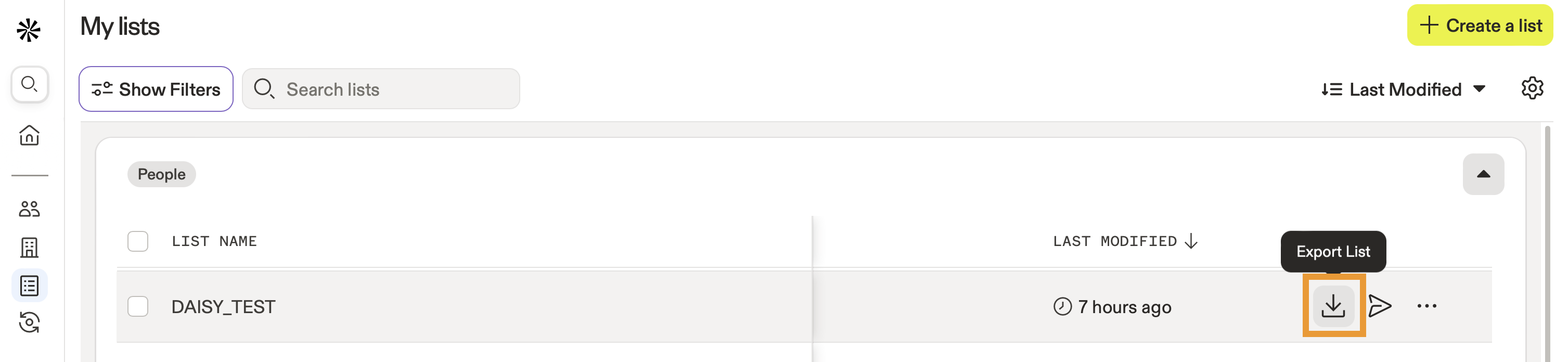
- Click Export beside your list.
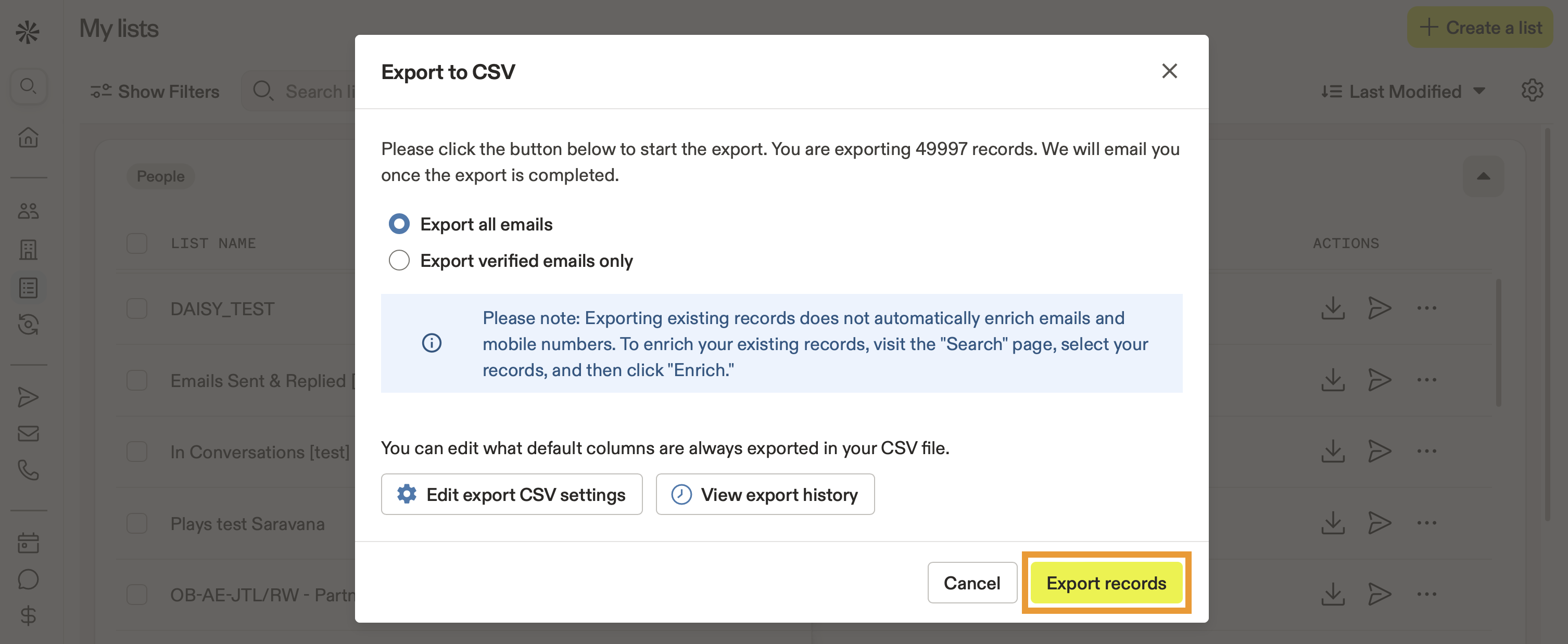
- Choose whether to export all emails or only verified emails.
- Click Export records.
The order of rows in the exported CSV may differ from the order shown in your list. After you download the file, sort the rows in your preferred order.
You have now exported a list as a CSV.
How do I import records from a CSV or CRM and add to a list?
You can add records from a CSV file or from your CRM integration.
From a CRM
To add records from a CRM to a list:
- Ensure your CRM integration is connected with sync settings enabled.
- Salesforce: Connect the integration > Set sync settings > Map fields.
- HubSpot: Connect the integration > Set sync settings > Map fields.
- Pipedrive: Connect the integration > Set sync settings > Map fields.
- Next, launch Apollo and click People or Companies.
- Click Show filters and select the source filter. Set the source to Imported from CRM.
- Apollo shows records imported from your CRM. Check one or more contacts or accounts, then click Lists > Add to lists.
From a CSV
To import prospects from a CSV to a list:
- Launch Apollo and click Lists.
- Click Create a list and give your list a name. Then click Upload a CSV.
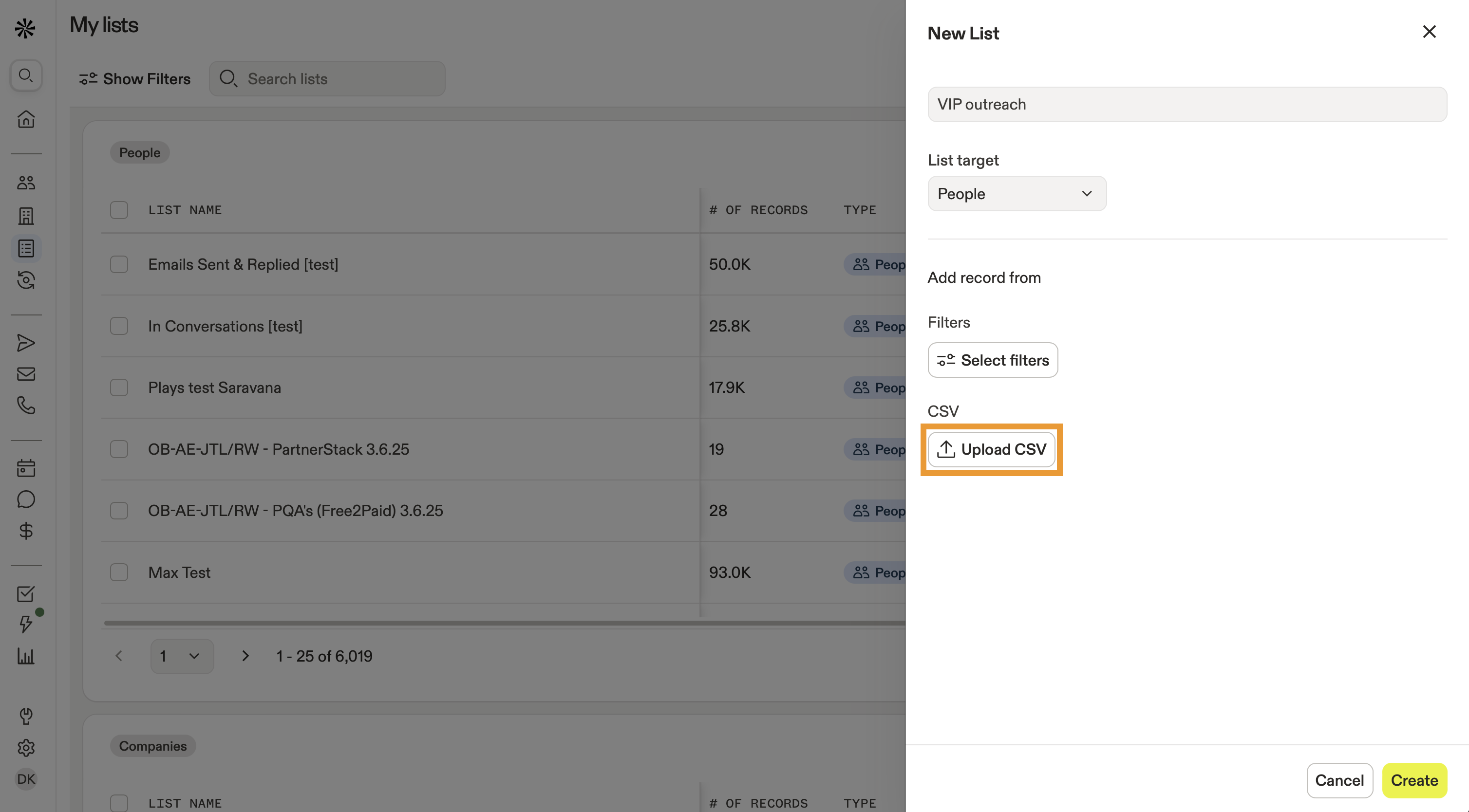
- Click Select CSV.
- Select the CSV file on your computer, then review the field mapping and import settings.
- When finished, click Import.
Learn more about importing accounts or contacts from a CSV.
You have now imported contacts or accounts to a list.
Can I create and manage lists through an AI tool or with API?
Yes, you can. Use the lists API to create lists and add or remove saved contacts or accounts, or ask your connected AI tool to manage lists using Apollo MCP. Remember: save prospects as contacts or accounts before adding them to lists. Contact lists and account lists hold different record types.
Next Steps
Here are a few next steps to supercharge your prospecting:
| Import a CSV of Contacts | Did you know? You can import a CSV of contacts to quickly populate your lists with existing prospects. Try it out, and hit send on sequences without manual entry. |
|---|---|
| Use CSV Enrichment | Got existing prospects? Use CSV enrichment to keep all your list data up-to-date and accurate so your outreach reaches the right people at the right companies. |
| Search Filters Overview | Use search filters to narrow down thousands of records into a precise list your team can target with laser focus. |
| Use the Outbound Copilot | New to AI on Apollo? Try out the outbound copilot to automatically build ideal-customer lists in seconds, so you can spend more time on personalized outreach. |
| Save Contacts and Accounts | Save contacts and accounts to your lists straight from search to instantly grab high-potential prospects when inspiration strikes. |