
Overview
In Apollo, you can send emails manually, through sequences, or as part of automated workflows. When an email doesn't send, it's usually because Apollo didn't try to send it, tried but couldn't deliver it, or blocked it due to your settings. Each cause has a specific resolution.
Most send issues are easy to fix. With a few quick checks, you can usually get things back on track and keep your outreach humming.
Check out the following sections to identify a sending problem and resolve it.
Did you know? You can use the AI assistant to troubleshoot sending issues. The assistant helps you identify likely causes and recommended next steps, so you can resolve email delivery problems faster and more efficiently.
Troubleshoot Sending Emails
Email sending issues on Apollo usually fall into one of three categories. Choose the scenario that matches what you're seeing to get started:
| Problem | Where to start |
|---|---|
| Apollo hasn't scheduled or delivered any of your emails. | Check sequence setup and wait times between steps. |
| Apollo sent your emails, but they failed to deliver. | Review bounce reasons or "not sent" status. |
| Apollo hasn't attempted to send your emails. | Check send time and contact owner. |
Emails Haven't Been Scheduled or Sent
If you added contacts to a sequence, but Apollo hasn't scheduled or delivered any emails, review these common causes:
- The sequence is inactive
- The sequence step is inactive
- The wait time between steps is too long
- A task is blocking the contact
- The sequence is auto-paused
The sequence is inactive
Ensure you activate the sequence associated with the email you expect to send.
To activate your sequence:
- Launch Apollo and click Sequences.
- Toggle the sequence on.

The sequence step is inactive
Ensure you activate the sequence step associated with the email you expect to send.
To activate sequence steps:
- Launch Apollo and click Sequences.
- Click the sequence that you need to review.
- Toggle the sequence steps on.

The wait time between steps is too long
Check the wait time between each sequence step associated with the email you expect to send.
To verify or change wait time between a step:
- Launch Apollo and click Sequences.
- Click the sequence that you need to review.
- Check the wait time shown to the right of each step. Apollo won't send your contacts any emails until this time has passed.

- To edit the wait time, click . . . > Edit.

- Use the When to start this step option to adjust the wait time between steps.

- When finished, click Continue.
A task is blocking the contact
Apollo sends automatic email steps without action from your team. LinkedIn, call, manual email, and action item steps create tasks that someone must complete. Apollo keeps the contact at the task step until someone completes or skips the task.
If the task becomes overdue, Apollo displays a blocked task badge in Contacts. Apollo doesn't display the badge before the task's due date.
To resolve a blocking task:
- Launch Apollo and click Sequences.
- Select the sequence, then click Contacts.
- Find the contact with the blocked task badge.
- Hover over the badge, then click View task.
- Complete or skip the task.
You have now resolved the blocking task. Apollo advances the contact to the next sequence step.
The sequence is auto-paused
Apollo automatically paused the sequence because its bounce rate exceeded the auto-pause threshold in your sending policy. While the sequence is paused, Apollo stops sending emails to contacts in the sequence.
To resolve this:
- Click Sequences, then open the auto-paused sequence.
- Click Health.
- To reduce your sequence's bounce rate, complete a cleanup action like enriching contacts, removing bounced contacts, or checking domain authentication.

- Click Activate to resume sending.
You have now reactivated the sequence. Apollo resets the bounce-rate evaluation, so your updates have time to take effect.
Emails Sent but Didn't Deliver
If Apollo sent your emails but they failed to deliver, use deliverability scoring to confirm your mailbox's deliverability rating. If your deliverability score is poor, you need to immediately adopt email deliverability best practices and explore ways to resolve your mailbox health.
If your deliverability scores are good, there are two possible causes for email delivery issues:
Bounced emails
If an email bounces, it means that the recipient's email address no longer exists or there's an error in the recipient's information. When this happens, the email is returned and the email status is updated to Bounced. Learn more about troubleshooting bounced emails.
When Apollo detects a hard bounce, Apollo automatically removes the email address from contacts to prevent further outreach. However, if you import a contact with the same email address from a CSV or CRM, you can still email them, and it could result in a not sent email.
To resume emailing a bounced contact, check out Sequences Overview.
Not sent emails
Sometimes Apollo doesn't send an email at all. This isn't a delivery failure, but a deliberate block based on your settings, missing information, or a detected risk. You can filter these emails to find out exactly what happened, and take steps to fix the issue.
To view not sent emails:
- Launch Apollo and navigate to Emails.
- Click Show Filters then filter by Status > Not sent.
- Apollo shows your not sent emails. Hover over the email status to see the not sent reason.

- Alternatively, filter by Not Sent Reason, and select one or more not sent reasons.
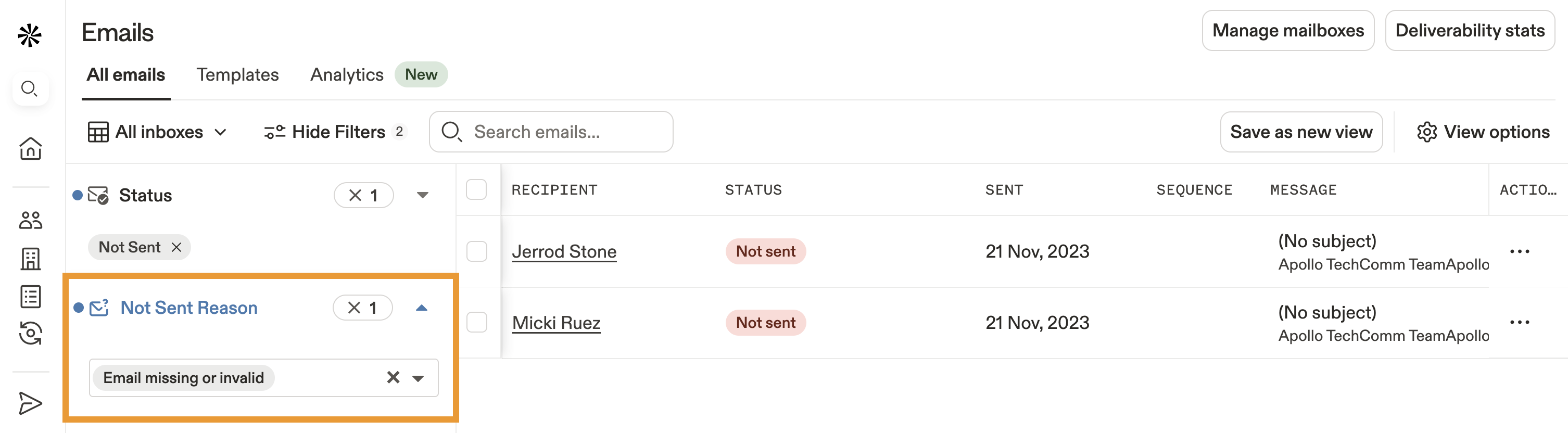
Learn more about filtering, viewing, and responding to emails.
If you tried the troubleshooting steps in this article, but you're still having issues with emails not delivering, check out the following possible solutions:
| Not Sent Reason | Explanation | Solution |
|---|---|---|
| AI Variable Generation Failed | If an email shows Not sent - AI variable generation failed, Apollo couldn't generate the required AI content before sending the email. This is an AI content-generation issue, not a standard email-delivery failure. | Check out Troubleshoot the Writing Assistant to check for missing AI or dynamic-variable inputs and credit or AI-usage issues. Correct the issue, then proceed from the corrected draft. |
| Blocked Account Stage |
When you create a sequence, you have the option to mark emails as
Not Sent when an account is in a selected account stage
through a
sequence ruleset.
If you try to send an email to an account that is in one of the selected
stages, Apollo won't send the email.
|
You can change the stage of a specific account that you want to email, or you can change the settings in the sequence ruleset so that Apollo no longer blocks emails to any accounts in the stage. After making this change, try sending the email again. |
| Blocked Contact Stage |
When you create a sequence, you have the option to mark emails as
Not Sent when a contact is in a selected contact stage
through a
sequence ruleset.
If you then try to send an email to a contact in one of the selected
stages, Apollo won't send the email.
|
You can change the stage of a contact that you want to email, or you can change the settings in the sequence ruleset so that Apollo no longer blocks emails to contacts in the stage. After making this change, try sending the email again. |
| Contact / Account Not Owned by User | You might only have permissions to send emails to the contacts you own. If you try to email another user's contact or account, Apollo won't send the email. | Re-assign ownership of the contact, or ask an Apollo admin to change your permissions so you can send emails to other users' contacts and accounts. |
| Email Missing or Invalid | If you added a contact with no email address to your sequence, Apollo won't send the email. | Update the email address on the contact's profile. When the information is up-to-date, resend the message. |
| Email Service Provider Error | If a contact's email server is unable to deliver the email and returns an error to Apollo, Apollo can't send the message. | Hover your mouse over the "Email Service Provider Error" in Apollo to find out more about the error. Use this information to troubleshoot email delivery, or reach out to Apollo support. |
| GDPR Compliance: Location Blocked | General Data Protection Regulation (GDPR) is a European Union law designed to protect the privacy and personal data of individuals within the EU and EEA. On Apollo, GDPR compliance settings can be set to forbid sending emails to people in the European Union. | To email contacts in GDPR protected locations, ask your Apollo admin to adjust the GDPR compliance settings. Alternatively, remove the contact from the sequence or limit outreach to permitted regions. Learn more about General Data Protection Regulation (GDPR) on Apollo. |
| Likely to Bounce | If an email to a contact's email address has previously bounced, Apollo automatically prevents you from sending to that email address again. | You can filter your emails for the not sent reason likely to bounce, then click Retry Undelivered Emails to resend the email. Check Force send emails to bypass safety checks like contact stage, account stage, or previously detected bounces. Additionally, you can edit your sequence ruleset to ignore bounce protection. |
| Mailgun Dropped the Email | If you integrate Mailgun with Apollo and Mailgun drops the email before sending, Apollo marks the email not sent. Drops typically happen due to invalid email addresses, servers blocking delivery, or throttling by the recipient server. | Log in to your Mailgun dashboard and check email logs to confirm why the email was dropped. Check Mailgun to see if your message will be retried. If the recipient is on a suppression list, you may need to remove them manually or correct the email address before retrying. For more help, contact Mailgun support. |
| Missing Dynamic Variable | If you used dynamic variables in a message and the contact you want to email doesn't have a value for a dynamic variable, Apollo won't send the email. | To fix the issue, edit the contact's profile to add a value for the missing field. Alternatively, change the dynamic variable to an advanced dynamic variable and add a fallback for this type of scenario. |
| Missing Snippet | If you include snippets in a message and the contact you want to email doesn't have a value for the snippet, Apollo won't send the email. | Edit the contact's profile to add a value for the missing field. Alternatively, change the snippet to an advanced snippet and add a fallback for this type of scenario. |
| Missing Thread Info | If you set the email type as "Reply to a Previous Thread" and the contact deletes the previous email, Apollo won't send the email. | You can send this contact a manual email. To ensure the next emails in the sequence are sent, adjust any other emails in the sequence to send as part of a new thread. |
| New Job Change Detected | If a new job change is detected on a contact in a sequence, Apollo prevents sending emails to the contact to avoid outreach with outdated information. | You can filter your emails for the not sent reason job change detected, then click Retry Undelivered Emails to resend the email. Check Force send emails to bypass safety checks like contact stage, account stage, or previously detected bounces. |
| No Send From Mailbox Selected | When you add contacts to a sequence, you must assign a mailbox. If one of your teammates removes a mailbox to which you linked your contacts in the sequence, Apollo won't send the email. | You can update an existing mailbox or link the sequence to another mailbox. |
| Other |
If an email fails to deliver for any other reason, Apollo shows an
Other error.
|
Reach out to Apollo support for assistance. |
| Same Account Replied | If you set a sequence rule not to send when another contact from the same account replies in any sequence, Apollo won't send the email. | Update the settings in the sequence ruleset, then send the email again. |
| Send-from Mailbox Inactive | If the mailbox you selected to send from becomes inactive, such as by being disconnected, removed, or having its credentials changed, Apollo won't send the email and marks it as not sent. | Go to Settings > Mailboxes to check the status of your mailbox. Reconnect or verify the mailbox if needed. Then return to the email and retry sending, or select a different mailbox in the sequence step settings. If a team member has left, you can unlink their mailbox and choose another mailbox to replace it. |
| Sendgrid Dropped the Email | If you integrate SendGrid with Apollo and SendGrid drops the email before sending, Apollo marks the email not sent. Drops typically occur due to invalid addresses, prior bounces, spam complaints, unsubscribes, or rate limits on the recipient's server. | Log in to your SendGrid account and open the email activity feed to view drop events. Check if the recipient is listed under Suppressions such as bounces or blocks. If needed, remove the contact from suppression or update the email before retrying. For further help, contact SendGrid support. |
| Unverified Email | If it's your first time sending an email to a contact with an unverified email, Apollo won't send the email as a failsafe. | Unverified emails have a 60-80% success rate. Try sending the email again. |
Emails Not Attempted
If Apollo hasn't tried to send your emails, there are 2 possible reasons:
- An admin in your team has deleted the person associated with the contacts in your sequence. To solve this issue, change the contact owner, and then send the email again.
- The time or date you scheduled the email to send has already passed. To solve this issue, edit the send time for the step.
FAQs
| Frequently asked questions | ||
|---|---|---|
| Why haven't my sequence emails sent at the scheduled time? | Why are my emails still in scheduled status and not sending? | How do I filter for not sent emails? |
| How can I tell if a sequence email requires manual review? | How do I fix missing snippet or dynamic variable errors? | How do I resend an email that wasn't sent? |
| If I skip a manual email task, will the next automatic email still send? | ||
Why haven't my sequence emails sent at the scheduled time?
This usually happens when the send time you selected has already passed or falls outside of the sequence schedule settings. Check that the step is active and scheduled correctly. You may need to reschedule the step for a valid time.
Also, check whether Use the contact's local time zone instead of the schedule's time zone, if the contact contains location data is enabled in the sequence's schedule settings.

When active, this setting shifts send times based on the contact's location, so emails may appear to send outside your expected window, but they're actually sending correctly for the contact.
Why are my emails still in scheduled status and not sending?
Emails in scheduled status are waiting on a configured delay between sequence steps or a future send time. If it's a manual step, the email won't go out until you take action. Make sure the wait time between steps has passed or check the task queue for emails requiring manual review.
How do I filter for not sent emails?
To filter for not sent emails:
- Launch Apollo and navigate to Emails.
- Click Show Filters then filter by Status > Not sent.
- Apollo shows your not sent emails. Hover over the email status to see the not sent reason.
- Alternatively, filter by Not Sent Reason, and select one or more not sent reasons.
Check out not sent reasons and solutions.
Learn more about filtering, viewing, and responding to emails.
How can I tell if a sequence email requires manual review?
If a sequence includes a manual email step, Apollo won't send it automatically. You have to manually send these emails. You can find these under the Tasks, then filter for your sequence. Open the email, customize it if needed, and schedule or send it manually.
How do I fix missing snippet or dynamic variable errors?
If you see a missing snippet or dynamic variable error, a contact is missing data to fill a snippet or a dynamic variable. Apollo won't send the email until every required value is populated. This applies whether you send the email manually, from a sequence, or from a workflow email step.
To resolve this, review the error message to identify the missing value, then either update the contact or use advanced dynamic variables with fallback logic so the email can still send even when a value is missing.
How do I resend an email that wasn't sent?
Be sure to resolve the underlying not-sent issue before retrying, or Apollo may block the send again.
To resend an email:
- Launch Apollo and click Emails.
- Click Show filters and set the status filter to Not sent to view undelivered emails. Check each email you want to resend, then click Retry Undelivered Emails.
- Alternatively, use the Not Sent Reason filter to narrow your results to specific not sent reasons, like likely to bounce.

- Review the information, then click the checkboxes if they apply to you. Click Retry.

Apollo indicates if it can reschedule the email.
If I skip a manual email task, will the next automatic email still send?
If the next automatic step is set to Reply to a Previous Thread, Apollo requires an existing thread to reply to. If the manual email task is skipped and no thread exists, Apollo marks the next step as Not Sent.
To resolve this, change the step to start a new thread, or send a manual email first to create the thread, then resume the sequence.
Next Steps
Use these tools to strengthen your email performance and stay on track with outreach.
| Email Deliverability Best Practices | Learn how to improve deliverability, avoid spam folders, and increase response rates. Apollo's guide covers domain setup, sending behavior, and writing emails that sound human and authentic. |
|---|---|
| Troubleshoot Bounced Emails | Understand why emails bounce and how to prevent it. Fix hard bounces and manage risky contacts to protect your domain reputation. |
| Use Email Warmup | Use email warmup to help build a positive sender reputation and signal to mailbox providers that your emails are safe and trustworthy. |
| Email Deliverability Webinar | Watch Apollo's deliverability 101 webinar to learn deliverability do's and don'ts directly from sales experts. This webinar includes real-world sending strategies and audience Q&A. |
| Sequences Overview | Learn how sequences work on Apollo, including step types, sending logic, manual actions, and how to set your outbound pipeline up for success. |